What should you check before choosing?
For older people and anyone helping them choose a device for communication and everyday online tasks, start with the difficulty that most affects the person's use.
Adapt a device you already have
Consider this when: the main barrier may be text size, screen feedback or input settings rather than the device itself.
Trade-off: settings need to be enabled and practised, and may not resolve every app or control issue.
Choose a smartphone
Consider this when: one portable device for calls, messages and video calls matters most.
Trade-off: a smaller display may be harder to read than a tablet screen.
Choose a tablet
Consider this when: calls, photos and browsing are mainly done seated and a larger touch display is useful.
Trade-off: it is less pocketable than a phone, and tapping still needs to feel manageable.
Choose a laptop or desktop computer
Consider this when: a physical keyboard, mouse or desk-based online tasks suit the user better than touch gestures.
Trade-off: check the computer's camera, microphone, speakers and ports for the intended call setup.
| Concern |
What to check |
Who this matters to |
| Screen visibility |
Try the screen at a comfortable distance with larger text, display zoom or spoken feedback enabled; compare with a larger screen. |
When faces and text are difficult to make out, following a call and reading everyday pages come first; about 25% of consumers prioritise screen visibility. |
| Manageable input |
Have the intended user answer a call, find a contact and write a short message using the controls they expect to use. |
If tapping, typing or gestures are frustrating, manageable controls for calls and messages take priority; roughly 25% of consumers put input and controls first. |
| Hearing and call access |
Test the intended calling app, audio output and captions where needed; check pairing with the exact hearing-device model. |
When following a conversation or taking part in calls is difficult, call audio and hearing access matter most; around 19% of consumers prioritise them. |
| Setup and ongoing help |
Plan who will set up the account and Wi-Fi, practise calls, and help with later updates or forgotten steps. |
If getting started and continuing to use a device confidently are the main hurdles, practical setup and ongoing help come first; about 31% of consumers prioritise support. |
Joybuy product options
These options cover tablets for seated, larger-screen use, smartphones for portable communication and a laptop for desk-based calls and online tasks.
 No image available
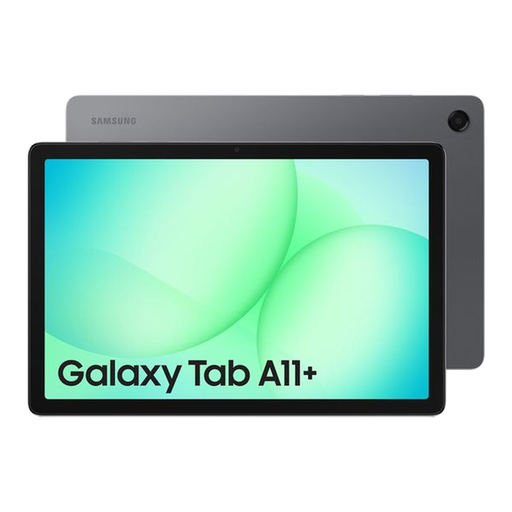
Samsung Galaxy Tab A11+ 8GB 256GB WiFi Gray
A tablet option to consider for seated calls and online tasks; check that its display and touch controls feel comfortable for the intended user.
Listed configuration: 8GB, 256GB, WiFi; Gray.
View on Joybuy
 No image available
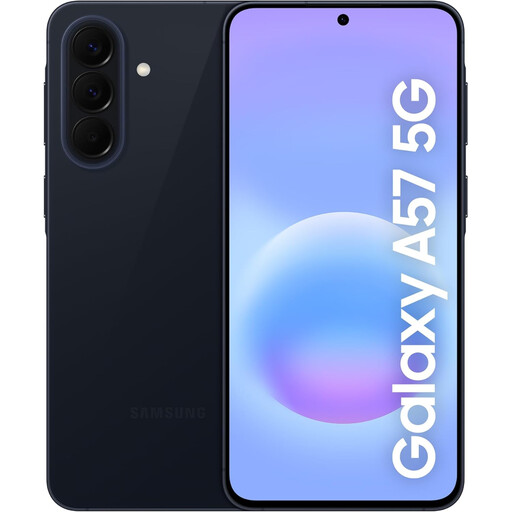
Samsung Galaxy A57 5G 256GB Awesome Navy
A portable smartphone option for calls and everyday communication; check the screen and controls with the person who will use it.
Listed configuration: 5G, 256GB; Awesome Navy. The listing states that a charging adaptor is not supplied.
View on Joybuy
 No image available
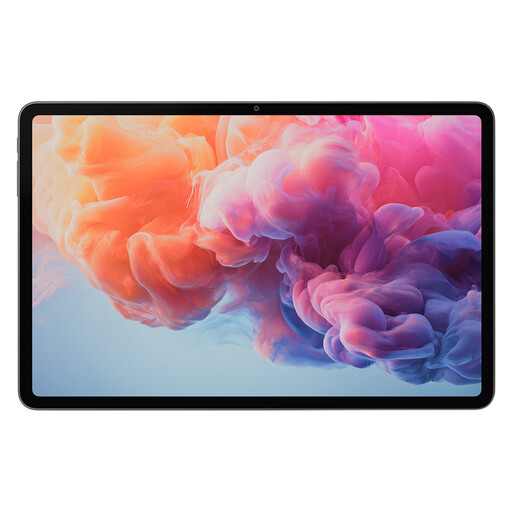
ALLDOCUBE iPlay 70 Pad Pro MTK G100, 8GB+128GB, 12.1-inch
A larger-format tablet to consider for seated calls and online tasks; check that its size and touch controls suit the intended user.
Listed details: 12.1-inch display, 10,000mAh battery, 8M FF+16M AF+ Flash Light. The product name states that no charger is included.
View on Joybuy
 No image available
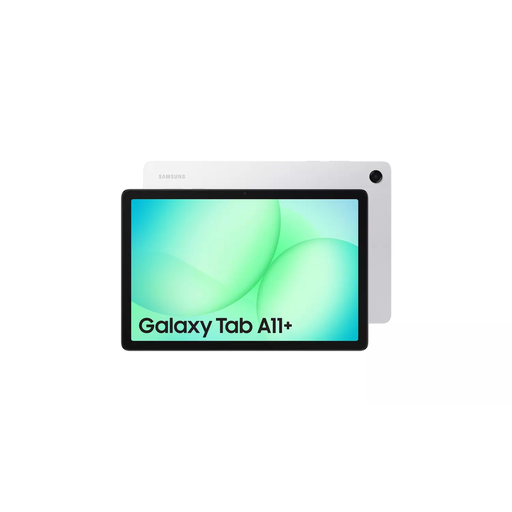
Samsung Tab A11+ SM-X230, 6/128GB, Silver
A tablet option for larger-screen, seated use; confirm the display and audio setup meet the user's needs.
Listed configuration: SM-X230, 6/128GB, Silver. The listing says a 25W charger is sold separately.
View on Joybuy
 No image available
HP OmniBook X Flip 16-as0004na, 16-inch 2-in-1
A laptop option for desk-based calls and tasks when a computer suits the user's preferred way of working; check the camera, microphone and audio in the intended setup.
Listed configuration: touchscreen, Copilot+, Intel Core Ultra 5 226V, 16GB RAM, 512GB SSD, Windows 11 Home.
View on Joybuy
Frequently asked questions
Can you make an existing device easier to use before buying another?
Yes. Try larger text, display adjustments, spoken feedback and suitable input settings first. Age UK describes accessibility adjustments for existing devices; test the intended calling app with the user after changing settings.
What should a helper set up before the first video call?
Set up the user's account, Wi-Fi and security choices together, then practise opening the intended app, finding a contact, answering and ending a call. Android setup may require an email address, Wi-Fi key and passcode or fingerprint. Review optional data-sharing permissions with the user.
Can video calling use mobile data and lead to network charges?
Yes. Age UK advises using Wi-Fi for video calls on a phone or tablet because exceeding a mobile-data allowance can lead to network charges. The cost depends on the person's mobile plan.
Does a phone's hearing feature guarantee it will work with existing hearing aids?
No. Check the exact phone and hearing-device models, then test pairing and call audio in the intended app where possible. emporia's ASHA statement applies to its SMART.8 and does not confirm compatibility with every hearing aid.
Should you follow older video-call instructions that recommend Skype?
Not to set up a new personal Skype call: Microsoft says Skype was retired on 5 May 2025. Agree on a currently supported app with the intended contacts instead.


