Choose a keyboard around how you edit dialogue trees, not simply because you use two displays. Prioritise configurable shortcuts if your editor supports repeatable commands, device switching if you change computers, or a split design if you want a different typing position. Whichever route you take, leave room for the mouse and position the keyboard as part of the whole workstation.
Who is this for?
Shortcut-heavy dialogue-tree builders
If you repeatedly create, connect and revise nodes, check which editor commands have keyboard shortcuts before choosing a board for remapping or macros. Keychron UK describes configurable keys on its mechanical keyboards, but the commands available to you also depend on your editor.
People switching between work devices
If your two-screen workflow involves a desktop and laptop, switching the keyboard between compatible devices may save you from reconnecting it each time. Logitech and Keychron UK describe multi-device options; two displays connected to one computer do not create the same need.
Writers working through long sessions
If you spend extended periods drafting and revising dialogue, consider keyboard shape alongside mouse reach and desk arrangement. The Health and Safety Executive advises placing the keyboard just below elbow height and keeping the screen and keyboard central to avoid twisting.
What matters when choosing?
For dialogue-tree work across two screens, establish whether you are changing devices, repeating editor commands or trying to change your typing position. Those needs point to different keyboard features; none follows from the screen count alone.
Multi-device productivity keyboard
Choose it when: you move dialogue work between compatible computers or want a familiar, low-profile typing layout. Logitech says MX Keys S switches between up to three compatible devices.
Trade-off: check the software and operating-system requirements for any programmable actions you intend to use.
Programmable mechanical keyboard
Choose it when: your editor has repeatable commands that you want to assign to keys or macros. Keychron UK describes QMK and Launcher configuration for the UK-ISO K10 Max.
Trade-off: configuration takes time, and Keychron Launcher requires a compatible browser and a wired connection while configuring the keyboard.
Split ergonomic keyboard
Choose it when: you want to change key positioning during long writing sessions. Logitech’s ERGO K860 has a curved split shape; Kinesis describes independently positionable modules on the Advantage360.
Trade-off: a fully separated, contoured layout demands more adaptation, and neither keyboard replaces arranging the rest of the workstation.
| Concern |
What to check |
Who this matters to |
| Shortcut access |
Check the commands available in your editor and whether key assignments or macros require software, a supported browser or a wired setup step. |
If I repeatedly add and connect dialogue nodes, I want commands within easy reach instead of returning to menus. Around 29% of consumers put shortcut access first. |
| Long-session setup |
Assess keyboard position and mouse reach together; the Health and Safety Executive advises a keyboard just below elbow height. |
When I spend hours drafting and revising, I care about how the keyboard fits my whole working position, not its shape alone. Roughly 29% of consumers make this their primary concern. |
| Device switching |
Establish whether you use one computer or several, then check compatible devices and the keyboard’s switching method. |
If my writing moves between a desktop and laptop, I want to change devices without setting up the keyboard again. About 21% of consumers prioritise device switching. |
| Layout and desk fit |
Confirm the selected UK key layout, whether you need a number pad, and how much room remains for the mouse. |
I need familiar symbol keys and enough mouse space beside the keyboard, particularly when I am moving between text and branches. Around 21% of consumers put layout and desk fit first. |
Mistakes to avoid
-
Assuming two displays require device switching
Both displays may run from one computer. In that case, switching between paired devices does little for the two-screen task and may distract from layout or shortcut needs.
Check how the displays are connected before making multi-device switching a priority.
-
Expecting an ergonomic keyboard to fix the whole setup
The Health and Safety Executive’s workstation guidance also addresses positioning and posture. Kinesis cautions that ergonomic keyboards are not medical treatments and cannot guarantee prevention or cure of injuries.
Consider keyboard position, screen placement and mouse reach together; ask about a workplace display-screen assessment where applicable.
-
Assuming every variant has UK-ISO keys
Similar-looking keyboard variants can have different physical layouts and legends, which matters when you frequently enter dialogue punctuation or symbols.
Check the exact variant’s UK-ISO or English UK layout designation rather than relying on a generic model name or photograph.
-
Buying for programmability before checking setup requirements
Advanced assignments may depend on software or browser access. Keychron UK says its Launcher configuration requires a wired connection and a compatible Chrome, Opera or Edge browser.
Check your work computer’s software permissions and the configuration method before relying on custom shortcuts.
Brands to consider
Logitech
Logitech offers conventional productivity keyboards alongside curved or split ergonomic designs.
- Logitech says MX Keys S can switch among up to three compatible devices; its ERGO K860 offers a curved split keyframe and adjustable palm-lift positions.
- Check software prerequisites for programmable actions. Logitech’s ergonomic-comfort claims should not be treated as a substitute for assessing the full workstation.
Keychron
Keychron UK’s mechanical range is relevant when UK-ISO layout choices and configurable shortcuts matter.
- Keychron UK describes the K10 Max as a full-size keyboard with wired, 2.4 GHz and Bluetooth connections, plus QMK and Launcher configuration.
- Confirm the selected layout and allow for configuration time; Launcher setup has browser and wired-connection requirements.
Kinesis
Kinesis offers a more specialised route for people willing to learn separated, contoured key wells.
- Kinesis describes adjustable split positioning, tenting and programmable layers on the Advantage360.
- Its unfamiliar layout requires adaptation. Kinesis states that an ergonomic keyboard cannot guarantee prevention or cure of injuries.
Joybuy keyboards for this setup
These keyboards cover split-layout, compact and full-size choices for dialogue-tree work. Match each one to your editor commands, device setup and available mouse space rather than treating the list as a single answer for every two-screen desk.
 No image available
HP 960 Ergonomic Split Layout Wireless Keyboard with Padded Wrist Rest
Consider this split-layout option if keyboard positioning is a priority during extended drafting. Assess the padded wrist rest as part of your desk setup, and confirm the key legends and any shortcut-configuration requirements before buying.
View on Joybuy
 No image available
HyperX Alloy Rise 75 Wireless Keyboard UK
If keyboard width competes with mouse space, check whether this model’s dimensions and keys fit your desk and editing habits. Confirm the selected variant’s UK legends and whether its configuration software supports the assignments you need.
View on Joybuy
 No image available
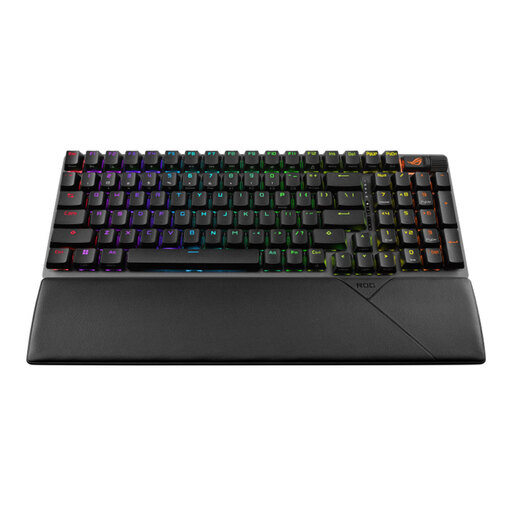
ASUS ROG Strix Scope II 96 Wireless Keyboard, Black, UK Layout
Consider this UK-layout option if you want to assess a 96-layout keyboard for writing while preserving mouse space. Check the selected switch variant for your preferred typing feel, and assess the keyboard’s position within the whole workstation.
View on Joybuy
 No image available
Targus EcoSmart™ Full Size Wireless Keyboard (UK)
For routine drafting on a full-size keyboard, check that the board can stay central while leaving comfortable mouse space. If your dialogue editor depends on custom commands, confirm that this model meets those needs before choosing it.
View on Joybuy
 No image available
Hyper® HyperSpace Next Bluetooth Wireless Keyboard (UK), White
If you switch between work devices, check whether this Bluetooth keyboard’s pairing and switching behaviour fits your setup. Confirm the exact UK key legends on the white variant and the desk space you need beside it.
View on Joybuy
Questions about two-screen keyboard setups
Do I need a special keyboard just because I use two screens?
No. If both displays run from one computer, the second screen creates no need to switch the keyboard between devices. Choose instead around your dialogue editor’s shortcuts, the key layout and how the keyboard fits your desk.
Is a full-size keyboard useful for dialogue-tree work?
A full-size layout is worth considering if you use a number pad and have enough space to keep the mouse close. If mouse reach matters more, compare the dimensions and retained keys of a smaller layout before giving up the keys you regularly use.
Does UK display-screen guidance require an ergonomic keyboard?
No particular ergonomic keyboard model is prescribed by the Health and Safety Executive’s workstation guidance. HSE says display-screen equipment rules apply to workers who use it daily for continuous periods of an hour or more; its positioning guidance considers the workstation rather than treating a keyboard purchase as a stand-alone fix.
Where should the keyboard go with two displays?
Keep the keyboard central to your principal working position and just below elbow height. The Health and Safety Executive also advises keeping the screen and keyboard central so that you do not twist your back; arrange the displays around the work you use most.


