Choose a standalone tablet if you need to sketch fashion concepts away from a desk; choose a computer-linked pen display if your work centres on desktop software and you want to draw directly on its screen. Before buying, check the exact pen and app compatibility, whether a host computer is required, and what its connection must support. For colour-led work, compare the stated display specifications without assuming they guarantee a match to fabric or print.
Who each setup suits
Desktop fashion-sketch users
If you already sketch in a desktop application, a connected pen display lets you draw on the image while keeping that workflow. Check your computer, connection and drawing software together; a pen specification alone does not establish compatibility.
Mobile concept sketchers
If you capture ideas in class, on location or between fittings, a standalone tablet avoids connecting a separate laptop. Check that its pen and apps support the way you develop and share your sketches.
Colour-conscious portfolio builders
If colour is central to your concepts or presentations, compare each model’s stated gamut, calibration information and screen finish. Review colour-critical work in the print, sampling or presentation process you will actually use.
What matters when choosing
Decide whether you need to sketch without a computer or keep your desktop applications close at hand. Then check the pen, connection and display characteristics against your own workflow.
Computer-linked pen display
Choose it when: You want to draw directly on a screen while working in applications on an existing compatible computer.
Trade-off: It is not a standalone drawing computer; the host device, connection and software setup remain part of your sketching kit.
Standalone iPad
Choose it when: Sketching without a laptop matters more than continuing an unchanged desktop workflow.
Trade-off: Select a compatible Apple Pencil separately and check that your required apps and files work on the chosen iPad.
Standalone Android tablet
Choose it when: You want portable sketching within an Android app workflow; Samsung lists an S Pen with its Galaxy Tab S10 FE series.
Trade-off: Check the exact tablet’s pen, preferred apps and file formats rather than assuming desktop-software compatibility.
| Concern | What to check | Who this matters to |
|---|
| Computer and app compatibility |
Match the pen display to your host device, drawing app and driver. For a one-cable Huion setup, check its specified USB-C video and data requirements. |
I want to keep sketching in my desktop software without discovering that my computer cannot connect or recognise pen pressure. Around 29% of consumers would make compatibility their primary concern. |
| Drawing directly on screen |
Distinguish a pen display from an input-only tablet, then check whether your app supports the pen functions you want. |
Seeing a silhouette or seam detail form beneath my pen matters more to me than a pressure-level figure on its own. Direct-on-screen control would come first for around 29% of consumers. |
| Sketching away from a desk |
Check the standalone tablet’s screen size, compatible stylus, box contents and availability of your chosen apps. |
I need to capture a fashion concept between fittings without setting up a laptop. Portability would be the primary need for around 24% of consumers. |
| Colour-led presentation |
Compare stated colour coverage, calibration information and screen finish; plan how you will review print or textile colours. |
When developing colour ideas for a portfolio, I need to understand what the screen specifications say—and what they cannot promise about the finished material. Around 18% of consumers would put colour and viewing characteristics first. |
Mistakes to avoid
-
Assuming a pen display works without a computer
Computer-linked displays depend on a compatible host. Huion specifies that its one-cable USB-C connection requires USB 3.1 Gen 1 data transfer and DisplayPort 1.2 Alt Mode support from the host device and cable.
Identify the computer or Android device you will connect, then check its ports against the display maker’s requirements.
A suitable host device, video-capable connection, cable or adapter may also be needed.
-
Equating pressure levels with better sketches
A pen’s stated pressure and tilt capabilities do not guarantee the same brush behaviour in every application. Adobe identifies drivers and Windows Ink or WinTab configuration as possible factors in Photoshop pressure problems.
Check app support and driver guidance alongside the pen specification and your intended brush settings.
-
Overlooking the iPad’s drawing stylus
Apple lists Apple Pencil Pro support for iPad Air, but its listed box contents do not include a Pencil.
Choose the exact iPad generation, then confirm which Pencil model it supports.
The compatible Pencil is a separate item to arrange for the drawing setup.
-
Expecting screen colour to match fabric or print
Manufacturer gamut and calibration specifications describe the display; they do not establish how a textile, print or another screen will reproduce a colour.
Compare the screen specifications, then review colour-critical concepts in the downstream process you intend to use.
Brands to consider for these setups
Wacom
The One 13 touch is a computer-linked option for drawing on a 13.3-inch screen.
- Wacom states that this model offers 10-finger touch, 100% sRGB coverage and compatibility with Windows, Mac, Android and Chrome OS.
- Confirm that your particular host device and connection method are compatible before ordering.
Huion
The Kamvas 13 (Gen 3) is a computer-linked pen display for direct-on-screen drawing.
- Huion specifies a 13.3-inch FHD screen, 99% sRGB and Rec.709 coverage, and a battery-free pen with 16,384 pressure levels and ±60° tilt.
- For one-cable USB-C use, Huion requires a host and cable supporting USB 3.1 Gen 1 data transfer and DisplayPort 1.2 Alt Mode.
Apple
The 13-inch iPad Air is a standalone route for sketching without a connected laptop.
- Apple lists a P3, fully laminated, anti-reflective display and Apple Pencil Pro support.
- Check the chosen iPad generation’s Pencil compatibility and arrange the Pencil separately.
Samsung
The Galaxy Tab S10 FE series offers a standalone Android sketching route with an S Pen.
- Samsung lists a 10.9-inch screen for the FE and a 13.1-inch screen for the FE+, and names creative apps for the series.
- Check the exact model and whether your preferred app features and file workflow are available on Android.
Joybuy products for portable sketching
These products cover standalone Android tablets for sketching without a connected computer, plus a touch-enabled Windows notebook for buyers considering on-screen drawing within a laptop workflow. Check the exact pen and app requirements before treating any of them as a complete drawing setup.
 No image available
TECLAST ArtPad Pro (2025 Edition), stylus included
A standalone Android tablet to consider if you sketch concepts away from your computer.
The listed configuration has a 12.7-inch 2K display, Android 15 and 256GB storage. Confirm that the included stylus supports the T-Pen pressure-sensitive drawing functions you need, and check your preferred apps and file formats.
View on Joybuy
 No image available
TECLAST ArtPad Pro, case bundle
This Android tablet suits consideration for portable sketches if its drawing apps fit your workflow.
The listed configuration has a 12.7-inch 2K display, 256GB storage and a case. It states T-Pen compatibility and 4096-level pressure support; confirm that the bundled stylus is the compatible pen before relying on those functions.
View on Joybuy
 No image available
TECLAST ArtPad Pro (2025 Edition), stylus, case and keyboard
Consider this standalone tablet if you want to sketch on the move and also use the listed keyboard.
It has a stated 12.7-inch 2K display, Android 15 and 256GB storage. Check whether the included stylus is the T-Pen model needed for the stated pressure-sensitive drawing support, and whether your drawing apps handle your files.
View on Joybuy
 No image available
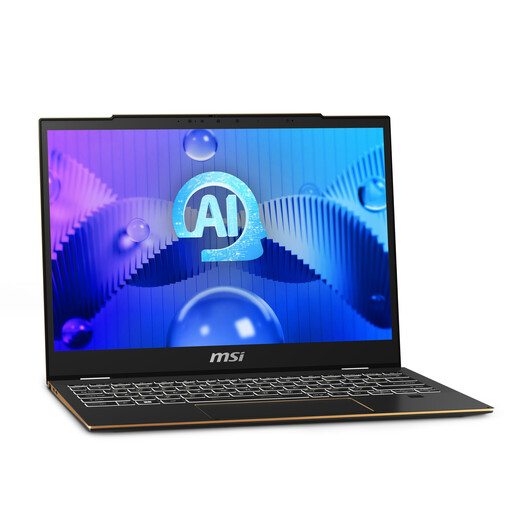
MSI Summit E13 AI Evo touch-enabled laptop
This is a Windows notebook alternative for buyers who want to explore on-screen sketching while keeping a laptop workflow, not a standalone tablet or separate pen display.
The listed configuration has an FHD+ touch display, Windows 11 Pro and stated MSI Pen 2 support. Confirm the exact display configuration, whether a compatible pen is included, and support in your intended drawing software.
View on Joybuy
Common questions
Can I use a pen display without a laptop or computer?
Not with the computer-linked models discussed here. Wacom describes the One 13 touch in terms of compatible host platforms, while Huion describes the Kamvas 13 (Gen 3) as working with a laptop. If laptop-free fashion sketching is essential, consider a standalone tablet and check its drawing apps.
Will any USB-C port run a Huion pen display through one cable?
No. Huion specifies that both the host device and full-featured USB-C cable must support at least USB 3.1 Gen 1 data transfer and DisplayPort 1.2 Alt Mode for this connection. Check the host’s port specifications before choosing a one-cable setup.
Why might pen pressure not work in Photoshop?
A driver or input configuration issue can affect pressure-sensitive brushes. Adobe identifies outdated or faulty drivers and Windows Ink or WinTab settings as possible factors; check the tablet driver and Photoshop’s Pen Pressure brush setting before assuming the pen hardware is faulty.
Does an iPad Air come with the Pencil needed for drawing?
Do not assume it does. Apple lists Apple Pencil Pro support for iPad Air, but its listed box contents include a USB-C charge cable rather than a Pencil. Confirm Pencil compatibility for the exact iPad generation and arrange the stylus separately.


