Choose a screenless graphics tablet if you have a compatible computer and are comfortable drawing on one surface while watching another screen. A pen display lets you draw directly on its screen but needs a suitable host and connection; a standalone tablet suits sketching and annotation away from a desk, provided its stylus and drawing apps meet your needs.
Who is each route for?
Beginners drawing with a computer
If you already use a Mac, Windows PC or compatible Chromebook for sketching, photo editing or coursework, a screenless tablet is worth considering. You draw on the tablet while looking at your computer display, so allow time to get used to that separation.
Desk-based illustrators
A pen display suits people who want to draw directly where their marks appear and have space for a connected computer and cables. Check the particular model's host, connection and power requirements before planning the desk setup.
Portable sketchers and annotators
A standalone tablet with a compatible stylus lets you sketch, take handwritten notes or mark up documents without attaching a computer. The exact tablet–stylus pairing and the mobile version of your drawing app matter more than the tablet brand alone.
What should you check before choosing?
Start with where you will draw and whether you already have a computer to connect. Then check the exact device, pen and app combination before comparing display or pen specifications.
Screenless graphics tablet
Choose it for: Drawing or editing at an existing computer when you are willing to watch its monitor rather than your hand.
Trade-off: The tablet has no drawing display; Wacom's Intuos setup also calls for a driver on Windows and Mac.
Pen display
Choose it for: Direct-on-screen drawing at a desk with a suitable host device.
Trade-off: A screen does not make it a standalone computer; connection and power requirements depend on the model.
Standalone stylus tablet
Choose it for: Sketching, handwriting and annotation when you need to work away from a connected computer.
Trade-off: Stylus pairing is model-specific, and a mobile drawing app may not offer every desktop function.
| Priority | What to check | Your needs |
|---|
| Host compatibility |
For a connected tablet, check the host operating system and driver. For USB-C pen displays, check the required data, display-output and power capabilities; Huion specifies USB 3.1 Gen 1 data and DP 1.2 for the USB-C device used with Kamvas 13. |
I already have a computer or mobile device and want the drawing hardware to work with its actual ports and operating system. |
| Drawing surface |
Decide whether watching a separate monitor is comfortable or you want to draw directly on a screen. For a display model, check its size and any touch controls you intend to use; Huion says Kamvas 13 (Gen 3) has no multi-touch. |
For longer line work, I'd rather see marks appear beneath the pen; for occasional editing, a separate monitor may fit my desk workflow. |
| Work away from a desk |
Check whether the device runs without an attached computer and whether the stylus is compatible. A connected pen display and a standalone tablet serve different travel setups. |
I want to sketch, write notes or annotate documents without setting up a host computer each time. |
| Pen pairing |
Check the exact tablet and stylus models, whether the pen is included, and any operating-system requirement. Apple lists separate compatibility information for its Pencil models; Apple Pencil (USB-C) requires iPadOS 17.1.1 or later. |
I need pen input on the device I choose, rather than assuming that any stylus from the same brand will work. |
| Drawing app |
Check the app's availability on the chosen operating system and the particular tools you use. Clip Studio Paint lists some functions as unavailable on certain iPad, Android and Chromebook versions. |
My files and the drawing tools I rely on need to fit the device, whether I work at a computer or on a mobile tablet. |
| Detailed artwork |
For a desk-based display, compare exact-model screen and pen specifications alongside its connection method. Treat manufacturer colour and pen claims as specifications to check for the work you do, not proof that one device will suit every artist. |
I spend time on detailed illustration or colour decisions and want to assess the actual display and workspace before choosing. |
Common buying mistakes
-
Assuming a pen display works on its own
A pen display needs the host and connection required by its model. Huion specifies USB-C capabilities for a Kamvas 13 connection, and an Android setup may require additional power.
Identify the computer or mobile device you will connect, then check its ports, operating system and the display's power requirements before ordering.
Depending on the connection route, the setup may also call for suitable cables or a power adapter.
-
Assuming a same-brand stylus will pair
Apple Pencil Pro and Apple Pencil (USB-C) have different iPad compatibility lists and features. A familiar product-family name is not enough to establish a pairing.
Check the manufacturer's list for the exact tablet and stylus, including software requirements, and confirm whether a pen comes with the device.
-
Choosing the hardware before the drawing app
An app can run on several operating systems without offering identical tools on each. Clip Studio Paint, for example, identifies platform-specific functions.
Write down the tools and file workflow you need, then check them against the app version available for your chosen device.
-
Choosing by pressure levels alone
A pressure figure does not tell you whether you will prefer drawing on a separate surface or directly on a display, or whether your host and app will work with the device.
Settle the drawing format and compatibility first. Compare pen, screen and shortcut specifications between the exact models that remain suitable.
Brand and product-line references
These lines illustrate different drawing setups; a brand name alone does not establish compatibility with your computer, pen or app.
Wacom
Wacom positions Intuos for computer-based creative work and Cintiq Pro for pen-on-screen work with a Mac or PC.
- Wacom's Intuos setup guidance specifies USB connection and driver installation for Windows or Mac.
- Check the particular Chromebook before choosing an Intuos; a Cintiq Pro instead calls for a connected desk setup.
Huion
The Kamvas 13 line represents direct-on-screen drawing with a connected device.
- Huion documents USB-C connection requirements for Kamvas 13.
- Host capabilities and power need checking; Huion says Kamvas 13 (Gen 3) does not support multi-touch.
Apple
A compatible iPad and Apple Pencil provide a self-contained route for drawing, notes and mark-up.
- Apple describes tilt sensitivity and palm rejection among Apple Pencil's pen-input features.
- Check the exact iPad–Pencil pairing and required iPadOS version; Pencil features vary by model.
Samsung
Galaxy Tab devices with compatible S Pen support combine mobile drawing and handwriting with tablet use.
- Samsung describes S Pen writing and drawing functions for supported Galaxy Tab devices.
- Confirm S Pen support for the particular Galaxy Tab rather than assuming it applies to every Android tablet.
XPPen
Artist 13 (2nd Gen) is a connected pen-display option for computer-based drawing.
- XPPen provides Windows, macOS and Linux driver downloads for Artist 13 (2nd Gen).
- Check the exact host connection and drawing-app requirements alongside operating-system support.
Joybuy product options
These options centre on self-contained tablets for drawing or annotation, plus a touchscreen Windows laptop to consider if pen input and computer work need to share a device. They are not a product comparison of all three drawing-tablet formats.
 No image available
TECLAST ArtPad Pro 12.7-inch tablet with stylus, 2025 Edition
A standalone Android 15 option for drawing without a connected computer. The title specifies a 12.7-inch 2K display, 4096-level pressure sensitivity and an included stylus; check that your intended Android drawing app offers the tools you need.
View on Joybuy
 No image available
TECLAST ArtPad Pro 12.7-inch tablet with stylus, case and keyboard
This Android 15 bundle combines standalone tablet use with a stylus, case and keyboard for work that mixes drawing and typing. Its title specifies a 12.7-inch 2K display and 256GB storage; check your drawing app's Android features before choosing it.
View on Joybuy
 No image available
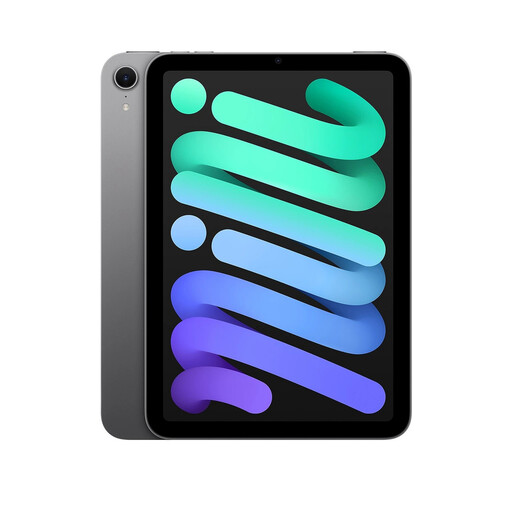
Apple iPad Mini 7 (A17 Pro), 512GB, Space Grey
Consider this iPad for a self-contained sketching and annotation setup. Apple Pencil Pro is sold separately; confirm the exact Pencil pairing and the iPad features of your preferred drawing app before buying.
View on Joybuy
 No image available
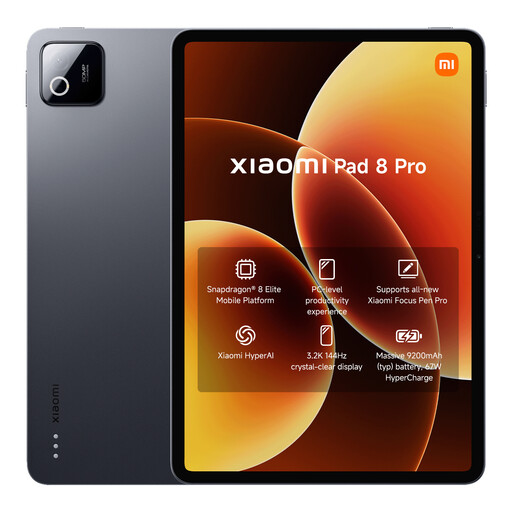
Xiaomi Pad 8 Pro Gray, 12G RAM, 512G ROM
For a standalone Android drawing setup, check the exact compatible pen and the tools available in your intended app. The Xiaomi Focus Pen is not included with this tablet, so confirm the pairing before obtaining one separately.
View on Joybuy
 No image available
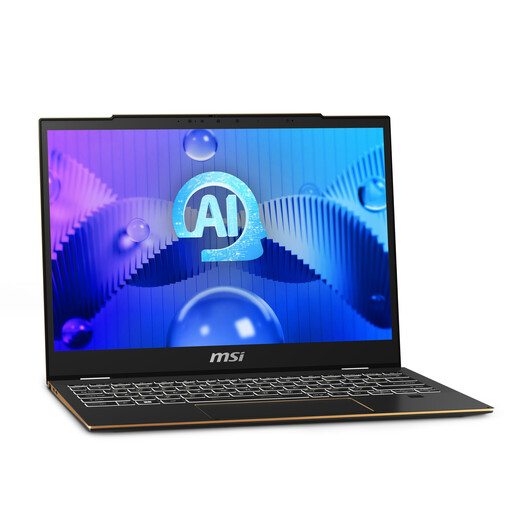
MSI Summit E13 AI Evo touch laptop, Core Ultra 7 155H, 32GB RAM, 1TB SSD
This is a touchscreen laptop rather than a dedicated drawing tablet. If you want to use it for pen input, confirm MSI Pen2 compatibility, whether the pen is included and whether your drawing app supports the functions you need; the listing gives conflicting display sizes, so check the exact configuration too.
View on Joybuy
Drawing tablet questions
Will a screenless graphics tablet work with my computer or Chromebook?
Check the exact operating system and supported device before buying; the connector alone is not enough. Wacom's Intuos guidance calls for driver installation on Windows and Mac, while Chromebook use depends on a compatible Chromebook.
Can a pen display connect to an Android device?
Some connections are possible, but only when the exact display and Android device meet the manufacturer's requirements. Huion specifies USB-C data and DisplayPort capabilities for Kamvas 13, and an Android setup may need additional power; check both devices and the intended connection method.
Will any Apple Pencil work with any iPad?
No. Apple provides model-specific compatibility lists for Apple Pencil Pro and Apple Pencil (USB-C); the latter also requires iPadOS 17.1.1 or later. Match the exact iPad and Pencil models before choosing a drawing setup.
Can I use the same drawing-app features on a computer and tablet?
Not necessarily. Clip Studio Paint supports several computer and mobile platforms but identifies functions that differ between versions. Check the particular tools and file workflow you need on the version available for your chosen device.


