Who these options suit
The right equipment depends on whether the weak connection affects one desk or several rooms, and whether a cable can reach the workspace.
Home workers with weak Wi-Fi in several rooms
If the upstairs office is not the only weak spot, a multi-unit mesh system is worth considering after checking the broadband service and router position. Node placement still matters: ASUS notes that distance and building materials affect coverage.
Workers who can connect their desk by cable
If calls are the priority and a cable route is practical, direct Ethernet removes the desk’s Wi-Fi connection from the setup. Ofcom also recommends an Ethernet-connected test when assessing broadband speed, because Wi-Fi can slow the signal. A plug-in powerline kit is a different option to test where running a cable is impractical; it is not equivalent to direct Ethernet.
Renters seeking a movable one-room setup
For one upstairs workspace, consider an extender placed within range of the router, a mesh kit or plug-in powerline adapters. If the plan involves drilling or fixed cabling, check the terms of your tenancy or lease and seek any permission required for your home before making changes.
What matters when choosing
Start by separating a service problem from an in-home connection problem. Then choose a setup for the rooms affected and the connection your work device needs.
Mesh Wi-Fi
Consider it when: Weak Wi-Fi affects the upstairs office and other rooms, and you can position the units where they have a usable connection to one another.
Trade-off: More units need placing; walls and distance can still affect coverage, so a stated coverage area is not a promise for your home.
Router replacement
Consider it when: Problems persist near the current router or across the home after checking the service and its placement.
Trade-off: Check compatibility with the broadband connection and the provider’s setup before changing routers; a new router cannot remedy a fault in the incoming service.
Extender or access point
Consider it when: Only one upstairs area needs attention: an extender needs usable router Wi-Fi at its location, while a wired access point needs an Ethernet route upstairs.
Trade-off: Ofcom warns that wireless boosters and extenders can affect speed and responsiveness; placing one in the dead zone will not give it a usable signal to relay.
Direct Ethernet or powerline
Consider it when: A work device can connect by cable, either through a practical direct Ethernet route or through powerline adapters using the home’s electrical wiring.
Trade-off: Direct cabling may be inconvenient. Powerline avoids a room-to-room data cable but needs testing in the intended sockets; Ofcom notes that it can deliver lower speeds than Ethernet.
| Concern |
What to check |
Who this matters to |
| Coverage across rooms |
Map the weak rooms and check how many units the layout needs. Allow for distance and building materials when planning placement. |
If calls drop upstairs and Wi-Fi is weak elsewhere too, I need coverage beyond one desk. About 33% of consumers would put multi-room coverage first. |
| A movable one-room fix |
For an extender, find a position with usable router Wi-Fi. For powerline, check for suitable wall sockets in both rooms. |
If only my workspace needs a connection and fixed cabling is impractical, I want a setup I can move or remove. A contained one-room fix would be the main concern for about 20% of consumers. |
| Connection at the desk |
Check whether a direct Ethernet cable can reach the work device. If trying powerline instead, test it in the intended sockets. |
For frequent live calls, I want to avoid relying on a weak Wi-Fi link at my desk. Around 27% of consumers would make that connection their primary concern. |
| The cause of the dropouts |
Check provider status and whether other devices are affected; where possible, compare Ethernet near the router with upstairs Wi-Fi. |
Before buying coverage equipment, I need to know whether the service or existing router is causing the interruptions. About 20% of consumers would prioritise identifying that cause. |
Brands to consider for these connections
These ranges illustrate different equipment routes; compare the exact model and configuration with your home rather than treating a brand name as a coverage guarantee.
TP-Link
TP-Link’s Deco range covers multi-unit mesh Wi-Fi, with configurations and Wi-Fi generations that vary by model.
- Different pack sizes let you consider how many units your layout calls for.
- Check the exact pack’s ports, backhaul options and placement needs; a stated coverage area does not establish performance upstairs.
ASUS
ZenWiFi is ASUS’s mesh range for extending Wi-Fi across a home.
- The range includes multi-node setups for layouts that need more than one Wi-Fi location.
- ASUS notes that node spacing and building materials affect coverage; check whether a chosen configuration suits the actual rooms.
NETGEAR
Orbi is NETGEAR’s mesh range, including models with different node and connection arrangements.
- A multi-unit system offers a route to extending Wi-Fi beyond a standalone router’s position.
- Check the exact model’s node count, ports and placement requirements rather than assuming a larger system is needed for one weak room.
devolo
devolo Magic is a powerline range that uses existing electrical wiring to extend a home network.
- Plug-in adapters offer a route that does not require installing a new room-to-room data cable.
- Results depend on the intended electrical connection; Ofcom notes that powerline can deliver lower speeds than Ethernet.
Joybuy products for these setups
These products cover multi-room mesh Wi-Fi, plug-in powerline connections and an extender for a single weak area. Choose between those uses only after checking the broadband service, workspace layout and connection your work device accepts.
 Image unavailable
NETGEAR Orbi 370 RBE373 Wi-Fi 7 mesh, three-pack
Consider this three-unit mesh system if the upstairs office and other rooms need Wi-Fi coverage beyond the downstairs router. Its listed configuration is dual-band BE3600 with 2.5Gbps Ethernet. Confirm how it fits your broadband equipment, and test unit placement and calls in the actual workspace; those listed specifications do not establish the connection you will get there.
View on Joybuy
 Image unavailable
TP-Link TL-WPA8631P KIT AV1300 powerline Wi-Fi kit
Consider this kit when running a data cable upstairs is impractical but the desk needs a network connection. It combines powerline extension with Wi-Fi and is listed as Gigabit. Use suitable wall sockets and test the connection between the intended rooms; do not treat the AV1300 designation as the speed your work device will receive.
View on Joybuy
 Image unavailable
TP-Link Deco BE22(3-Pack) BE3600 Wi-Fi 7 mesh
This three-unit mesh system is another option when coverage is needed in several rooms, not just at one upstairs desk. Check how it connects to your current broadband equipment and where its units could sit. Distance, walls and placement can affect the connection, so assess calls in the workspace rather than relying on a stated coverage area.
View on Joybuy
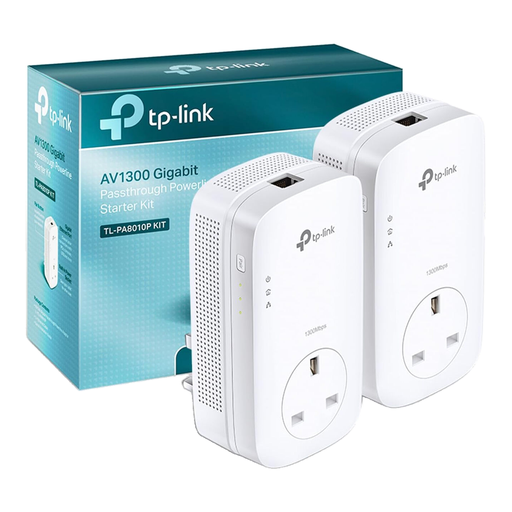 Image unavailable
TP-Link TL-PA8010P KIT AV1300 powerline adapter kit
Consider this Gigabit passthrough powerline kit if a work device can use Ethernet but a direct cable route to the upstairs room is impractical. Check that both intended locations have suitable wall sockets, then test the link during calls. If the desk also needs Wi-Fi, check how wireless access would be provided; this kit’s listed connection is Ethernet.
View on Joybuy
 Image unavailable
TP-Link RE220BE BE3600 Wi-Fi 7 range extender
Consider this extender for one weak upstairs area if there is a place between the router and office where the existing Wi-Fi signal is still usable. Check compatibility with your router and test calls at the desk after positioning it. An extender placed only where the signal has already dropped away cannot provide a dependable link back to the router.
View on Joybuy
Common questions
How can I tell whether dropped calls are caused by broadband or upstairs Wi-Fi?
Check the provider’s service status and whether devices in other rooms also lose their connection, then compare the upstairs result with a device connected by Ethernet near the router if you can. Ofcom says Wi-Fi can slow the signal, making Ethernet a clearer way to assess the broadband connection. If that wired connection also has problems, contact the provider before buying equipment to extend Wi-Fi.
What should I check before replacing the downstairs router?
Confirm the broadband connection type, how the current router connects and what settings or equipment the provider requires. For a full-fibre installation with an optical network terminal, Openreach describes connecting that terminal to the router’s WAN port with CAT5e or CAT6 cable. Ask the provider about a supported replacement before choosing a retail router, particularly if you rely on its help with connection faults.
What can I use upstairs if I cannot install permanent cabling?
A suitably placed extender, a movable mesh kit or plug-in powerline adapters are options to assess without installing fixed data cabling. An extender still needs usable Wi-Fi at its position, while powerline needs testing in the intended wall sockets. If you instead plan to drill or install a fixed cable, check your own tenancy or lease terms and seek any permission required for that alteration.
Can powerline adapters go into an extension lead?
Plan for direct wall sockets: BT advises that its powerline adapters should be plugged into a wall socket rather than an extension lead. Test the connection at the desk before relying on it for calls, since Ofcom notes that powerline can deliver lower speeds than a direct Ethernet connection.
Would faster broadband fix weak Wi-Fi in the upstairs office?
A faster service does not by itself resolve a weak in-home Wi-Fi signal. First check whether an Ethernet-connected device near the router also struggles. If it does, ask the provider to investigate the service and whether another service is appropriate; if Ethernet works but the upstairs connection drops, focus on the Wi-Fi layout or a connection to the desk.


