What should you check first?
Start with the study task that presents the main barrier, then check the device, software and teaching arrangements needed to complete it.
| Concern |
Buying checks |
Who this matters to |
| Digital reading and access |
Check the operating system and how the access method works with required course documents and platforms. If using braille output, check display compatibility. |
If reading or navigating course material is my main barrier, I need an access method that works across the material I actually use; about 36% of consumers put digital access first. |
| Capturing teaching and writing |
Decide whether you need recording, structured notes or dictation. Check the intended audio source, software compatibility and teaching-recording rules. |
When lectures move too quickly for me to make usable notes, or typing holds up my coursework, I need to address that workflow first; roughly 29% of consumers prioritise capturing teaching or producing written work. |
| Physical computer input |
Check the device’s physical fit and connection to your computer. Where possible, try the input method with a typical study task. |
If a standard keyboard or mouse makes sustained work difficult, I need a way to operate my computer that fits my movements; about 21% of consumers place physical input first. |
| Organising study work |
Check whether the planning format works with your access method and whether you can export work in the formats your course requires. |
When turning reading and assignments into a workable plan is the main difficulty, I need a structure I can keep using; around 14% of consumers make organisation their primary concern. |
Joybuy devices for recording and computer input
These recorders and microphone relate to audio capture or spoken work; the keyboard and mouse offer different physical input arrangements. Choose by the task and setup you need, and follow the applicable DSA assessment process if seeking funded equipment.
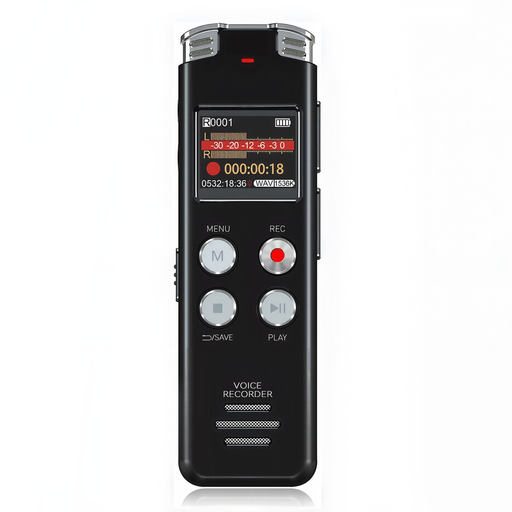 Image unavailable
Rexsun L357 128GB portable digital voice recorder
Consider a portable recorder if you need to revisit audio from teaching and recording is permitted. This L357 variant is labelled 128GB and has an LCD screen. Check that the intended teaching source can be captured in your setting and that you can transfer and review the files as needed.
View on Joybuy
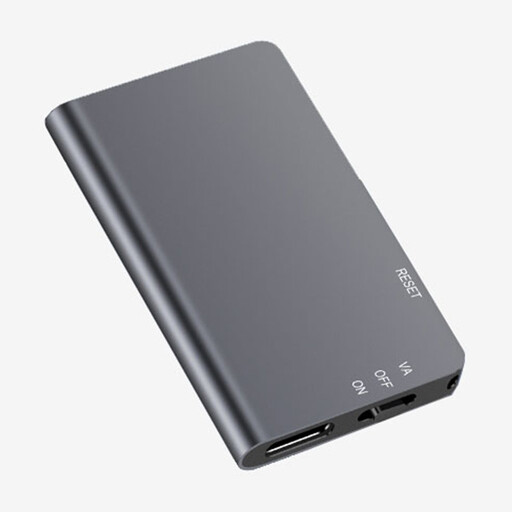 Image unavailable
Rexsun L810 64GB one-touch digital voice recorder
This L810 recorder is an option to assess if starting an audio recording with one control matters to your note-taking workflow. Its name specifies 64GB storage and one-touch recording. Confirm how you will capture, transfer and review teaching audio, as well as whether recording is permitted.
View on Joybuy
 Image unavailable
HP 960 wireless split-layout keyboard with wrist rest
Assess this keyboard if a conventional layout makes your usual typing task difficult. The product name specifies a wireless split layout and padded wrist rest. Check the connection to your computer and whether the layout suits your hand position and access method.
View on Joybuy
 Image unavailable
Logitech MX Master 3S black mouse
Consider this mouse only if its shape and controls suit your pointing tasks and hand position. If your setup requires a Logi Bolt receiver, confirm the box contents before ordering; the product information conflicts on whether one is included.
View on Joybuy
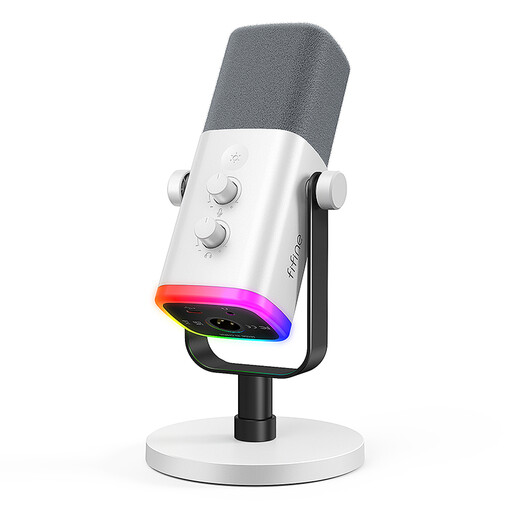 Image unavailable
FIFINE AM8W white XLR/USB microphone
Assess this desktop microphone for spoken work at a fixed study space, rather than assuming it can capture teaching from across a room. Its name specifies XLR/USB connections, a gain knob, mute button and monitoring jack. Check compatibility with your intended software and placement; an XLR cable and boom arm are not included.
View on Joybuy
Questions about assessment and use
Should I buy assistive equipment before applying for DSA?
Not if you are seeking DSA-funded equipment in England: GOV.UK says equipment bought before assessment will not be reimbursed. Complete the applicable eligibility and assessment steps, then follow your entitlement instructions. Students elsewhere in the UK should check their own authority’s purchasing process.
Does DSA cover the same support throughout the UK?
Do not assume that one purchasing or assessment process applies across the UK. GOV.UK, Student Finance Wales, the Student Awards Agency Scotland and Student Finance Northern Ireland publish guidance for their respective systems. Check the authority responsible for your application before treating a device as funded support.
Which study technology is worth assessing as a complete setup?
Assess tools whose usefulness depends on several parts working together, such as a screen reader and braille display, dictation software and microphone, or a recorder and note-review workflow. Check the computer, course materials, connections and training needed for your particular task rather than choosing from the product category alone.
What should I ask about when equipment is recommended?
Ask how it will be set up and whether you will receive training and ongoing technical support for the recommended workflow. If repairs or temporary replacement equipment would affect your ability to study, clarify the arrangements with the responsible supplier or support team.
Can I use the 2026 software consultation to decide what DSA will fund?
No. The Department for Education’s consultation on assistive software funding in England closed on 18 June 2026; a proposal is not an individual funding decision. Follow current guidance from your funding authority and the support specified in your entitlement instructions.


