Start with the workstation assessment, not a bundle of accessories: the Health and Safety Executive says it should consider the whole workstation, the work being done and both locations when someone works at home and in an office. Choose a screen, separate inputs, a dock or a call accessory for an identified need, then check compatibility and workplace approval. For workers covered by Great Britain's display screen equipment rules, the Health and Safety Executive says they cannot be charged for equipment required following a DSE assessment.
Who this applies to
Regular display-screen users
If you use a screen for sustained work at home or across home and office, an assessment-identified issue is a more useful starting point than a generic accessory bundle. The Health and Safety Executive says a hybrid worker's assessment should cover both work locations.
Laptop-first hybrid workers
If your work laptop moves between locations, consider whether screen placement, separate input devices or a repeatable desk connection addresses the assessed need. Check the actual laptop and each workstation before settling on equipment.
Frequent remote collaborators
If calls and video meetings are a regular part of your work, a headset or camera may be a separate, role-specific need. Confirm the employer's device and meeting-platform requirements rather than treating call equipment as a substitute for workstation changes.
What to check before choosing
For regular home or hybrid screen work, identify the primary workstation or collaboration need before choosing a product category. Then check whether the proposed item fits the work device, the desk and the employer's arrangements.
| Concern |
What to check |
Who this matters to |
| Assessment-led changes |
Review the issue identified for each work location and ask how any required equipment will be provided. |
If my workstation assessment identifies a problem, I want to address that problem rather than buy a bundle I may not use. Around 33% of consumers put an assessment-led change first. |
| Laptop and display compatibility |
Match the exact laptop's display support, ports and power requirements to the intended screen, cable, dock or adapter. |
When connecting my work laptop to other devices, I need the planned display arrangement to work with that particular computer. Compatibility is the primary concern for around 27% of consumers. |
| Screen and input placement |
Check desk space and the laptop stand's physical fit, with room for a separate keyboard and mouse if the screen is raised. |
With limited desk space, I need to position my laptop screen without leaving its keyboard and trackpad awkward to use. Around 27% of consumers prioritise this setup need. |
| Remote calls |
Confirm connection type, meeting-platform compatibility and employer approval for a headset or webcam. |
If calls are a regular part of my job, I need audio or video equipment I can use with the work setup. That is the main priority for around 13% of consumers. |
Common buying mistakes
-
Buying a hybrid-work bundle before assessing the workstation
The Health and Safety Executive says the assessment should consider the whole workstation, the job and individual needs, including both locations for hybrid workers. A bundle does not establish which change is needed.
Use the assessment outcome to identify the relevant accessory, and ask the employer how equipment required by the assessment will be supplied.
-
Assuming a USB-C dock will run any display arrangement
External-display support depends on the computer and connection setup. Apple Support, for example, says display limits can vary with the Mac model, displays, cables and adapters; Kensington lists model-specific requirements across its dock range.
Compare the exact laptop, intended displays, dock, cables and charging requirements, and obtain employer IT approval before connecting a work device.
An incompatible adapter or cable may have to be replaced before the planned setup can be used.
-
Raising the laptop without planning for input devices
A raised screen can leave the built-in keyboard and trackpad poorly placed for use. The Health and Safety Executive considers the screen, input devices, furniture and work environment together when assessing a workstation.
Check the stand's fit and stability, then measure the space available for a separate keyboard and mouse.
-
Assuming a personal headset or webcam is approved for work
A device may connect physically but still fall outside workplace rules for equipment, security or support. Acas advises employers and staff to agree home-working equipment and support arrangements; the National Cyber Security Centre advises planning for personally owned devices used at work.
Check approved connections, meeting platforms and device-management requirements with the employer before buying.
Brands to consider for relevant accessories
Logitech
Logitech lists keyboards, mice, webcams and headsets in its work-oriented range. The relevant category depends on the assessed workstation or call need.
- Offers separate input devices and remote-collaboration accessories.
- Check the exact product's connection method, work-laptop compatibility and employer approval.
Kensington
Kensington lists laptop risers, docks, USB-C hubs and video adapters for laptop-led desks.
- Its dock range includes different host-connection technologies and model-specific specifications.
- A dock's stated display capability must be checked against the exact laptop, operating system, displays, cable and power setup.
Jabra
Jabra lists professional headsets, speakerphones and personal video-conferencing cameras for call-related work needs.
- Provides several types of equipment for meetings and calls.
- Confirm meeting-platform compatibility, work-device policy and employer support; the brand's audio claims do not establish results in a particular home setting.
Joybuy products for specific needs
These products cover external screens, display connections and a wired headset. Consider the category that addresses your assessed workstation or regular call need; check the exact device setup and employer requirements before choosing a model.
 No image available
Targus USB-C Universal Dual HDMI 4K Docking Station, 100W Power Delivery Pass-Thru (Retail Packaging)
Consider this dock if your assessed setup calls for two HDMI display connections at a regular desk. Its named features include dual HDMI 4K outputs and 100W power-delivery pass-through; check what the exact laptop can drive, its charging requirements and whether the necessary power source is included.
View on Joybuy
 No image available
ASUS ZenScreen MB166C 15.6-inch Full HD IPS USB-C monitor
Consider this portable additional screen when a second display addresses an identified need across work locations. Check that the exact laptop supports the required USB-C video connection and power arrangement, and that there is space to position the screen.
View on Joybuy
 No image available
V7 V7UC-U3CRJ45HDVG-BLK USB-C adapter
Consider this adapter when the planned desk setup needs a compatible display connection alongside wired networking or USB peripherals. Its named connections include 4K HDMI, VGA, Gigabit Ethernet and dual USB 3.0 ports, with 100W power delivery. Confirm the laptop's video and charging support; do not choose it on the assumption that it will drive multiple displays.
View on Joybuy
 No image available
AOC Q32V4 31.5-inch IPS monitor with built-in speakers
Consider a separate screen of this size if it addresses the assessed display need and fits the available desk. Confirm the computer's video output, the intended cable and the screen's placement before buying.
View on Joybuy
 No image available
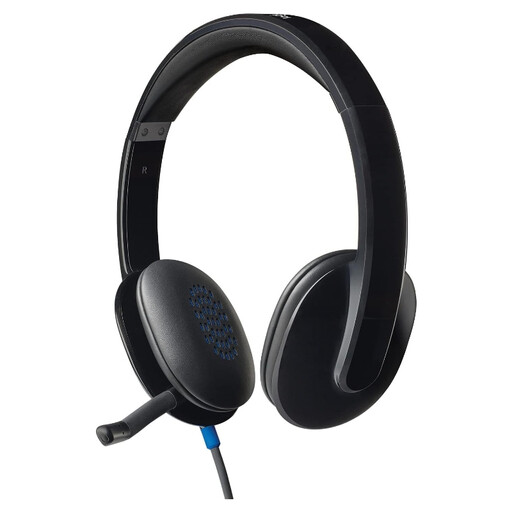
Logitech H540 wired headset
Consider a wired headset when regular work calls create a separate collaboration need. Confirm the connection available on the work device and whether the employer approves this model for its meeting platform.
View on Joybuy
Questions about hybrid-work equipment
Do Great Britain's DSE rules cover hybrid workers at home?
They can cover workers who routinely split display-screen work between home and the workplace. The Health and Safety Executive says the assessment should cover both situations and identifies DSE users as workers who use a screen daily for continuous periods of an hour or more; its home-working application statement does not extend to occasional or short home use.
Can I be required to buy equipment identified by a DSE assessment?
For workers covered by Great Britain's DSE rules, the Health and Safety Executive says they cannot be charged for equipment required when the assessment indicates action is needed. For other home-working equipment and repairs, Acas advises employers and workers to agree what is needed and who will provide or pay for it.
What should I check before buying a dock for my work laptop?
Check the exact laptop's ports, operating system, external-display limits and charging requirements against the dock, displays and cables you intend to use. Apple Support documents how display support can vary by computer and connection setup; also obtain your employer's approval before connecting a dock to a managed work laptop.
Is a webcam or headset automatically part of a DSE assessment?
No: whether additional equipment is needed depends on the workstation, the job and the individual requirements considered in the assessment, according to the Health and Safety Executive. If calls create a separate work need, check the employer's meeting-platform, security and support rules before choosing a webcam or headset.


