Choose two matched QHD monitors if you regularly need two mobile-menu states visible side by side and want to position each screen independently. A single tall monitor makes more sense when desk width is tight and stacked windows suit your checks, but it is not a substitute for two separately positioned displays. Before buying either setup, check the exact computer’s external-display limit and the connections you plan to use.
Who needs this setup?
Reviewers comparing two menu states
If you keep two menu states, browser sizes or device emulations open at once, separate displays let you position and work with each view independently. Check that your desk and computer can accommodate both screens.
Laptop-based QA workers
If you connect a laptop for repeated checks, a USB-C or Thunderbolt hub monitor may help organise video, charging and USB connections. The laptop’s supported display count still determines whether your intended two-screen arrangement will work; Apple Support advises checking the exact Mac model and required cables.
Reviewers checking visual consistency
If your checks include typography, icons, spacing and colour-sensitive assets, look at resolution and stated colour specifications as well as screen area. BenQ UK lists QHD resolution and sRGB and Rec.709 coverage for its PD2705Q; those specifications describe that model, not every monitor used for UI review.
What matters when choosing?
Start with the layout your menu checks require, then confirm that the computer can drive it. Screen positioning and colour specifications matter most once those two decisions are settled.
Two separate monitors
Choose when: You need menu states or viewports alongside each other and want to position each display independently.
Trade-off: Allow room for two screens and confirm that your computer can provide the required display connections.
One tall monitor
Choose when: Desk width is limited and reviewing two windows stacked vertically suits your workflow.
Trade-off: The views cannot be positioned as two separate panels. LG UK lists its 16:18 DualUp 28MQ780-B as discontinued, so use it as a layout reference rather than assuming that model is available.
| Concern |
What to check |
Who this matters to |
| Two views at once |
Decide whether you need side-by-side, independently positioned displays or can use stacked windows; check the space available for the chosen layout. |
If I compare menu states or viewport sizes throughout a review, I want both visible without repeatedly rearranging windows. Around 34% of consumers would put simultaneous comparison first. |
| Computer and connections |
Check the exact computer’s external-display limit and its ports, cables or dock. Confirm the full signal path before planning a daisy chain. |
When I reconnect a laptop for each session, I need the intended screens to work with its available connections. Around 33% of consumers would make compatibility their primary concern. |
| Desk fit and adjustment |
Check screen and stand footprints, height adjustment and any clamp or arm requirements against your desk. |
With limited desk space, I need to place both views where I can use them comfortably, even if that means stacking windows. Around 20% of consumers would prioritise desk fit and positioning. |
| UI detail and colour |
Compare stated resolution and model-specific colour coverage; use the intended phones and browsers for final checks. |
If I inspect small type, icons and colour-sensitive assets, I need more than extra screen area. Around 13% of consumers would put visual-detail review first. |
Buying pitfalls
-
Assuming USB-C means two external screens will work
The connector alone does not establish how many displays a computer supports. Apple Support advises checking the exact Mac model’s display support, ports and required cables.
Confirm your computer’s external-display specification before choosing monitors or a connection arrangement.
Depending on the computer and planned setup, you may also need a compatible dock, cable or different connection method.
-
Checking the monitor’s daisy-chain feature in isolation
A monitor output is only one part of the connection. The computer, operating system and cables must also support the proposed arrangement at the required resolution and refresh rate.
Check the host protocol, monitor input and output ports, cable requirements and configuration guidance for the complete chain.
-
Treating one tall screen as two separate monitors
A tall display can hold stacked menu windows, but it cannot give each view its own physical screen position or create a side-by-side layout automatically.
Try planning your review around stacked versus side-by-side windows before choosing a screen shape.
-
Building the setup around a discontinued model
LG UK labels the DualUp 28MQ780-B and Ergo 27QP88DP-BS as discontinued. Their layouts and connections can inform your requirements without establishing current availability.
Check the availability and exact specifications of the model you intend to order.
Brands to consider for this setup
Dell
Dell’s UltraSharp U2724DE is a reference point for a laptop-centred desk where hub connections and adjustable positioning matter.
- Dell UK lists a 27-inch QHD display, Thunderbolt 4 hub connectivity and a 120 Hz refresh rate for the U2724DE.
- Its digital daisy-chain capability does not establish that every laptop can run two external displays; check the host and cable requirements.
BenQ
BenQ’s PD2705Q is relevant when mobile-menu checking also involves colour-conscious UI work.
- BenQ UK specifies QHD resolution, 100% sRGB and Rec.709 coverage, USB-C and DisplayPort-out MST for the PD2705Q.
- These are PD2705Q specifications, not characteristics of every BenQ monitor. The referenced Joybuy listing identifies this model as no longer available.
LG
LG’s DualUp and Ergo examples illustrate tall-screen and adjustable-desk layouts for menu review.
- LG UK specifies a 2560 × 2880, 16:18 panel and clamp stand for the DualUp 28MQ780-B; the 27QP88DP-BS lists QHD/60 Hz daisy chaining.
- LG UK labels both referenced models as discontinued. The DualUp 28MQ780-B does not list daisy-chain support.
Joybuy monitors for this setup
These monitors are individual screen choices for a mobile-menu review desk, particularly if you are considering separate displays. Check the quantity you are ordering and your computer’s display support before planning a two-monitor setup.
 No image available
ASUS ProArt PA278CV IPS WQHD
Consider this as one screen when you want an IPS WQHD view for menu checks. Confirm the order quantity and how your computer would connect a second display.
View on Joybuy
 No image available
BenQ MA270UP 27-inch Nano Glossy IPS 4K UHD USB-C
Consider this for one detailed UI-review view if its 27-inch 4K UHD IPS screen and USB-C connection suit your computer. Check the exact laptop’s external-display support and the quantity needed for two screens.
View on Joybuy
 No image available
ASUS ProArt PA278CFRV IPS QHD 100Hz
This IPS QHD model is an individual screen option for keeping a menu view open. Check the exact variant’s connections, particularly if USB-C is part of your plan, as well as the order quantity and computer’s display limit.
View on Joybuy
 No image available
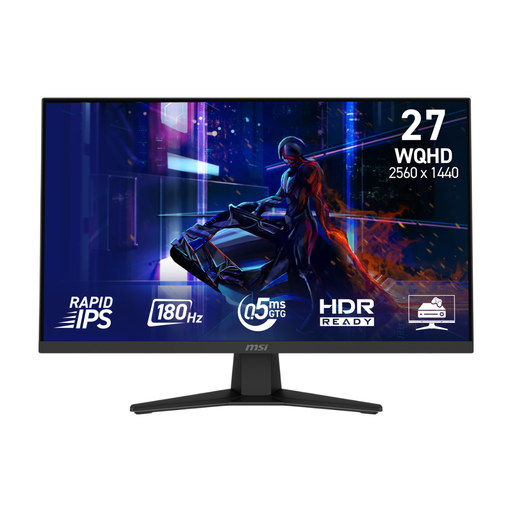
MSI MAG 274QF 27-inch WQHD Rapid IPS
Consider this as one 27-inch WQHD screen for a menu viewport. Before using two displays, check the order quantity and whether your computer has the required display connections.
View on Joybuy
 No image available
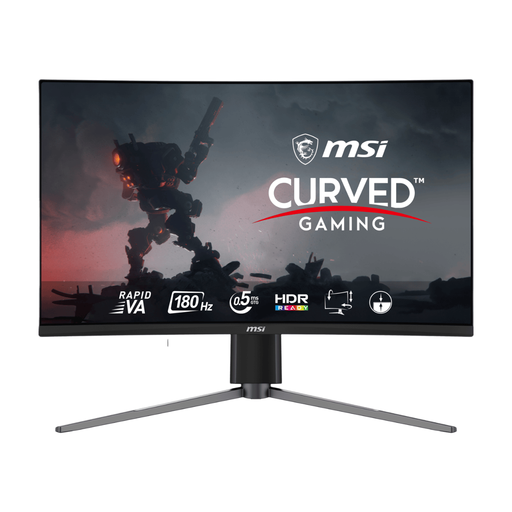
MSI MAG 27CQ6F 27-inch WQHD Curved Rapid VA
This curved WQHD model can serve as one menu-review screen if that shape suits your planned desk layout. Check the order quantity and your computer’s connections before pairing it with another display.
View on Joybuy
Common questions
Can any USB-C laptop run two external monitors?
No: a USB-C connector alone does not establish support for two external displays. Apple Support advises checking the exact Mac model’s display support, ports and required cables; check equivalent specifications for any other computer before choosing the monitors or a daisy-chain arrangement.
How should I arrange two connected screens in Windows?
Set their positions in Windows display settings to match how the screens sit on your desk. Microsoft Support says you can adjust settings for each external display after connecting it.
Can a Mac extend its desktop across two external displays?
Yes, if the exact Mac model supports the number of external displays you want to connect. Apple Support advises checking that model’s display-support information and the required connections before setting up an extended desktop.
What should I do with an old monitor when replacing it?
Ask the retailer how its electrical-waste take-back process applies to your replacement purchase. GOV.UK describes a same-type take-back requirement for applicable electrical-equipment distributors; confirm the seller’s route and conditions before ordering.


