What matters when choosing?
For accounts and invoices, decide how often both views need to sit beside each other before weighing adjustment range, desk space and monitor fit.
| Concern | What to check | Who this matters to |
|---|
| Side-by-side viewing |
Measure the combined screen width and allow room for the arms to move. Check whether the main screen can stay centred. |
When I compare account entries with invoices throughout the day, I want both views close without repeatedly switching windows; around 40% of consumers put side-by-side comparison first. |
| Screen positioning |
Check the exact configuration’s height and reach range, along with its stated load range for each monitor. |
If different people use the desk, I need to reset each screen’s height, distance and angle comfortably. For around 30% of consumers, that adjustment is the primary need. |
| Desk space and fixing |
Check the mounting area, desk construction and clearance from walls, shelves and cable trays. |
With invoices and work materials competing for space, I need the screens to take up less usable desk area; roughly 20% of consumers prioritise that need. |
| Monitor compatibility |
Compare each monitor’s weight, size and mounting interface with the requirements of the exact stand or arm. |
When my two monitors differ in size or mounting design, I need to know both will fit before choosing an adjustment style. Compatibility comes first for about 10% of consumers. |
Joybuy products for two-monitor setups
These stands are options for keeping two work views available. Check each one’s layout and fit against your monitors and desk before deciding whether it suits continuous accounts-and-invoice comparison.
 No image available
DELL Pro Dual Monitor Stand MDS19
This dual-monitor stand is an option for keeping accounts and invoice views on separate screens. Check how the MDS19 attaches to your desk and whether the exact stand suits each monitor’s weight and mounting requirements.
View on Joybuy
 No image available
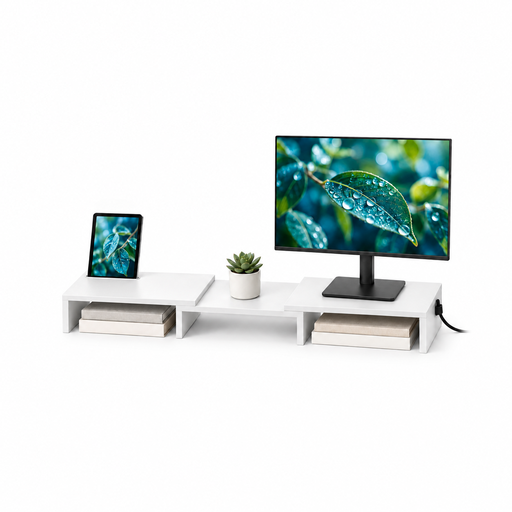
Floordirekt two-monitor stand, MDF, white, 80–108 cm
This two-monitor stand is an option when you want to adjust the width and angle of the setup. Its stated width range is 80–108 cm, and this variant is white MDF. Check how both monitors sit on it, their support requirements and the space available on your desk.
View on Joybuy
Common questions
Should accounts and invoices be displayed side by side or stacked?
Choose side-by-side positioning when you compare both views continuously: it lets the main screen stay in front of you while the invoice screen sits nearby. A stack may suit a narrow desk when the upper view is used less often; check that the stand has enough height adjustment for both screens.
Where should I position the screens?
Keep the primary display directly in front of you and the invoice display close beside it. HSE’s general workstation guidance puts the top of a screen roughly at eye level and the screen about an arm’s length away; adjust the arrangement to your actual task and workstation.
What should I check before ordering a dual monitor stand?
Check each monitor’s weight without its original stand, size and mounting requirements against the exact product. Also confirm that its fixing method suits your desk and that walls, drawers or cable trays will not obstruct the position you need.
Does my employer have to provide a dual monitor stand?
A dual monitor stand is not specified as a universal requirement in the cited HSE guidance. In the UK, HSE says display screen equipment rules apply to workers who use screens daily for continuous periods of an hour or more; discuss the workstation assessment and any changes it calls for with your employer.
Will a dual monitor arm fix every workstation issue?
No. An arm can help position the displays, but it does not replace attention to the chair, keyboard, mouse, lighting and work routine. Review the whole setup after fitting the arm.


