What to check before buying
Decide how the laptop will connect to two displays before choosing a USB-C daisy-chain arrangement. Then compare the space each screen provides for text and whether the pair will fit your desk.
Daisy-chain connection
Consider it when: You want the first monitor to feed the second and your computer, cable and monitors support that arrangement.
Trade-off: DisplayPort-out and USB-C connectors alone do not establish laptop compatibility. Dell says one-cable daisy-chaining of multiple displays on its P2725QE requires Thunderbolt.
Separate video outputs
Consider it when: Your laptop or dock supports two external displays, but the intended daisy chain is unsuitable.
Trade-off: The second screen needs its own video connection, which may mean another cable or a suitable dock.
| Concern |
What to check |
Who this matters to |
| Text workspace |
Compare native resolution and screen size on both monitors. For a 27-inch QHD pair, check that each display is 2560 × 1440. |
I want a paper open while I work with references and notes, without giving the second screen a different text layout. Around 42% of consumers put readable workspace first. |
| Laptop connections |
Check the laptop’s two-display support and the required port, dock and cable protocols; match USB-C power delivery to its charging requirement. |
When I reconnect my laptop, I want both screens to work without relying on a connection my computer cannot provide. A dependable connection comes first for around 33% of consumers. |
| Position and desk fit |
Measure the space for two stands and check height, swivel or pivot adjustment if your layout needs it. |
I need to position both displays comfortably within the desk space I have for long reading sessions. Around 25% of consumers prioritise placement and fit. |
Joybuy monitors for this setup
These individual monitors offer QHD resolution as one screen in a two-display research desk. Choose a second display and check your laptop or dock’s support for both screens separately; the products here do not establish a complete paired setup.
 No image available
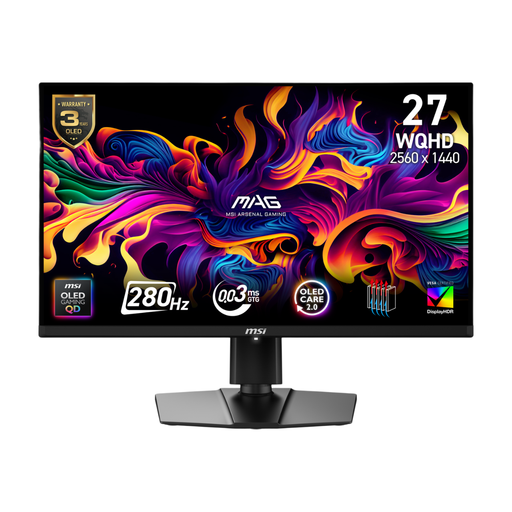
MAG 274QP QD-OLED X24 27-inch QHD monitor
Consider this as one QHD screen for keeping a source document visible beside other research work.
The product title specifies a 27-inch QD-OLED display, 2560 × 1440 resolution and 240Hz refresh rate.
Choose the second monitor separately, and confirm both your computer’s display support and any USB-C or daisy-chain features you plan to use.
View on Joybuy
 No image available
MSI MAG 271QP QD-OLED X28 27-inch QHD monitor
Consider this as one QHD display for PDFs or notes in a two-screen arrangement.
The product title specifies a 27-inch QD-OLED panel and 280Hz refresh rate.
Check the second-screen connection and whether the monitor’s USB-C charging capability meets your laptop’s needs before planning a single-cable desk setup.
View on Joybuy
 No image available
ASUS ProArt PA278CFRV QHD IPS monitor
Consider this QHD screen if text workspace is your priority when choosing an individual monitor for a research desk.
The product title specifies an IPS panel and 100Hz refresh rate.
Confirm the exact variant’s USB-C display and charging capabilities if your connection plan depends on them, and select a suitable second screen separately.
View on Joybuy
 No image available
HKC G27H2DPro 27-inch QHD IPS monitor
This can serve as one QHD display for sources or notes alongside another monitor.
The product title specifies a 27-inch Fast IPS panel, 2560 × 1440 resolution and 220Hz refresh rate.
Check the stand’s adjustment range if screen height or pivot matters to your layout, and confirm the connection method for both displays.
View on Joybuy
 No image available
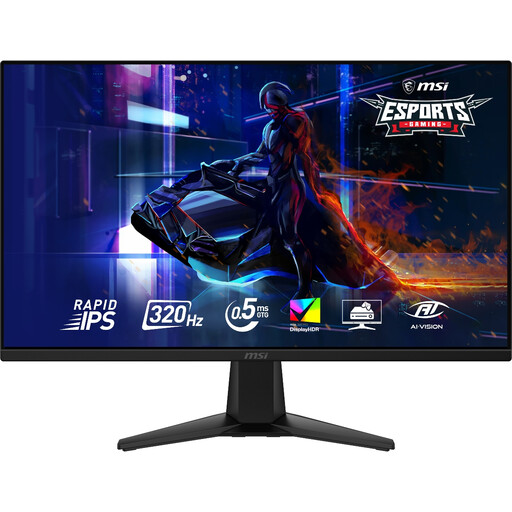
MAG 275QF X32 27-inch QHD IPS monitor
Consider this as one QHD screen where source documents need their own display.
The product title specifies a 27-inch Rapid IPS panel, 2560 × 1440 resolution and 320Hz refresh rate.
Check its stand adjustment and the connections your computer needs for a second screen before choosing the full setup.
View on Joybuy
Frequently asked questions
Do both citation-work monitors need the same resolution?
No, but matching size and resolution can make it easier to arrange and move text windows between the two screens. Check each monitor’s native resolution and adjustment range: Dell lists the 27-inch P2725DE and BenQ lists the 27-inch GW2790QT at QHD, while LG lists the 27-inch 27BA850-B at Full HD.
Can one USB-C cable run two external monitors?
It can in a supported setup, but the USB-C connector alone does not establish dual-display capability. Dell says daisy-chaining multiple displays through a single cable on its P2725QE requires Thunderbolt; check the exact laptop, dock, cable and monitor requirements for your arrangement.
How should I position two monitors for long research sessions?
Arrange the screens so you can work without repeatedly twisting towards the one you use most. The Health and Safety Executive advises keeping a screen about an arm’s length away, with its top at eye level; check that your desk and monitor stands allow you to position both displays accordingly.
Is a built-in webcam worth choosing over QHD for research work?
Choose integrated call hardware if video meetings are a regular part of your work, but compare the screen resolution with your reading needs. LG lists a webcam, microphone and speakers on its 27BA850-B, which is a 27-inch Full HD monitor rather than a QHD model.


