Choose around the task your relative needs to manage: a phone for calls and messages away from home, a docked tablet for a larger screen with a regular charging place, or a powered video display for contact mainly from one room. Before buying a Wi-Fi-dependent device, check that the home has internet access and that the signal works where the device will sit. Whichever route you choose, plan the account, contacts and everyday setup with your relative.
Who is this for?
Families setting up a first communication device
For a relative who wants routine calls, messages or simple online contact without managing a crowded set of apps alone. Ofcom and Age UK identify digital access, skills and confidence as relevant considerations for older people; the right layout still needs to suit the individual using it.
Families establishing a charging routine
For a household where the device is usually used in one familiar room or may otherwise be left uncharged or misplaced. A compatible docked tablet or powered display offers a fixed place for it, though the arrangement still needs a suitable power point.
Families checking home connectivity
For a relative whose intended room has unreliable Wi-Fi or whose home has no usable internet connection. Check access and the signal at the usual place of use before depending on a Wi-Fi tablet or video display for calls.
What matters when choosing?
If home internet or room-level Wi-Fi is unreliable, address that before choosing a Wi-Fi-dependent device. Then decide whether your relative needs communication on the move or would rather return to a familiar place at home.
Portable phone
Consider it when: Calls and messages need to work away from home, and your relative is comfortable carrying and charging a handset.
Allow for: Apple documents a focused Assistive Access interface on iPhone, while Samsung documents adjustable home-screen icons on supported Galaxy devices running One UI 7. Check the exact handset and plan for account setup and ongoing support.
Tablet with a charging dock
Consider it when: A larger screen is useful and the tablet can be returned to one regular charging place.
Allow for: Google documents automatic charging for the Pixel Tablet on its matching Charging Speaker Dock. Do not assume another tablet and stand will work the same way.
Fixed video-calling display
Consider it when: Contact happens mainly at home and a screen in one visible place suits your relative better than a device they must carry.
Allow for: A display such as Amazon’s Echo Show 8 (3rd Generation) needs power, Wi-Fi, an account and configured contacts. Agree on contact permissions with the person using it.
| Concern |
What to check |
Who this matters to |
| Simple calls and messages |
Agree on essential contacts and tasks; check the exact device’s home-screen and app-layout options. |
If I mainly want my relative to reach familiar contacts without searching through apps, a predictable calling and messaging layout comes first. Around 31% of consumers put that simplicity first. |
| Connection in the usual room |
Check whether the home has internet access, then test Wi-Fi where the device will be used; distinguish a room-signal problem from a broadband problem. |
When calls would depend on Wi-Fi in a room with an unreliable signal, I need the connection sorted before another device. For around 31% of consumers, dependable connectivity is the primary concern. |
| Charging and location |
Check whether a compatible dock is included or available, whether it works with the intended case, and where it can stay powered. |
If the device tends to be misplaced or left without charge, I want it to have one familiar place to return to. Keeping it charged and easy to locate comes first for around 23% of consumers. |
| Accounts and family support |
Plan account ownership, agreed recovery access and help with security updates before handover. |
When I will help with contacts and sign-in prompts, I need a support arrangement that respects my relative’s access and privacy. Around 15% of consumers make account support their main priority. |
Buying pitfalls
-
Buying a Wi-Fi device before testing the connection
A tablet or video display cannot replace absent home internet, and a strong signal beside the router does not establish that Wi-Fi works in the usual room.
Test the intended location. If broadband works but the room signal is weak, investigate router placement and coverage before replacing the communication device.
Changing the home network may add equipment and another setup task to manage.
-
Assuming a larger screen is simple to use
Screen size alone does not determine how many apps, alerts or sign-in steps your relative must navigate.
Choose the essential communication tasks together, check the intended model’s interface options and set up contacts before handover.
-
Setting up the device under someone else’s account
Account ownership affects access to contacts and recovery options. Apple specifies that the Apple Account used for Assistive Access should belong to the person using the iPhone.
Use your relative’s own account where appropriate, agree how you will help with recovery, and follow the National Cyber Security Centre’s advice on unique passwords and secure password storage.
Without an agreed recovery plan, regaining account access can take time and complicate access to contacts.
-
Treating a tablet stand as a universal charging dock
Google’s automatic docking and charging guidance applies to the Pixel Tablet and its Charging Speaker Dock, not to every tablet and stand.
Check the exact tablet-and-dock pairing, case compatibility, included accessories and permanent power position.
Relevant brands to consider
Apple
Relevant to families considering an iPhone for portable contact with a more focused interface.
- Apple documents larger onscreen items and focused layouts in Assistive Access.
- A supporter may need to help configure it; Apple says the Apple Account should belong to the iPhone user. The layout does not remove charging or account-management tasks.
Amazon
Relevant to a fixed-home video-calling arrangement using an Echo Show display.
- Amazon lists an 8-inch HD screen, a 13 MP camera and video-calling functions for Echo Show 8 (3rd Generation).
- It needs power, Wi-Fi and account and contact setup; available functions depend on the device generation and settings.
Google
Relevant to a tablet kept at a dedicated charging location.
- Google documents magnetic attachment and automatic charging for the Pixel Tablet with its Charging Speaker Dock.
- That charging arrangement is specific to compatible equipment; a generic stand should not be assumed to charge the tablet.
Samsung
Relevant to families considering a Galaxy smartphone with an adjustable home-screen layout.
- Samsung documents adjustable app-icon sizes and labels for supported Galaxy devices running One UI 7.
- Check the intended handset and software version rather than assuming the same options across Galaxy models.
Joybuy product choices
These choices cover portable phones, a home Wi-Fi range extender and a Wi-Fi tablet. Match each one to the relative’s main communication task; the extender addresses an existing network’s coverage, while a tablet needs its communication and charging setup checked separately.
 No image available
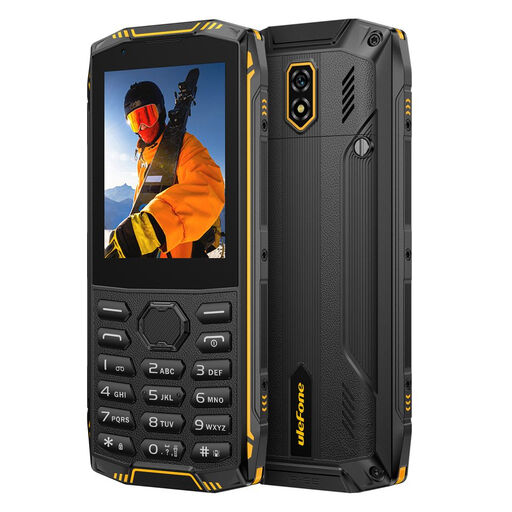
Ulefone Armor Mini 5 rugged feature phone, 1GB+8GB
Consider this for portable calls and messages if your relative is comfortable with a compact handset; check the calling and messaging routine together.
2.8-inch touch display and 4G LTE. The product title says no charger is included; check for a compatible charger and confirm compatibility with the intended UK mobile network.
View on Joybuy
 No image available
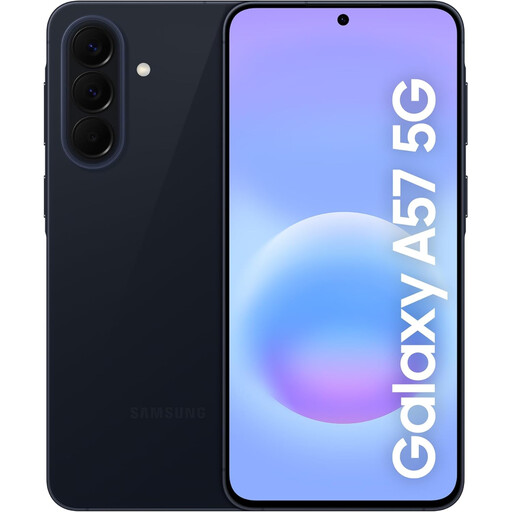
Samsung Galaxy A57 5G 256GB, Awesome Navy
Consider this for a portable smartphone setup if your relative wants calls and messages away from home and can manage the chosen interface.
Check the home-screen options on this exact model, compatibility with the intended UK mobile network and whether you have a suitable charging adaptor.
View on Joybuy
 No image available
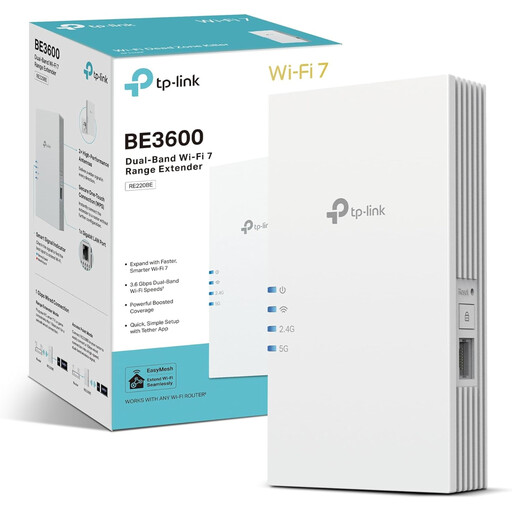
TP-Link RE220BE BE3600 Wi-Fi 7 range extender
Consider a range extender only if home internet and the existing router work but Wi-Fi is weak where your relative will use the device.
This is a Wi-Fi 7 range extender, not a replacement for a home internet connection. Test the room signal and check placement before relying on it for calls.
View on Joybuy
 No image available
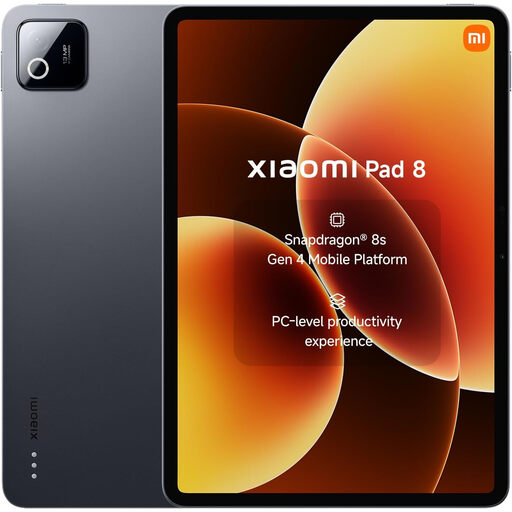
Xiaomi Pad 8 tablet, 8G RAM 128GB Wi-Fi, Gray
Consider this for a tablet used with home Wi-Fi if a larger device suits your relative’s routine.
Confirm that the required calling app and interface can be set up, and check for a compatible charging dock if returning the tablet to one place is important.
View on Joybuy
Common questions
When should I sort out home Wi-Fi before buying a device?
Sort it out first if the intended tablet or video display depends on Wi-Fi and the home has no usable internet or an unreliable signal in the usual room. Test that location: Ofcom identifies connection as foundational to digital inclusion, and EE distinguishes the broadband service from the Wi-Fi signal around the home.
Should I set up my relative’s device using my own account?
For an iPhone using Assistive Access, use the account of the person who will use it, even if you help with setup. Apple gives that instruction explicitly; agree on contacts and account-recovery arrangements together rather than relying on someone else’s sign-in.
Will any charging dock work with the tablet I choose?
Do not assume so: check the exact tablet, dock, case and power arrangement before buying. Google documents magnetic attachment and automatic charging for the Pixel Tablet with its Charging Speaker Dock, which does not establish compatibility with other tablets or stands.
How can I make passwords and updates manageable after setup?
Agree who will help with sign-in prompts and updates while keeping your relative’s account and privacy in mind. The National Cyber Security Centre advises unique passwords, secure password storage and software updates; choose a password-management and recovery routine your relative can use with agreed help.


