Check the broadband connection over Ethernet before replacing Wi-Fi equipment: Ofcom notes that Wi-Fi cannot outperform the service entering the home. If the wired connection meets your needs but Wi-Fi struggles, consider a standalone router for devices near one central point, or mesh when people also need coverage across separate rooms or floors. Before buying either, check how it will connect to your provider’s equipment and whether its ports and controls meet the household’s needs.
Who needs to assess their home Wi-Fi?
Households using several demanding applications
If streaming, game downloads and work calls coincide, check whether the slowdown also occurs on a wired connection. Ofcom advises checking what other household members are doing online when connection problems arise.
Gamers and home workers with wired devices
Consoles, desktop PCs and work equipment may need Ethernet connections. Count the devices you intend to plug in and check the number and speed of the prospective router’s ports.
Households active across several rooms or floors
When people work, play and watch in different parts of the home, test Wi-Fi in those rooms. A mesh system is worth considering if placement changes do not give the active rooms a usable connection; node placement and backhaul still matter.
What should you check before choosing?
Start with the connection entering the home, then identify whether the remaining problem is concentrated near the router or spread across rooms.
Keep or upgrade the provider router
Consider when: You want provider-supported troubleshooting or your provider offers a newer router for an inadequate existing setup.
Check: Confirm eligibility and the replacement model’s ports and Wi-Fi features; a router change will not fix an inadequate broadband connection.
Standalone third-party router
Consider when: One well-placed router can serve the active rooms and several devices need nearby wired connections.
Check: Confirm the provider’s connection and setup requirements; one router may still struggle to reach separated floors.
Mesh Wi-Fi system
Consider when: People use the connection in several rooms or floors that one central router does not serve well.
Check: Plan node positions and how nodes connect to each other; mesh cannot increase the broadband speed entering the home.
| Priority | What to check | Your needs |
|---|
| Connection baseline |
Test a computer connected to the existing router by Ethernet, then compare Wi-Fi in the rooms you use. Repeat observations during normal household activity. Ofcom uses Ethernet to distinguish connection performance from Wi-Fi effects. |
If the wired connection is also inadequate, I need to investigate the broadband service or a fault before paying for different Wi-Fi equipment. |
| Simultaneous use |
Note when large downloads, streaming, games and work calls overlap. Check whether the proposed router offers traffic visibility or controls you would use; these cannot create more broadband bandwidth. |
I need work and entertainment devices to remain usable when other people are online, not just a high speed shown for one device. |
| Rooms and backhaul |
Test the active rooms and try a more suitable router position. For mesh, check where each node can maintain a connection and whether wired backhaul is practical. |
People use the connection on different floors, so I need to judge coverage and concurrent use together. |
| Wired connections |
Count the devices needing Ethernet, then check port number, speed and WAN or LAN roles on the exact model. Match the WAN connection to the broadband hand-off. |
My console, computer or work equipment needs the right connection where it will actually sit. |
| Setup and controls |
Confirm the provider’s required connection method and whether its hub can work with your equipment. Check included security controls, updates and any subscription terms. |
I want to complete the setup without losing a provider feature I rely on or assuming a software control is included. |
Buying mistakes to avoid
-
Expecting a Wi-Fi speed label to improve the broadband line
Ofcom notes that Wi-Fi cannot outperform the underlying broadband service. A faster router specification alone cannot resolve a slow wired connection.
Test over Ethernet first. If that result is inadequate, investigate the service or a possible fault before replacing Wi-Fi equipment.
-
Choosing one router without checking the rooms in use
A single router may not serve active rooms across a difficult layout, even when its headline specification looks suitable.
Test the rooms used for work, gaming and streaming. Try router placement before planning mesh nodes where they can maintain a usable connection.
A mesh layout may also require more nodes or an Ethernet connection between them.
-
Assuming a third-party router connects in the same way everywhere
Broadband connection and provider-hub arrangements differ. BT Business says compatible third-party equipment requires self-setup on its service; that policy should not be assumed for residential services.
Confirm your access type, hub model, connection method, required credentials and any provider features affected before ordering.
-
Assuming every software control is included
Security and household-management features can have different access terms, so a feature named on a product page may need a closer look.
Check what works without a subscription, change the router’s default administrator credentials and review update settings after installation.
Brand and product-line references
These examples illustrate different router and mesh configurations; check the exact variant and your provider’s setup requirements before choosing.
ASUS
The ASUS RT-BE88U is a standalone, dual-band Wi-Fi 7 router to consider when several wired devices are near a central router.
- ASUS lists dual 10G ports, four 2.5G ports, four 1G ports and AiMesh expandability for the RT-BE88U.
- Check which ports and connection settings your service and devices can use. A standalone router does not itself establish coverage across every floor.
TP-Link
The Deco BE65 is a mesh-system reference for households considering connections across multiple active rooms.
- TP-Link United Kingdom lists four 2.5Gbps ports per Deco BE65 unit and combined wired and wireless backhaul.
- Check the exact pack and variant, node positions and how each node will connect; those details affect whether the configuration suits your home.
eero
The eero Pro 7 is a tri-band mesh option for buyers assessing multi-room coverage and multi-gig wired connections.
- eero lists two auto-sensing 5GbE ports and support for internet plans up to 5Gbps for the Pro 7.
- Check the number of units needed and the terms for any optional software features you intend to use.
Joybuy router and mesh options
These options include mesh packs for active rooms spread around the home and a standalone router for a more concentrated setup. Compare the exact ports and provider connection requirements with your own equipment before choosing.
 No image available
TP-Link Deco BE65 BE9300 Tri-Band Wi-Fi 7 (3-Pack)
Consider this three-pack mesh system when people use Wi-Fi in separate rooms. Plan node positions and check the exact pack’s Ethernet connections and compatibility with your broadband setup if wired devices matter.
View on Joybuy
 No image available
NETGEAR Orbi 370 RBE373 Dual-Band Wi-Fi 7 (3-Pack)
This three-pack mesh option is worth assessing when active rooms are apart. Its title specifies BE3600 and 2.5Gbps Ethernet; check the port layout on each unit, node placement and the terms of any optional software features.
View on Joybuy
 No image available
TP-Link Deco BE22 BE3600 Wi-Fi 7 (3-Pack)
The three-pack mesh format gives you several units to position around rooms in use. Check Ethernet port specifications if you intend to connect work or gaming devices by cable, and confirm how the system connects to your broadband equipment.
View on Joybuy
 No image available
TP-Link Deco BE25 Wi-Fi 7 (3-Pack)
Consider this three-pack mesh system if Wi-Fi is needed in several active rooms. Check node positions, the number and roles of its Ethernet ports, and your provider’s connection requirements before selecting it.
View on Joybuy
 No image available
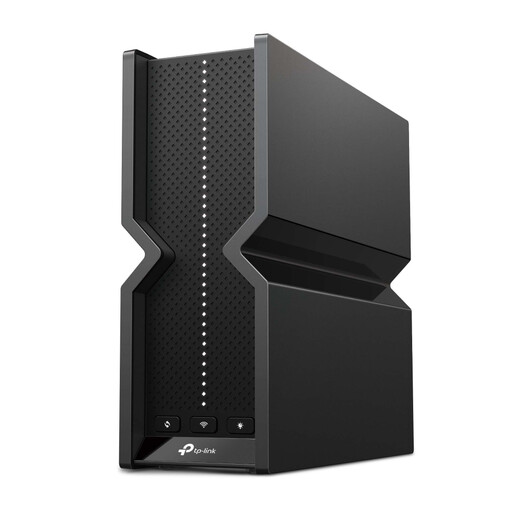
TP-Link BE9300 Tri-Band Wi-Fi 7 Router
This standalone router is an option if one central position can serve the rooms in use. Check its Ethernet port layout against your wired devices and confirm that its WAN setup matches your provider; do not assume a separate mesh unit is included.
View on Joybuy
Frequently asked questions
Is the broadband service or home Wi-Fi causing the slowdown?
Compare a computer connected to the router by Ethernet with Wi-Fi tests in the affected rooms, both when the household is quiet and during normal use. Ofcom uses Ethernet to measure connection performance without Wi-Fi limiting the result; if the wired connection is also inadequate, investigate the service with your provider before assuming a new router will help.
Can I connect my own router to a Virgin Media Hub?
Virgin Media describes modem mode as a way to use your own Wi-Fi equipment with a compatible Hub acting as a cable modem. Check the instructions for your exact Hub model and which Hub functions change in that mode before buying another router or mesh system.
What should I confirm before buying a third-party router?
Confirm how your broadband equipment hands off the connection, what WAN connection and credentials are required, and whether your provider supports the proposed setup. BT Business says third-party routers on its service must be compatible and self-configured; ask your own provider for the requirements that apply to your service.
What should I do after installing a new router or mesh system?
Change any default router administrator credentials and review available update and firewall settings. The Northern Ireland Cyber Security Centre specifically advises changing default router login details; also check the connected-device list and the terms of any optional controls you plan to use.


