Web-first volunteer coordinators
If schedules, sign-up forms and meetings mainly run in a browser, prioritise the services you use, a workable call setup and a connection to the workspace display over support for desktop-only software.


Choose the operating system around the software your event actually requires: a Chromebook can suit browser-based planning, a Windows laptop is the route to examine for Windows-only desktop applications, and a MacBook Air can suit an existing macOS-compatible workflow. Before buying, check the exact applications, meeting setup and room-display connection, then weigh portability against the need to handle attendee information within your organisation’s security process.
If schedules, sign-up forms and meetings mainly run in a browser, prioritise the services you use, a workable call setup and a connection to the workspace display over support for desktop-only software.
If a venue, printer or finance team requires a named application, check its operating-system and hardware requirements before choosing a laptop for the rest of the planning work.
If you access attendee or volunteer details in a shared workspace, choose a device that fits your organisation’s rules for accounts, storage and access. The Information Commissioner’s Office provides guidance on security measures, including passwords and encryption.
Choose when: A required venue, printing or other desktop application needs Windows.
Check: Meeting Microsoft’s Windows 11 minimum requirements does not establish that a particular application will work well; check that application’s requirements too.
Choose when: Documents, registration and meetings run in supported browser-based services.
Check: Confirm an acceptable ChromeOS workflow for every required desktop program or printer before committing to this route.
Choose when: The team’s essential tools are macOS-compatible and its workflow already uses Apple devices.
Check: Apple lists USB-C/Thunderbolt ports rather than built-in HDMI on the MacBook Air specification cited here; a room display may require a compatible adapter or dock.
| Concern | What to check | Who this matters to |
|---|---|---|
| Software compatibility | List essential venue, finance, printing and collaboration tools; check each one against the exact operating system and device. | If a required program will not run, my event workflow stalls regardless of the laptop’s other features. Around 33% of consumers put software compatibility first. |
| Calls and room displays | Check camera and microphone access, the meeting service’s requirements, and the room display’s input against the laptop’s ports. | I need to join planning calls and show information on the shared room screen without changing the setup at the last minute. Roughly 27% of consumers make collaboration and presentation their primary concern. |
| Portability and charging | Compare the exact model’s weight and the basis of its battery claim; check access to sockets during long sessions. | Carrying a laptop between planning locations matters more to me than having a larger screen at every stop. Around 20% of consumers prioritise portability and working away from a socket. |
| Attendee information | Confirm permitted local storage, account access and the security controls required by the organiser’s process. | When I handle contact or access-requirement details in a shared setting, I need the device to fit our rules for protecting them. Roughly 20% of consumers put attendee-information handling first. |
Shared documents may work well while a required venue, printing or accounting program does not. Operating-system minimum requirements do not establish application compatibility.
List every essential service, program and printer workflow, then check support for the exact operating system before ordering.
Port layouts vary by model. Apple lists USB-C/Thunderbolt ports for the cited MacBook Air, while Acer lists HDMI on the cited Chromebook Plus 516 configuration.
Ask which input the workspace display uses and check the laptop’s exact ports, including display and charging compatibility if an adapter is needed.
A compatible adapter or dock may need to be carried with the laptop.
A manufacturer’s wireless-web or video-streaming test does not guarantee the same runtime during calls, presentations and multitasking.
Compare claims on their stated test basis and plan access to charging for long venue days.
A privacy shutter or biometric sign-in does not decide how attendee information may be collected, shared or retained.
Follow the organiser’s process for passwords, access, encryption, sharing and local storage, then check which device features support it. The Information Commissioner’s Office provides UK GDPR security guidance.
Acer’s Chromebook Plus 516 CB516-1H-56WE is a specific ChromeOS example for browser-based planning and room-display use.
Relevant ThinkPad models are worth examining when regular movement between planning locations and device-security controls matter.
The MacBook Air is a macOS route for teams whose essential planning tools are compatible with that operating system.
These Windows laptop choices address different combinations of document work, movement between planning locations and room-display needs. Check your required applications and workspace equipment against the exact model before choosing.
 No image available
Consider this for a Windows planning workflow if its exact application and meeting requirements are compatible.
The named configuration has a Snapdragon X processor, 16 GB RAM and a 512 GB SSD.
Confirm microphone availability and the connection needed for the workspace display before relying on a built-in meeting setup.
 No image available
Consider the larger display if you often work through event documents at a desk; check its carrying size against your travel between locations.
The named configuration has a 15.6-inch display, Intel Core 5 120U processor, 24 GB RAM and a 1 TB SSD.
Check required software and plan charging around your actual call and presentation workload.
 No image available
Consider this for document-focused planning only after checking how your essential applications work with Windows 11 Home in S Mode.
The named configuration has a 15.6-inch Full HD display, Intel N150 processor, 8 GB DDR4 RAM and a 128 GB SSD.
Check the workspace display input and your requirements for calls and charging.
 No image available
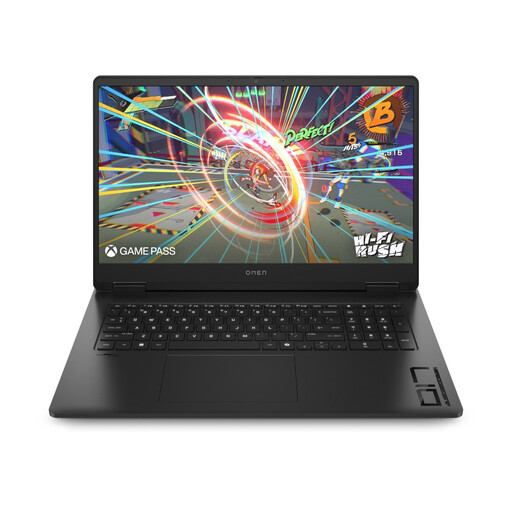
Consider the 17-inch format if planning mostly happens at a desk, and check whether its size suits trips between the workspace and venue.
The named Windows 11 Home configuration has a 17-inch Full HD display, AMD Ryzen AI 7 350 processor, 16 GB RAM, 1 TB SSD and RTX 5060 graphics.
Confirm essential software and microphone availability before depending on it for planning calls.
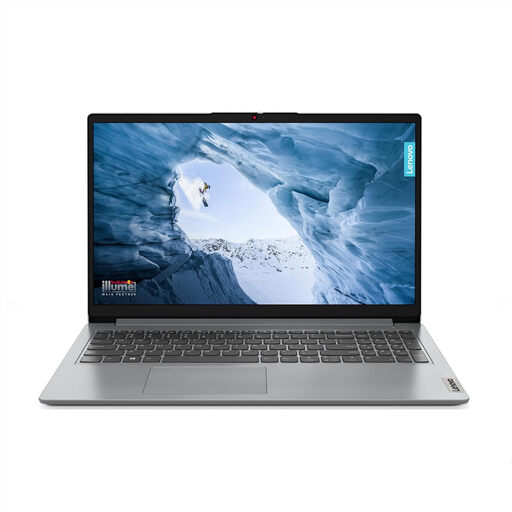 No image available
Consider this for shared documents and other compatible tasks, but check application installation needs before choosing a Windows 11 Home in S Mode device.
The named configuration has a 15-inch Full HD display, AMD Ryzen 3 7320U processor, 8 GB RAM and a 128 GB SSD.
Confirm microphone availability and the exact display-output connection required at the workspace.
No, if every essential service works in your chosen browser or on macOS. Choose a Windows route when a required venue, finance, printing or collaboration program needs Windows, and check that program against the exact laptop before buying.
Match the display’s actual input to the exact laptop’s output, then check whether an adapter or dock is needed. Acer lists HDMI on the cited Chromebook Plus 516 configuration; Apple lists Thunderbolt 4/USB-C ports on the cited MacBook Air specification. Neither port layout applies to every model from those brands.
No: check microphone and camera access, a supported browser and operating system, broadband, and the workload you expect during calls. Google Meet’s dual-core processor and 2 GB memory figures are minimum requirements, not a recommendation for demanding multitasking.
Only if the organiser’s process permits that storage and your role gives you the appropriate access. Confirm the approved arrangements for accounts, passwords, encryption, sharing and retention; the Information Commissioner’s Office provides UK GDPR guidance on these security considerations.
Check the terms for the exact model and seller, including the warranty period, repair route, turnaround arrangements and any conditions for organisational use. Compare those terms separately from the laptop’s suitability for your event software and workspace equipment.