For a family computer that also holds community-group files, choose a portable hard disk drive (HDD) if you can back up regularly, then disconnect and store it securely. Consider a desktop HDD if a measured, growing archive calls for more capacity at a fixed desk, or a portable solid-state drive (SSD) if the drive travels between locations and frequent transfers matter. Whichever format you choose, check capacity, computer and backup-software compatibility, and how access to any personal information will be protected.
Who needs which approach?
Routine backup keepers
If one family computer needs regular backups, a removable drive can be disconnected and stored after each session. The National Cyber Security Centre advises small organisations not to leave backup storage connected when it is not in use.
Growing community-file custodians
If event photos, documents and other community files keep accumulating, measure the files before choosing capacity and allow room for later backups. A fixed-location desktop drive is worth considering when a portable drive cannot accommodate the planned archive.
Mobile file handover users
If the drive moves between home and community venues or is used for frequent large-file transfers, a compact portable SSD may be convenient. Check the ports and cables on the computers that will use it rather than relying on a quoted maximum transfer speed.
What matters when choosing a drive?
Portable HDD
Consider it when: one computer needs a drive that can be put away after routine backups.
Allow for: the capacity and file-system requirements of the exact model; for example, Toshiba says its Windows-formatted Canvio Basics range needs reformatting for macOS.
Desktop HDD
Consider it when: a large or growing archive can be backed up at a desk with mains power.
Allow for: the power outlet and a way to keep a backup separated from the computer between sessions.
Portable SSD
Consider it when: the drive travels regularly or repeated large-file transfers are part of the work.
Allow for: transfer speeds depending on the computer, connection and cable; compactness alone does not replace a separated backup copy.
| Concern |
What to check |
Who this matters to |
| Backup routine |
Choose a backup method you can repeat, and plan where to keep the drive after disconnecting it. The National Cyber Security Centre advises keeping external backup storage disconnected when it is not in use. |
I need copies of household and community files without leaving my only backup attached to the computer; around 40% of consumers put a repeatable, separated backup routine first. |
| Capacity headroom |
Measure the files to be protected and allow for growth and backup history. Compare advertised capacities on the same basis; Seagate notes that a computer may report a different capacity figure. |
Our event photos and documents keep growing, so I need space for later backups as well as today's files; roughly 30% of consumers make capacity headroom their primary concern. |
| Portability and transfers |
Check the computer's USB ports and the cable supplied with the exact drive. Samsung says the T7's quoted maximum speeds require a compatible USB 3.2 Gen 2 host, cable and UASP. |
When I take files between home and a community venue, carrying the drive and repeating large transfers should be manageable; around 20% of consumers put portability and transfer time first. |
| Personal information |
Establish whether the backup holds personal information, who can access it and how authorised users would restore it. The Information Commissioner's Office identifies encryption as a possible measure depending on the nature and risks of the processing. |
If community contact records are on the backup, I need to control access without losing the ability to restore them; about 10% of consumers prioritise safeguarding personal information. |
Backup mistakes to avoid
-
Leaving the only backup drive connected
A connected drive can be affected by the same incident as the computer. The National Cyber Security Centre warns that connected backup storage has been affected in ransomware incidents.
Run regular backups, disconnect the drive when each backup finishes and store it securely. Keep another separated copy of important community records.
-
Assuming a Windows-formatted drive is ready for Time Machine
Apple says Time Machine cannot back up to a disk formatted for Windows. Reformatting a drive removes the data already on it.
Check the intended computer and backup method before purchase. Copy any existing contents elsewhere before reformatting; never reformat a drive holding the only copy of community files.
-
Expecting the displayed capacity to match the advertised figure exactly
Seagate explains that operating systems can use a different measurement standard from the one used to advertise drive capacity. The number displayed by the computer therefore needs context.
Measure the backup set, leave room for additional files and versions, and compare advertised capacities using the same units.
-
Treating an SSD's maximum speed as a guaranteed backup speed
Samsung's quoted maximum figures for the T7 depend on a compatible USB 3.2 Gen 2 host, cable and UASP; they do not describe performance on every computer.
Check the computer's port and the supplied cable before choosing a drive chiefly for transfer speed.
Brands and product lines to consider
Toshiba
The Canvio Basics line is a USB-powered portable HDD option for a Windows-centred, single-computer backup routine.
- Toshiba specifies USB 3.2 Gen 1 and USB 2.0 support and lists Canvio Basics capacities up to 4 TB.
- Toshiba says the line is formatted as NTFS for Windows and requires reformatting for macOS; plan the file system before using it for Mac backups.
Seagate
The One Touch portable and Expansion Desktop lines illustrate different approaches to movable backups and fixed-location archives.
- Seagate describes one-click or scheduled backups for One Touch and lists Expansion Desktop capacities from 4 TB to 30 TB.
- Check the features and availability of the exact model and capacity: the cited Seagate product pages do not establish that every variant is currently purchasable.
Samsung
The portable T7 SSD line is relevant when a compact drive and frequent file transfers matter.
- Samsung lists USB-C-to-C and USB-C-to-A cables for the cited T7 and specifies maximum read and write speeds of 1,050 MB/s and 1,000 MB/s.
- Those maximum speeds require a compatible USB 3.2 Gen 2 host, cable and UASP; Samsung also notes that some operating systems may require reformatting.
Joybuy drives for these backup needs
These portable HDDs and SSD offer options for a removable backup routine or files carried between locations. Compare their stated capacities with the files you need to protect, then check the intended computer and backup setup before choosing.
 No image available
Western Digital My Passport portable HDD, 2 TB, black
Consider this removable HDD for regular backups of one computer if 2 TB leaves enough room for your files and backup history.
If the computer is a Mac, confirm the file-system and backup-software requirements before setting it up.
View on Joybuy
 No image available
Samsung T7 Shield portable SSD, 1 TB, blue
Consider this portable SSD if the backup drive will travel or be used for frequent file transfers, provided 1 TB covers the planned backups.
The product name specifies USB 3.2 Gen 2; check the computers' ports and cables before relying on high transfer speeds.
View on Joybuy
 No image available
Western Digital My Passport Ultra for Mac portable HDD, 5 TB, silver
This Mac-oriented portable HDD is worth considering when a 5 TB drive suits the measured backup set and the drive needs to be stored between sessions.
For use with Windows as well, check the intended file-system and backup-software arrangement before moving files between computers.
View on Joybuy
 No image available
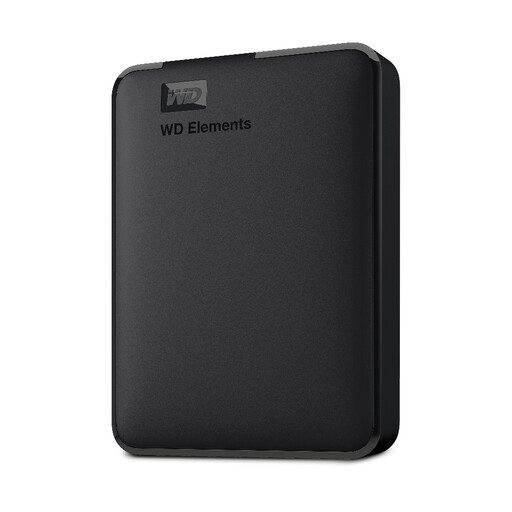
Western Digital Elements portable HDD, 4 TB, black, USB 3.0
Consider this removable 4 TB HDD when the backup set calls for more room than a smaller portable variant and you can disconnect it after use.
The product name specifies USB 3.0. Check the computer's connection and any Mac formatting requirements before choosing a backup method.
View on Joybuy
 No image available
Western Digital Elements portable HDD, 1 TB
Consider this removable HDD for a routine backup only if 1 TB accommodates the files, future additions and backup history you intend to keep.
If backing up a Mac, check whether the drive needs reformatting before use.
View on Joybuy
Frequently asked questions
How large should the backup drive be?
Choose capacity after measuring what you will back up, then leave room for new files and backup history. For a Mac using Time Machine, Apple advises a backup disk with at least twice the Mac's storage capacity; for a Windows computer, account for the folders included and the backup method rather than relying on its internal-drive size alone.
Can one external drive back up both Windows and Mac computers?
It can only do so with a file-system and backup arrangement that works for both intended uses. Toshiba says its cited Canvio Basics drive is supplied as NTFS for Windows and needs reformatting for macOS; Apple says Time Machine cannot back up to a Windows-formatted disk. Plan separate volumes or drives as appropriate, and copy existing data elsewhere before any reformatting.
Should I leave the backup drive connected?
Disconnect a removable drive when its backup has finished, particularly if it holds your only backup copy. The National Cyber Security Centre advises keeping external backup storage safe and disconnected when it is not in use; another separated copy gives important community files protection beyond a single drive.
Does a community group have to encrypt its backup drive?
The appropriate protection depends on whether the backup contains personal information and the risks involved. The Information Commissioner's Office identifies encryption as a possible measure under UK GDPR security requirements, not an automatic answer for every drive. If personal information is backed up, assess encryption alongside physical storage, authorised access and how recovery credentials will be kept and used.


