Buying priorities
Start with where the second copy will live, then match capacity and transfer speed to your routine. Compatibility matters before formatting a drive or setting up automated backups.
| Priority |
What to check |
Your needs |
| Separate backup copy |
Keep a copy away from the primary computer; confirm that the backup can be restored and which folders are retained. |
I want important photos and documents to remain available if my computer is lost, fails or files become inaccessible. |
| Capacity and transfer speed |
Compare the size of the files you need to retain with the drive capacity. Choose an HDD for routine long-term local backup, or check the USB connection when faster SSD transfers matter. |
My archive is growing, so I need room for a separate copy; if I move large files repeatedly, faster transfers matter too. Which? describes HDDs as suitable for long-term computer-file backup and SSDs as typically faster but pricier. |
| Backup-software compatibility |
Check the computer's ports, the cable connection and the format required by the backup application. Copy existing files elsewhere before reformatting. |
I need a drive that works with my planned backup routine without risking files already stored on it. Microsoft supports external drives for File History; Apple says Time Machine cannot back up to a Windows-formatted disk. |
| Portability and handling |
For a drive carried between locations, check the exact model's stated protection features and keep another copy elsewhere. |
I carry storage between home, work or travel, so physical handling matters, but I do not want to rely on one drive as my only backup. |
Joybuy product options
Joybuy options for portable SSD transfers and external HDD local backup, selected for photo, document and laptop-file storage routines.
 No image available
Samsung Portable SSD T7 4 TB USB Type-C 3.2 Gen 2 Grey
For a large separate local copy that also needs to move large files between compatible devices.
Stated 4TB capacity, USB 3.2 Gen 2, up to 1,050 MB/s read and 1,000 MB/s write, with USB-C-to-C and USB-C-to-A cables supplied.
Maximum stated speed depends on a compatible USB 3.2 Gen 2 host and cable. Check the backup-software format before use, especially for Mac Time Machine, and retain another copy elsewhere for irreplaceable files.
Joybuy
 No image available
Samsung Portable SSD T7 2 TB USB Type-C 3.2 Gen 2 Grey
For a dedicated local backup destination that can also support frequent large-file transfers.
Stated 2TB capacity, USB 3.2 Gen 2, up to 1,050 MB/s read and 1,000 MB/s write, plus USB-C-to-C and USB-C-to-A cables.
The stated maximum speed requires a compatible USB 3.2 Gen 2 host, cable and UASP support. Confirm the intended disk format before reformatting, particularly for Time Machine.
Joybuy
 No image available
Samsung MU-PE1T0S 1TB USB Type-C 3.2 Gen 2 Black
For portable local storage that is regularly carried between home, work or travel.
Stated 1TB capacity, USB Type-C USB 3.2 Gen 2, up to 1,050 MB/s read and 1,000 MB/s write, IP65 water and dust resistance, and up to three-metre drop resistance.
IP65 is stated for temporary water exposure, not prolonged submersion. Compare 1TB with the full archive you intend to retain, and check the backup format before use.
Joybuy
 No image available
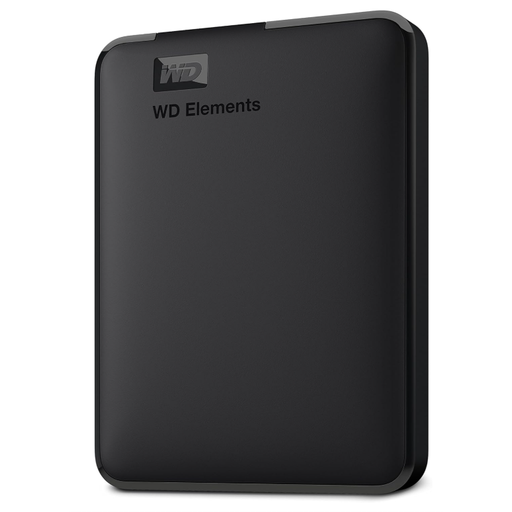
Western Digital Elements Portable External Hard Drive USB 3.0 6TB
For a high-capacity local copy of household photos, videos and documents without a mains adapter.
Stated 6TB capacity, USB 3.2 Gen 1/USB 3.0 connectivity, bus-powered operation, a Micro-USB-to-USB-A cable and Windows pre-formatting.
macOS use requires reformatting according to the listing, so protect existing files before changing the format. A USB-C-only computer may need a suitable adapter, and the drive should be handled carefully during transfers.
Joybuy
 No image available
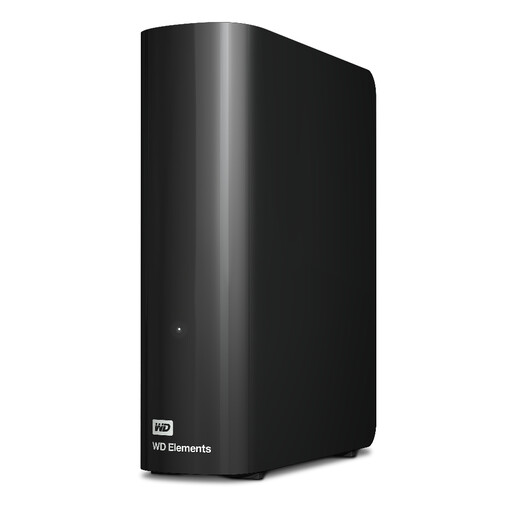
Western Digital WD Elements 12TB USB 3.2 Gen1 External Desktop Hard Drive
For a very large household archive or a fixed desk location used for regular local backup.
Stated 12TB capacity, USB 3.2 Gen 1/USB 3.0, Windows NTFS pre-formatting, a USB-A cable and AC adapter.
This mains-powered 3.5-inch desktop drive suits a stable location rather than frequent carrying. Check whether the computer has a suitable USB-A port and confirm Time Machine requirements before formatting for macOS.
Joybuy
Frequently asked questions
Should an external drive replace cloud backup?
Usually no when losing one storage location would be unacceptable. The National Cyber Security Centre describes a backup as a copy in a separate safe location, including removable media or cloud storage; an external drive provides a local copy, while cloud storage can add an off-device location and cross-device access. Check which folders and versions a cloud service actually retains.
Which is more suitable for routine laptop backup: HDD or SSD?
Choose an external HDD when long-term local backup capacity and regular copies are the priority. Choose a portable SSD when you frequently transfer large files or carry the drive and can use the faster connection; Which? says SSDs are usually pricier, and Samsung notes that actual T7 speed depends on the host device and cable.
Can one drive work with Windows File History and Mac Time Machine?
Do not assume it will. Microsoft says File History can use an external drive, but Apple says Time Machine cannot back up to a Windows-formatted disk and prefers APFS or APFS Encrypted. Copy existing files elsewhere before reformatting because changing the format can permanently erase contents.
Is a USB flash drive suitable for file transfer?
Yes, a USB stick is practical for moving files to and from a computer. Which? describes USB sticks as a route for transferring files, but for a growing photo library or full laptop backup, keep another copy in a separate safe location.
What should I do with an old external drive in the UK?
Keep any files you need and securely remove personal data before disposal. UK WEEE regulations cover electrical and electronic equipment to support recovery, reuse and recycling, so use an appropriate electronics-recycling route rather than ordinary household waste. Check local collection arrangements separately.


