Use an external drive as a local copy of your computer files, not as the only copy: the UK National Cyber Security Centre advises considering both online and device-based backups. Choose capacity for the files and backup history you want to keep, then weigh a portable HDD for moving a sizeable collection, a portable SSD for frequent transfers, or a powered desktop drive for a collection kept at a desk. Before copying files, check that your computer, backup software and chosen disk format work together; Apple’s Time Machine requirements differ from ordinary cross-device file access.
Who this guide is for
People protecting irreplaceable files
If you have photos or documents that would be difficult to replace, plan a repeatable backup routine with a copy kept separately from your computer. The UK National Cyber Security Centre describes removable media and cloud storage as possible backup locations.
Owners of growing photo libraries
If your collection is sizeable or expanding, compare its current size and expected growth with the drive capacity and the space your backup routine needs. Apple Support advises that a disk used for Time Machine should be at least twice the size of the data being backed up.
People backing up across devices
If you move a drive between computers, check its ports, cables and format as well as the backup software you plan to use. Apple Support and Microsoft Support give different setup instructions for Time Machine and Windows File History.
What to prioritise when choosing backup storage
Decide how you will keep a separate copy first, then match the drive’s capacity, portability and connection to the files and backup routine you actually have.
| Concern |
What to check when buying |
Who this matters to |
| A separate, recoverable copy |
Plan where another copy will live, when the local drive will be connected and how you will check that files open. |
I want a copy I can still use if the computer or a connected drive is affected. Around 36% of consumers put keeping a separate copy first. |
| Capacity for files and backup history |
Measure the files, allow for expected growth and compare the result with the exact model’s capacity. For Time Machine, Apple Support says the disk should be at least twice the size of the data being backed up. |
If my photo or document collection is growing, I need enough room for the files and the backup history I intend to keep. Around 29% of consumers prioritise capacity. |
| Portability and transfer needs |
Check whether a portable drive or a powered desktop model suits your routine, and whether your computer and cable support the connection required for the model’s rated speed. |
I carry my backup or regularly move larger files, so the drive’s size and connection matter to me. Around 21% of consumers prioritise portability and file transfers. |
| Software and format compatibility |
Identify your backup tool and check the drive’s ports and format before saving files. Apple says a Windows-formatted disk cannot be used directly for Time Machine. |
I need the drive to work with my computer and intended backup software before I rely on it. Around 14% of consumers put compatibility first. |
Pitfalls to avoid when buying backup storage
-
Treating a connected drive as the whole backup plan
A drive connected to a computer may be affected by the same incident as the original files. The UK National Cyber Security Centre advises considering online and device-based copies.
Plan where another copy will be kept, disconnect removable backup storage when it is not needed, and check that you can retrieve important files.
-
Assuming a drive that opens on Mac and Windows is ready for Time Machine
Apple says Time Machine cannot back up directly to a Windows-formatted disk. Reformatting can erase files already on the drive.
Choose your backup tool before formatting, and make sure any existing files have another usable copy before you erase the disk.
-
Choosing an SSD on its maximum speed alone
A manufacturer-rated maximum does not establish the speed you will get with a different computer, port or cable. Kingston’s XS1000 rating, for example, depends on a compatible USB 3.2 Gen 2 connection.
Check your computer’s port and the cable for the exact model, then consider whether frequent transfers justify prioritising speed over the capacity you need.
-
Assuming backup software works the same way on every operating system
Seagate’s One Touch HDD manual describes scheduled Toolkit backup plans for Windows, while its mirror-folder function is available on PC or Mac and also propagates edits and deletions.
Check software features for the exact drive and operating system, and distinguish a versioned backup from a mirrored folder.
A different backup routine may require additional setup time.
Relevant brands for external backup storage
Seagate
Seagate’s One Touch HDD and One Touch with Hub illustrate portable and powered desktop backup setups.
- The One Touch HDD manual describes scheduled Toolkit backup plans for Windows and a mirror-folder function for PC or Mac.
- A mirror folder also propagates edits and deletions. The One Touch with Hub requires its supplied power adapter and connects to the computer through a rear USB micro-B port.
Toshiba
The Canvio Flex is a portable HDD line listed in 1 TB, 2 TB and 4 TB versions for file access across compatible Mac and Windows devices.
- Toshiba says USB-A and USB-C cables are included.
- Cross-device file access does not by itself make a disk ready for Time Machine. Apple says Time Machine cannot back up to a Windows-formatted disk.
Kingston
The XS1000 is a compact external SSD offered in 1 TB and 2 TB capacities.
- Kingston rates the XS1000 at up to 1,050 MB/s read and 1,000 MB/s write over USB 3.2 Gen 2, and lists a USB-A cable and USB-C adapter as included.
- Those are manufacturer-rated maximums, not a speed guaranteed on every computer. The listed capacities may not fit a larger collection.
Samsung
The T7 Shield line includes portable SSD variants for people considering frequent transfers and model-specific ruggedness claims.
- Samsung rates the cited 1 TB UK variant at up to 1,050 MB/s read and 1,000 MB/s write, subject to host and cable requirements.
- Samsung’s cited IP65 and drop claims use controlled test conditions, and its stated warranty terms exclude liquid, dust and drop damage. Ruggedness claims do not replace a separate backup copy.
Joybuy product choices for local computer backups
These Joybuy choices cover removable USB flash storage, portable HDDs and SSDs, and a desktop HDD for local copies. Match capacity and connection to your files and computer, and keep another copy separately.
 No image available
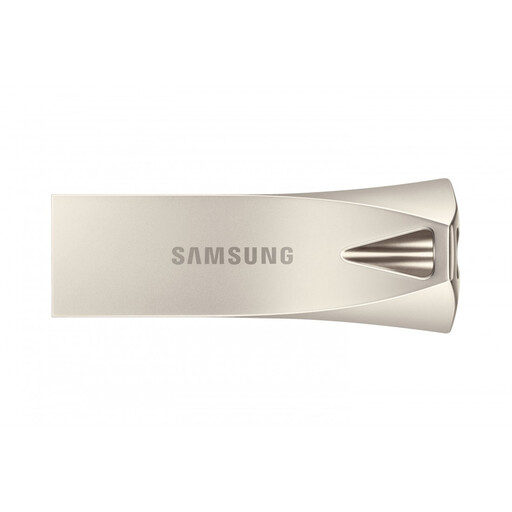
Samsung MUF-256BE USB Flash Drive, 256 GB, Silver
This removable drive is listed for local copies of important documents when the selected files fit its stated capacity. Keep another copy separate from the drive.
256 GB capacity; USB Type-A; USB 3.2 Gen 1 (3.1 Gen 1).
Joybuy
 No image available
Samsung MU-PE1T0S Portable SSD, 1 TB, Black
This portable SSD is listed for local file copies and frequent transfers; keep another copy separate from the drive.
1 TB capacity; USB Type-C; USB 3.2 Gen 2. Samsung rates this variant at up to 1,050 MB/s read and 1,000 MB/s write, subject to compatible host and cable requirements.
Joybuy
 No image available
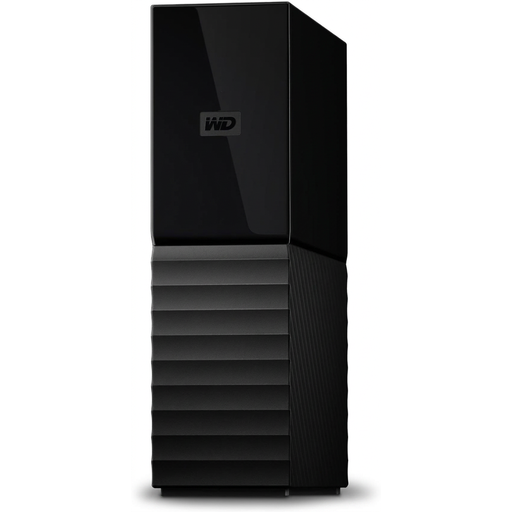
Western Digital My Book 22 TB Desktop External Hard Drive
This desktop drive is listed for a large collection kept in a desk-based setup. Keep another copy separate from the drive.
22 TB capacity; USB 3.0; the listing describes password protection, hardware encryption and PC and Mac compatibility. Check that your intended backup software and disk format suit your computer.
Joybuy
 No image available
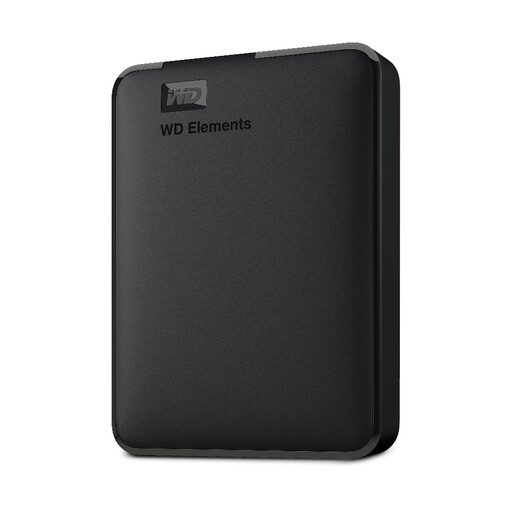
WD Elements 2 TB Portable External Hard Drive
This portable HDD is listed for local computer backups and moving files between locations. Keep another copy separate from the drive.
2 TB capacity; USB 3.0; the listing describes the drive as formatted for PC and Mac. Check compatibility with your intended backup software.
Joybuy
 No image available
SanDisk Portable SSD, 2 TB
This portable SSD is listed for local copies of a sizeable file collection. Keep another copy separate from the drive.
2 TB capacity; the listing specifies read speeds of up to 800 MB/s. Check that its connection suits your computer and intended backup software.
Joybuy
FAQs about external computer backups
How do I set up an external drive for Windows File History?
Connect the drive, open File History settings in Control Panel and select the drive. Microsoft Support advises checking that the folders you need are included. Windows Backup is a different option: it syncs selected folders to OneDrive rather than using the external drive as its stated destination.
Can I use a Windows-formatted disk directly for Time Machine?
No. Apple Support says Time Machine cannot back up to a Windows-formatted disk. Reformatting may erase existing files; Apple lists APFS or APFS Encrypted as its preferred formats for a Time Machine disk. Ordinary cross-device file access is a separate matter: Apple identifies ExFAT as Windows-compatible.
What if I only connect my Windows backup drive occasionally?
Check File History after reconnecting the drive. Microsoft Support says you can wait for the next scheduled backup or, after reconnecting, choose “Run now” to start one manually.
What after-sales rights apply if an external drive is faulty?
For UK consumer purchases, GOV.UK says a trader must offer a full refund if goods are faulty, not as described or do not do what they are supposed to do. This statutory-rights point is separate from any manufacturer’s limited warranty.


