The right choice depends on how much data and backup history you need, where the drive will live, and whether one computer or several need access. A portable HDD is easy to move and put away, a desktop HDD suits a fixed location, an SSD is geared towards frequent transfers, and a NAS can provide shared network access but needs more setup. The UK National Cyber Security Centre advises keeping a backup in a separate safe location, so do not treat one local drive as complete protection.
Who these options suit
Family-file protectors
You want recoverable copies of photos and documents, and a backup routine you can maintain, including a copy stored separately. The UK National Cyber Security Centre advises keeping important data backed up in a separate safe location.
Growing-library households
You need room for videos, several computers or older backup versions, and are weighing a drive you can move against one kept at a desk. Apple’s Time Machine guidance and Seagate’s desktop-drive information illustrate why capacity and storage location matter for different setups.
Multi-device sharers
You want several computers to reach a common backup destination and are prepared to set up and maintain network storage. Microsoft describes using a network location with File History, while Synology describes shared access for its NAS products.
What to consider when choosing
Portable external HDD
Choose when: you back up by USB and want to move or put away the drive after use.
Trade-off: you need to reconnect a removable drive when a scheduled backup is due.
Desktop external HDD
Choose when: you mainly back up a growing photo or video collection at one workstation and have a suitable power socket.
Trade-off: Seagate’s cited desktop configuration needs an external power adapter and a fixed place to sit.
External SSD
Choose when: you often move or restore files and value a compact drive with faster transfers.
Trade-off: Samsung’s stated T7 transfer rate is an up-to specification; actual results depend on the drive and host connection. Which? describes SSDs as usually pricier than HDDs.
Household NAS
Choose when: several devices need a shared network destination and someone can manage setup, compatible drives and backup schedules.
Trade-off: a NAS adds setup and drive considerations; network access is not a separately stored backup.
The UK National Cyber Security Centre describes a backup as a copy kept in a separate safe location. Choose the storage route around your files and routine, then plan how you will keep another recoverable copy.
| Concern |
What to check when buying |
Who this matters to |
| Separate recovery copy |
Decide where another copy will be stored and how you will restore important files; avoid leaving a removable backup permanently connected. |
If I want family photos and documents to remain recoverable if my computer is lost or affected, I need another copy kept separately. Around 29% of consumers put a separate recovery copy first. |
| Capacity and history |
Allow for the files you select, future growth and the backup versions you want to retain. For Time Machine, Apple says the backup disk should ideally have at least twice the Mac’s storage capacity. |
When my photo and video library is growing, I want room for the files and versions I may need to restore. Around 24% of consumers prioritise capacity and retained history. |
| Portability and location |
Check whether the drive is USB-powered or needs a power adapter, and confirm its connector and file-system format suit your computers. |
If I want to carry a drive between computers or put it away after a backup, portability shapes where I can store it. Around 18% of consumers prioritise a drive they can move or store separately. |
| Repeatable backup routine |
Check that your computer’s backup software supports the chosen external or network destination, and reconnect a removable drive when needed. |
When I want backups to run regularly and files to be restorable, I need a routine that fits how often the destination is available. Around 17% of consumers prioritise a repeatable backup and restore routine. |
| Shared household access |
For a NAS, check compatibility for the exact model and disks, the intended devices and backup software, and how you will keep a separate copy. |
If several household devices need a common destination, I want shared access without mistaking it for a separate backup. Around 12% of consumers prioritise storage shared across household devices. |
Buying pitfalls
-
Treating one new drive as the entire backup plan
A copy stored alongside the computer may be unavailable in the same incident, and a permanently connected removable backup can be exposed to some computer-side threats.
Plan another recovery copy in a separate safe location and test restoring an important file.
-
Choosing capacity before deciding what to keep
The space you need depends on which files you protect, how much they may grow and how far back you want to restore.
Estimate the data to protect and the history your backup software will retain before comparing capacities. Apple’s advice to use a disk ideally at least twice the Mac’s storage capacity applies specifically to Time Machine.
-
Assuming a drive automatically backs up every computer
Backup software needs to be configured, and some drives may need reformatting for the computer or operating system you use.
Check the exact model’s connector and supplied format, then configure the backup destination. Toshiba says the cited Canvio Basics variants require reformatting for the listed macOS versions.
-
Counting a NAS enclosure as ready-to-use protected capacity
A NAS’s storage depends on the selected drives and configuration; shared network access does not by itself provide a separately stored copy.
Check disk compatibility for the exact NAS model and plan how to back up the NAS’s files to another destination.
Relevant brands
These examples describe particular product lines and models, not brand-wide endorsements or a statement of availability.
Seagate
Expansion includes portable and desktop HDD options for different storage locations.
- Seagate describes its portable line as compact and its desktop line as offering high-capacity options.
- The cited desktop configuration needs a power adapter. Check the exact model and included cable rather than assuming all Expansion variants are alike.
Toshiba
Canvio Basics is a portable HDD line for USB-connected storage and backup.
- Toshiba lists 1 TB, 2 TB and 4 TB variants and a two-year warranty for the cited EMEA line.
- The cited models are formatted as NTFS for Windows and require reformatting for the listed macOS versions; check the exact variant before use.
Samsung
The portable T7 SSD line is an option for buyers who prioritise frequent transfers in a compact drive.
- Samsung specifies USB 3.2 Gen 2 and an advertised transfer rate of up to 1,050 MB/s for the cited UK 1 TB model.
- That up-to figure is a manufacturer specification, not a guaranteed speed for every computer or backup.
Synology
The DS225+ is a two-bay NAS option for central household file access and backups.
- Synology describes multi-device access and backup applications for the model.
- Suitable drives are a separate consideration. Synology’s compatibility guidance distinguishes listed recommendations from the flexibility available to relevant 2025 DiskStation Plus models under DSM 7.3.
QNAP
The TS-233 is a home-oriented NAS option for file access, sharing and syncing.
- QNAP describes those functions for the TS-233.
- QNAP lists 2 GB of onboard memory that is non-expandable; check the exact setup and software requirements for your use.
Joybuy product choices
These Joybuy listings cover portable external SSDs and portable HDDs for local household-file backups. Capacity, interface and computer-formatting requirements vary by model, and a separate recovery copy still matters.
 Image unavailable
Samsung MU-PE1T0S 1TB Portable SSD
A portable local-storage option if you frequently move or restore household files.
1 TB; USB Type-C; USB 3.2 Gen 2 (3.1 Gen 2); black. The product description states speeds of up to 1,050 MB/s read and 1,000 MB/s write.
Joybuy
 Image unavailable
SanDisk Portable SSD 2TB
A portable option for keeping a local copy of a photo or video library.
2 TB; the product description states read speeds of up to 800 MB/s and drop protection of up to 2 metres.
Joybuy
 Image unavailable
Western Digital Elements Portable 4TB Black
A portable HDD option for a larger local copy of household photos, videos and other files.
4 TB; USB 3.0. Reformatting may be required for Mac or other operating systems.
Joybuy
 Image unavailable
Western Digital My Passport 2TB Black
A portable local destination to consider if you want scheduled-backup software described for the drive.
2 TB; USB 3.2 Gen 1; USB bus-powered. The product description lists automatic scheduled-backup software and 256-bit AES hardware encryption with password protection.
Joybuy
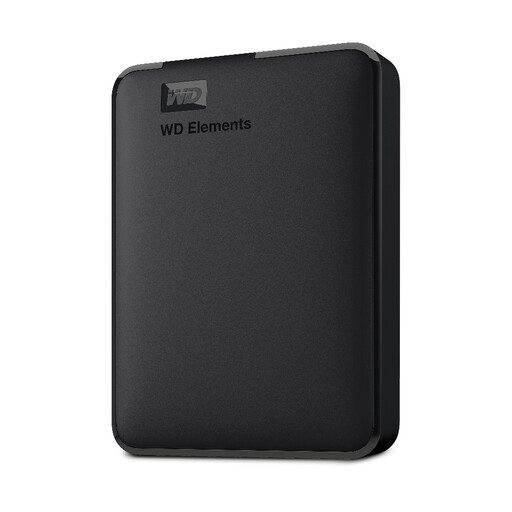 Image unavailable
Western Digital Elements Portable 1TB
A portable HDD option for a smaller set of household files you want to keep locally.
1 TB; USB 3.2 Gen 1. Reformatting may be required for Mac or other operating systems.
Joybuy
Frequently asked questions
How do I choose capacity if I want older backup versions?
Estimate the files you intend to protect, allow for growth and consider how much history your backup software retains. For Time Machine specifically, Apple says a backup disk should ideally have at least twice the Mac’s storage capacity; that recommendation is not a universal threshold for every backup routine.
Can I schedule backups to a removable drive or a NAS?
Windows File History lets you select an external drive or network location, and a Mac can use external storage with Time Machine. Configure the destination in your backup software and test restoring a file; a removable drive needs to be connected when its backup is due.
Does a local drive remove the need for another copy?
No. The UK National Cyber Security Centre advises keeping a backup in a separate safe location and says a removable backup device should not stay permanently connected to the computer. Consider how you could recover files if both the computer and its local drive were unavailable.
What should I account for when setting up a household NAS?
Include compatible installed drives and a separate destination for backing up the NAS’s files in your setup plans. Check disk compatibility for the exact model and software, and do not treat shared access or disk redundancy as a separately stored backup.


