What matters when choosing?
Choose the arrangement around the files and devices it must cover, then check how you would recover an older or lost copy. A combined arrangement makes sense only if you can keep track of what each copy contains.
External drive or portable SSD
Consider it when: You want a local copy of computer folders or a large photo library, including files you need without an internet connection.
Trade-off: You must arrange the backups and protect the drive; one copy kept in the same place remains vulnerable to loss or damage there.
Cloud-backup service
Consider it when: Automatic copying of changing computer files matters more than managing a removable drive.
Trade-off: Restoration depends on account and internet access, file coverage and the service's retention rules.
Cloud-sync plan
Consider it when: Your main task is opening current documents or photos on more than one device.
Trade-off: Edits and deletions can sync too, so check how earlier versions are restored before treating it as your only copy.
Local and cloud copies together
Consider it when: Photos, study work or self-employed records warrant both a local restore option and a copy away from the main device.
Trade-off: You must check coverage for each copy, secure the accounts and drive, and practise restoring a file.
| Concern |
What to check |
Who this matters to |
| Coverage across devices |
Which phone data and computer folders are included; whether copying runs automatically. |
I use a phone and computer for current files and do not want recent changes left on just one device. Around 31% of consumers put automatic cross-device coverage first. |
| Recovering lost or changed files |
How to restore a file; how long older and deleted versions remain available. |
If I overwrite a work document or lose a device, I need a usable earlier copy rather than only today's synced version. Restorable copies are the first concern for around 25% of consumers. |
| Capacity and offline access |
The size of the files to protect and room for growth; which cloud files remain available offline. |
My photo or video collection needs enough space, and I may need files when the connection is unavailable. Around 25% of consumers prioritise capacity and local access. |
| Account and data protection |
Account-recovery and two-factor authentication options; protection for a lost drive. |
If my self-employed files include sensitive information, I need to control who can reach the copies and how access is restored. Security is the primary concern for around 19% of consumers. |
Relevant service brands
These brands illustrate different device-backup and cloud-storage workflows; their inclusion is not a recommendation to use one service for every file.
Apple
Relevant to households backing up an iPhone or iPad through iCloud or a computer.
- Apple Support describes both iCloud and computer backup methods for iPhone and iPad.
- Check which photos and other data are synced separately, and what the device backup itself contains.
Google
Relevant to Android users and households storing files across Drive, Gmail and Photos.
- Google One Help describes automatic device-backup setup and up to 15 GB of storage with a Google Account.
- That storage is shared across Google services, so check both current usage and what the device backup covers.
Microsoft
Relevant to people using OneDrive for Windows folders and access across devices.
- Microsoft Support describes OneDrive backup for selected standard folders and 30-day file version history.
- Confirm which folders are selected and how to retrieve an earlier version; folder sync alone is not a separate archive.
Backblaze
Relevant to people considering a dedicated computer-backup service.
- Backblaze describes backup of current computer files and selected external drives.
- Backblaze Help states that default version history is 30 days; check coverage, longer-retention options and the restore process before relying on it for older files.
External drives for a local copy
These portable drives represent the local-storage part of a backup arrangement. Choose capacity for the files you intend to copy, then arrange and test the backup and restore process; a drive on its own does not provide cloud coverage.
 No image available
Western Digital My Passport 2TB Portable Hard Drive, Black
Consider this 2TB local drive if it has room for the computer files you intend to copy. Check which folders your backup setup covers and practise restoring a file; if you use a Mac, confirm the setup required for your computer.
View on Joybuy
 No image available
Western Digital My Passport Ultra for Mac 5TB, Silver
The 5TB capacity may suit a larger local collection if it covers your files and expected growth. Confirm setup for your computer, the backup and restore procedure, and the applicable warranty term before choosing this variant.
View on Joybuy
 No image available
Samsung Portable SSD T7 1 TB USB Type-C 3.2 Gen 2 (3.1 Gen 2), Blue
This portable 1 TB SSD is a local-copy option when that capacity covers your selected files. Check its connection with each intended device, configure a backup routine and test a file restore; set up access protection if you need it.
View on Joybuy
 No image available
Samsung MU-PE1T0S 1TB USB Type-C 3.2 Gen 2 (3.1 Gen 2), Black
Use this 1TB SSD as a local copy only if the selected files fit with room for future backups. Confirm that this is the intended capacity variant, then set up a backup routine and check that you can restore a file.
View on Joybuy
 No image available
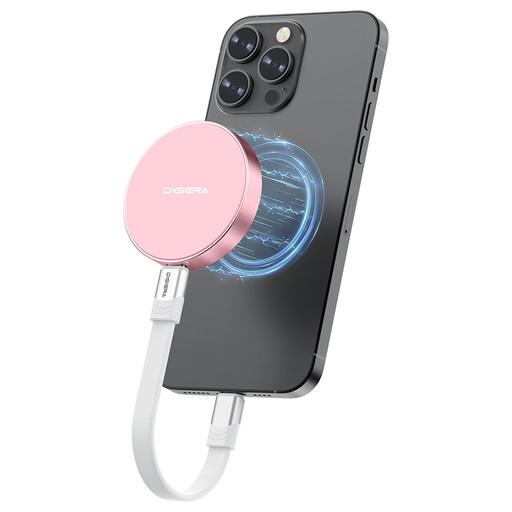
DigiEra LPS2000M-3 1TB Magnetic Portable SSD, USB 3.2 Gen 2x2, Pink
Consider this 1TB USB-C SSD for a portable local copy if it suits your file size and devices. Check compatibility for any phone feature you intend to use: the described magnetic attachment and direct-recording features apply to specified iPhone 15/16 Pro models, not every iPhone 15 or 16. Arrange and test file backups separately.
View on Joybuy
Backup questions
Is cloud sync the same as a backup?
No: sync keeps files aligned, so edits or deletions can appear on other devices too. Google Drive Help describes that behaviour for streamed and mirrored files. If you depend on sync for recovery, check its version and deletion windows and keep a separate copy of files you cannot recreate.
How much backup storage do I need?
Start with the size of the folders, photos and device data you will actually copy, then allow for growth and any older versions you intend to keep. For a cloud plan, check what else uses its allowance: Google says storage is shared across Drive, Gmail and Photos.
What should I test after setting up a backup?
Check that a recent file from each important folder is included, then restore a non-critical file without overwriting your working copy. A completed backup job is less useful if the files you need are outside its coverage or you cannot retrieve them.
What if my self-employed files include personal data?
Choose safeguards suited to the personal data you handle and make sure you can restore access after an incident. The Information Commissioner's Office says data-security measures must enable timely restoration of access and availability; the appropriate arrangements depend on the processing and its risks, not on a single drive capacity or service.
How should I protect access to cloud backups?
Protect the account as well as the files: use a unique password, check whether two-factor authentication is available and keep account-recovery details current. If access to that account is your only restore route, consider how you would recover important files if you could not sign in.


