If you need files when your computer is offline, keep a deliberate local copy on an external drive or NAS, or configure essential cloud folders to remain downloaded. For protection beyond one device or location, pair that local copy with a separate cloud or off-site backup; files visible in a cloud desktop app may otherwise be unavailable offline.
Who needs which approach?
People who need files offline
If important documents or photos must open without broadband or a running cloud app, consider a physical backup drive or NAS alongside your computer files. For cloud folders, use a setting that deliberately retains the files offline; Microsoft and Google distinguish these from online-only or streamed files.
People protecting irreplaceable photos
If losing a computer would also mean losing personal photos or files, keep a recovery copy separate from that computer. Synology’s backup guidance calls for a copy off-site as well as copies on different media; one connected drive does not provide that separation.
Households using several devices
If several computers need access to the same files, compare cloud mirroring with shared storage on a home NAS. The decision depends on how much space each computer can devote to local files and whether the household is prepared to manage a NAS and its separate backup.
What matters when choosing?
Choose where the usable local copy will live, then decide how to keep a recovery copy separate from it. A cloud subscription, external drive, hybrid arrangement and NAS meet those requirements in different ways.
External drive or portable SSD
Choose it when: You want a directly connected copy that you control and can store separately after backup.
Trade-off: You must run and check backups; one drive alone is neither an off-site copy nor protection against losing that drive.
Cloud storage
Choose it when: You need files across devices and can configure the essential ones to stay downloaded.
Trade-off: Mirroring uses computer storage, while streamed or online-only files need an internet connection for access.
Local and cloud backup
Choose it when: You want both a local recovery copy and another copy away from the computer or home.
Trade-off: You need to manage two destinations and check that both backups complete.
Network-attached storage
Choose it when: Several household devices need a shared local destination for files or backups.
Trade-off: A NAS needs setup and maintenance, plus a separate backup destination; keeping files on multiple NAS drives does not make them off-site.
| Concern | What to check | Who this matters to |
|---|
| Separate recovery copies |
Check that a local copy and an off-site copy exist, and whether the backup retains recoverable versions. |
If my photos cannot be replaced, I want a copy that survives a problem affecting both my computer and storage at home. Around 29% of consumers put that separation first. |
| Cloud access across devices |
Check whether essential folders are mirrored, marked for offline use or left online-only. |
I want files on several devices without discovering that a visible file needs a download before I can open it. For around 29% of consumers, dependable multi-device access is the primary need. |
| Direct offline access |
Match drive capacity to the files and retained versions; confirm the computer’s connector and backup workflow. |
When the internet is unavailable, I need to reach my own physical copy without signing in to a cloud service. That direct local control comes first for around 24% of consumers. |
| Shared household storage |
Check capacity across all devices and plan a backup destination separate from the NAS. |
With several computers to look after, I would rather manage their local storage in one place. Around 18% of consumers prioritise that shared setup. |
Backup mistakes to avoid
-
Assuming a visible cloud file is stored locally
Microsoft, Google and Dropbox distinguish downloaded files from online-only or streamed files. A file shown in the desktop file manager may still need an internet connection to open.
Set essential folders to remain offline, then disconnect from the internet briefly and try opening several important files.
-
Relying on synchronisation as the only backup
Synchronisation keeps locations aligned; it is not, by itself, a separately managed recovery copy. Synology distinguishes syncing from backup in its backup guidance.
Keep another backup destination and check which earlier file versions you can restore if a file is changed or deleted unintentionally.
-
Leaving the only backup drive connected
A drive that remains attached to the affected computer can be exposed to the same problem. The US Federal Trade Commission advises disconnecting a backup drive when a backup is finished.
Confirm that the backup completed, disconnect the drive when it is not needed and keep another copy elsewhere for files you cannot replace.
Relevant brands for reference
Microsoft
OneDrive is relevant if you use cloud folders on a Windows computer but need selected files to remain local.
- Microsoft Support says files marked “Always keep on this device” remain available offline.
- OneDrive files left online-only require an internet connection to open.
Google
Google Drive for desktop offers a choice between mirrored files and streamed files.
- Google Drive Help says mirrored files are stored on the computer and in the cloud and remain available offline.
- Streamed files need deliberate offline selection. Google also warns against removing an old Mirror folder before outstanding changes finish uploading.
Dropbox
Dropbox is relevant if you want to choose which desktop folders are saved locally.
- Dropbox Help says selective sync lets you keep checked folders on the computer while leaving unchecked folders in the account.
- Online-only files need an internet connection and a download before local use.
Synology
Synology NAS products are relevant to households planning shared local storage and computer backups.
- Synology describes NAS-based computer backup and retained versions as part of its backup approach.
- A NAS at home is not an off-site copy. Check the chosen model, drive requirements and a separate backup destination.
Western Digital
Western Digital’s external drives are a directly attached local-storage route.
- Western Digital provides My Passport backup-and-restore guidance for its supported software.
- Check the workflow for your computer. A single external drive still needs another recovery copy elsewhere for important files.
External drives and SSDs on Joybuy
These drives and SSDs can serve as directly connected local storage for copies of personal files. Choose capacity and computer compatibility for your backup set, then plan a separate copy elsewhere if losing the drive would mean losing the files.
 No image available
Western Digital My Passport Ultra for Mac 5TB, Silver
A directly connected local copy for Mac files, provided 5TB meets your backup and version-retention needs.
The listing specifies USB-C and a USB-A adapter. If you intend to use it with Windows, confirm the required HFS+ driver and setup before buying.
View on Joybuy
 No image available
Western Digital My Passport 2TB, Black
A portable local backup destination if 2TB accommodates the files and copies you intend to keep.
The listing describes USB 3.2 Gen 1 and scheduled backup software. For a Mac, confirm the operating-system and driver requirements before choosing this variant.
View on Joybuy
 No image available
Samsung MU-PE1T0S 1TB USB-C SSD, Black
A portable destination for a local copy of selected files; check that 1TB covers the files you plan to copy.
The listing specifies USB-C and USB 3.2 Gen 2. Choose and test a backup workflow that copies the required computer files.
View on Joybuy
 No image available
Western Digital Elements Port. 4TB, Black
A directly attached 4TB destination for copies of photos and documents.
The listing specifies an included USB-A cable and describes plug-and-play use with Windows 10 or later. Mac or other operating-system use may require reformatting, so check compatibility before moving files onto it.
View on Joybuy
 No image available
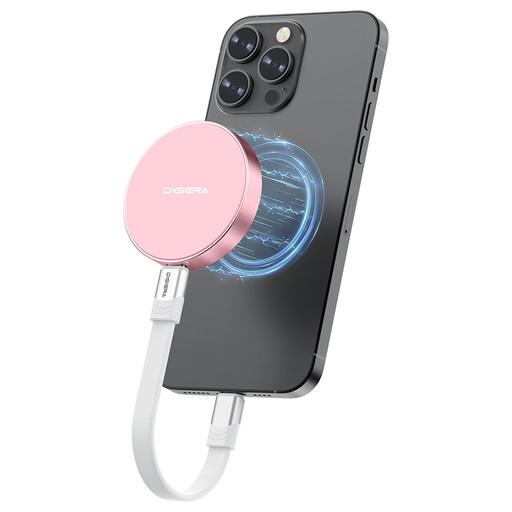
DigiEra LPS2000M-3 1TB magnetic USB-C SSD, Pink
A portable local-storage option for selected files when a 1TB USB-C drive suits your device and backup set.
The listing specifies USB 3.2 Gen 2x2. Its magnetic attachment and direct-recording use are specified for iPhone 15 and 16 Pro and Pro Max models; check device compatibility and arrange a separate computer-backup workflow if that is your aim.
View on Joybuy
Common questions
Can a cloud file appear on my computer but be unavailable offline?
Yes. Microsoft says OneDrive online-only files need an internet connection to open, while Google Drive and Dropbox also offer file states that save local space. Disconnect briefly and test important files rather than relying on their appearance in the file manager.
Which cloud settings keep the files I need on my computer?
Google Drive for desktop’s Mirror files mode keeps mirrored content locally; OneDrive lets you mark required folders “Always keep on this device”. In Dropbox, keep required folders selected for sync or make them available offline. Check that the computer has enough space for what you choose to retain.
Is a NAS with multiple drives enough for home backups?
No: multiple drives in one NAS do not create a copy away from that location. Synology’s backup guidance calls for copies on different media and one off-site, so plan another destination for files you would struggle to replace.
What should I check before taking out a cloud-storage subscription?
Check the storage allowance, which files will remain downloaded, how to retrieve your files and the renewal and cancellation terms. GOV.UK guidance to cloud-storage providers highlights the importance of clear information about automatic renewal and cancellation.


