Who is this for?

Families with a large photo and video archive

If the backup includes photos, videos, documents and older backup versions, measure the space needed before choosing a drive. For a Mac using Time Machine, Apple recommends a backup disk with at least twice the Mac's storage capacity.

People carrying the backup separately

A portable drive is easier to keep apart from the family computer while moving boxes. If it will be handled repeatedly, compare the exact model's protection claims and pack it carefully; a rating does not replace a separate, safe place for the copy.

Windows or Mac users planning a restore

A physical connection is only part of a usable backup. Microsoft Support describes external-drive backups with File History, while Apple says Time Machine cannot back up to a Windows-formatted disk without reformatting it.

What matters when choosing?

Portable HDD

Choose it when: You need to carry a relatively large backup and do not need SSD-class copying speed.

Trade-off: Pack the drive securely and keep another copy of irreplaceable files rather than relying on one drive in transit.

Rugged portable SSD

Choose it when: The drive will be carried and handled repeatedly, and quicker copying is important.

Trade-off: Protection ratings have test conditions, and the stated maximum speed depends on a compatible computer and cable.

Desktop external HDD

Choose it when: The archive calls for high capacity and the drive can remain on a stable desk before and after the move.

Trade-off: A desk-based drive is less convenient as the backup you carry separately from the computer.

Concern What to check Who this matters to
Backup capacity Measure the data to protect and allow room for the backup versions you want. For Mac Time Machine, Apple recommends at least twice the Mac's storage capacity. If our photos, videos and documents will fill the drive, there is little room for a complete backup or older versions. Around 31% of consumers put capacity first.
Protection in transit Check the exact model's stated protection and its conditions, then plan how to carry the drive separately from the computer. With boxes being packed and carried, I want the backup to remain readable after the journey. Around 25% of consumers make protection in transit their main concern.
Backup compatibility Check the operating system and backup method before using the drive. Apple says Time Machine cannot use a Windows-formatted disk without reformatting it. Connecting the drive is not enough if I cannot use the copy to restore what matters. For roughly 25% of consumers, a workable backup and restore path comes first.
Completing the copy Check the computer's port against any claimed SSD speed, and leave time to browse the copied files before ejecting the drive. When packing time is short, I need to finish the copy and check the important folders before disconnecting. Around 19% of consumers chiefly prioritise that process.

Mistakes to avoid

  • Assuming a copied folder is a checked backup

    A copy is less useful if important files are missing or cannot be located after the move. Microsoft Support advises browsing the external drive to check the files.

    Open several important folders and files, check their locations, then eject the drive before disconnecting it.

  • Checking the drive but not the backup format

    Apple says a Windows-formatted disk cannot be used for Time Machine without reformatting, which permanently removes the data already on that disk.

    Decide whether the drive is for Windows File History, Mac Time Machine or a manual file copy before storing family files on it. Never reformat a drive holding their only copy.

  • Treating a ruggedness rating or maximum speed as unconditional

    Samsung says the T7 Shield's resistance claims come from controlled internal tests, real-world resistance can vary, and related liquid, dust or drop damage is not covered under its warranty. Its stated maximum speeds also require compatible USB support.

    Carry the drive in a protected bag and check the computer's USB capability if rated transfer speed is central to your choice.

  • Packing the backup with the computer

    The National Cyber Security Centre describes a backup as a copy kept in a separate safe location. Putting both items in the same vulnerable box reduces that separation.

    Once you have checked the copy, carry it separately where practical and keep any recovery password or encryption key secure and accessible.

Brands to consider for these drive types

Samsung

Its portable T7 Shield SSD is relevant if a drive will travel during the move and faster copying matters.

  • For the T7 Shield, Samsung states IP65 resistance under controlled internal testing, a 3-metre drop-test claim and sequential speeds up to 1,050/1,000 MB/s.
  • Samsung says resistance can vary and related damage is not covered under warranty; the maximum speeds require compatible USB 3.2 Gen 2 and UASP support. These claims do not apply to every Samsung T7 model.

Western Digital

Its My Passport Ultra portable HDD line offers a capacity-led option for a backup that needs to travel.

  • Western Digital describes My Passport Ultra models with USB-C connectivity and capacities up to 6TB.
  • Check the precise model and seller terms: the manufacturer's stated 3-year limited warranty concerns its cited 2TB anniversary model, not every My Passport drive.

Seagate

Its Expansion range includes portable HDDs and desk-based HDDs for different carrying and capacity needs.

  • Seagate describes its Expansion Portable 5TB model with USB 3.0 and Windows/macOS compatibility; its Expansion Desktop range lists capacities up to 30TB.
  • A desktop model is less convenient to carry separately during a move. Seagate says warranty periods can vary by region, so check the exact model and seller terms.

Joybuy product choices

These portable SSDs and HDDs are options for making a family-computer backup that can be carried separately during a house move. Compare their listed capacities with your files and intended backup versions; check the format and connection needed by your computer before copying.

Samsung Portable SSD T7 4TB Grey

Samsung Portable SSD T7 4TB Grey

A portable SSD to consider when carrying a larger backup and checking transfer time matters.

The listed capacity is 4TB, with a USB Type-C 3.2 Gen 2 connection. Measure the data and any backup-version allowance first, and protect this T7 during transport rather than assuming it has the T7 Shield's resistance rating.

View on Joybuy

Samsung T7 Shield MU-PE1T0S 1TB Black

Samsung T7 Shield MU-PE1T0S 1TB Black

Consider this portable SSD if the backup will be handled frequently and 1TB covers the files you need to carry.

Samsung states an IP65 rating under controlled internal testing and a 3-metre drop-test claim for the T7 Shield; resistance can vary, and related damage is not covered under warranty. Its stated maximum transfer speeds require compatible USB 3.2 Gen 2 and UASP support.

View on Joybuy

Western Digital Elements portable HDD 4TB Black

Western Digital Elements portable HDD 4TB Black

A portable HDD to consider when the main need is carrying a capacity-led backup separately from the computer.

The name specifies 4TB and USB 3.0. Check that the capacity leaves enough room for the chosen files and backup versions, and confirm the format required by your backup method before using the drive.

View on Joybuy

Western Digital My Passport portable HDD 2TB Black

Western Digital My Passport portable HDD 2TB Black

A portable HDD to consider for selected family folders or a smaller archive that needs to travel.

The listed capacity is 2TB. Check it against the files and backup versions you intend to keep, and confirm the setup required by your computer and backup method.

View on Joybuy
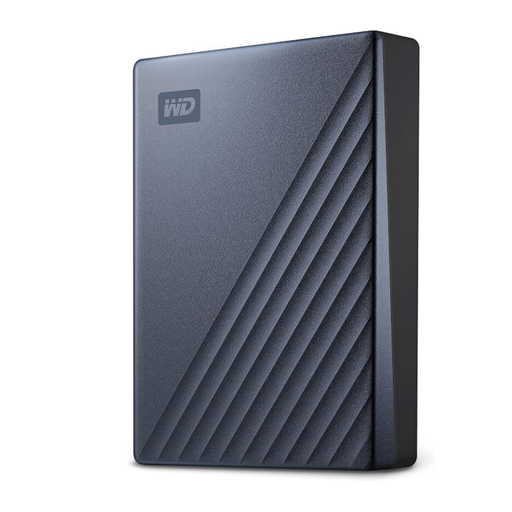
Western Digital My Passport Ultra portable HDD 5TB Blue

Western Digital My Passport Ultra portable HDD 5TB Blue

A portable HDD to consider when the family archive needs more room but the backup must still travel.

The listed capacity is 5TB. Check the computer's connection and backup format before copying; if you plan to use Mac Time Machine, check whether reformatting would erase anything already stored on the drive.

View on Joybuy

Common questions

How much drive capacity does a family backup need?

Start with the files or computer storage you intend to protect, then allow for any backup versions you want to retain. For a Mac Time Machine backup, Apple recommends a device with at least twice the Mac's storage capacity; that is not a universal rule for a manual Windows file copy.

Can Windows File History use an external drive?

Yes, Microsoft Support says File History can make regular backups to an external drive or network location. Connect the drive, select it in File History if needed and check that the folders you care about are included.

Can I use the same drive for Windows files and Mac Time Machine?

Do not assume the drive can be used unchanged for both. Apple says Time Machine cannot back up to a Windows-formatted disk; reformatting permanently removes its contents. Check how you will keep Windows files before changing the format, and use a separate APFS volume if you need other files on the same physical Time Machine device.

What should I do before packing the backup drive?

Browse the copied files, open some important ones and eject the drive before disconnecting it, as Microsoft Support advises for external file transfers. Keep the checked backup separate from the computer where practical; the National Cyber Security Centre describes a backup as a copy stored in a separate safe location.

What warranty details should I compare?

Check the terms for the exact model and seller rather than assuming one warranty applies across a brand. Western Digital lists a 3-year limited warranty for its cited My Passport Ultra 2TB anniversary model; Seagate lists an EMEA 2-year limited warranty on its cited Expansion Portable 5TB page and says warranty periods can vary by region.