For a family computer that stays at a home workstation, consider a desktop hard drive if a large, stationary archive is the priority; a portable hard drive if the drive needs to move between devices; or a portable SSD if frequent carrying and large-file transfers matter more. Before choosing, check the space your intended backups will need, the computer’s connection and the backup software’s disk requirements. Keep another copy separate from the computer and the drive you use for routine backups.
Who is this for?
Families with a stationary computer
If photos, videos and documents mostly live on one computer, a desktop external HDD is worth considering for a sizeable archive. Decide whether you also need a full-system backup, and plan a separate copy rather than relying on one drive at the workstation.
Households using different devices
If the drive will connect to Windows PCs, Macs or compatible USB-C devices, check the supplied cables and each backup tool’s disk requirements. Physical connectivity alone does not establish that the same format will work for every backup task.
People who carry their backups
If you regularly move the drive away from the workstation or copy large media files, a portable SSD may be relevant. Check whether the computer’s connection supports the transfer features you intend to use, and keep another copy elsewhere.
What matters when choosing?
Desktop external HDD
Consider it: when a large family archive stays beside one home computer.
Trade-off: a desk-based drive is less convenient to carry, and capacity does not replace a separate backup copy.
Portable external HDD
Consider it: when the drive may move between the workstation and other household devices.
Trade-off: check each device’s backup and formatting requirements before assuming one setup serves them all.
Portable SSD
Consider it: when you carry the drive frequently or regularly transfer large files.
Trade-off: stated maximum transfer speeds depend on a suitable computer connection and cable.
| Concern |
What to check |
Who this matters to |
| Backup capacity |
Check how much data you intend to protect and whether you need selected files, file versions or a full-system backup. Allow room for future backups. |
If family photos and videos already take substantial space, I need the drive to hold the whole archive and the backups I plan to keep. Around 36% of consumers would put capacity first. |
| Routine and recovery |
Choose a backup method that covers the folders you need, then establish a regular schedule and test restoring a file. |
I want to know that recent family files can actually be recovered, not just that a drive is connected. For around 29% of consumers, a workable backup-and-restore routine is the primary concern. |
| Device compatibility |
Check the computer’s ports, the supplied cable and the intended backup software’s disk-format requirements before storing files. |
When the drive needs to serve both a family PC and a Mac, I need to understand what each backup task requires before setting it up. Compatibility comes first for around 21% of consumers. |
| Portable transfers |
Check the workstation’s USB connection and cable against an SSD’s stated speed conditions; treat physical-resistance claims as conditional. |
If I carry the drive regularly and move large media files, transfer time and ease of carrying matter more to me. Around 14% of consumers would make portable transfers their main priority. |
Backup mistakes to avoid
-
Leaving the only backup beside the computer
A drive kept with the computer can be affected by the same theft, damage or other incident. The NI Cyber Security Centre advises keeping copies on different devices, including one offline in another location.
Keep an additional copy elsewhere, and disconnect the external drive when it is not being used for a backup.
-
Choosing capacity from today’s folders alone
A full-system backup can include the operating system and applications as well as files, while retained file versions also use space. Seagate distinguishes a system backup from copying selected files.
Decide what you need to recover before selecting capacity, then allow for subsequent backups.
-
Assuming a shared drive is ready for Time Machine
Apple says Time Machine cannot back up to a disk formatted for Windows. Changing a drive’s format can erase files already on it.
Check the planned Windows and Mac workflows first, and copy existing files elsewhere before reformatting.
-
Choosing an SSD for its maximum speed alone
Samsung conditions the stated T7 Shield maximum speeds on a suitable USB 3.2 Gen 2 host and cable, with UASP enabled. Those figures do not establish transfer speed on an older workstation connection.
Check the computer port and cable before making speed the deciding factor; also consider how often the drive will be carried and used for large transfers.
Relevant brands to consider
Western Digital
Western Digital’s My Book desktop external-HDD range is relevant to a mostly stationary family archive. The brand lists capacities reaching 26 TB across the range.
- Consider the range when desk-based storage capacity is a priority.
- A single My Book still needs to be part of a backup routine with another separate copy.
Toshiba
Toshiba positions its Canvio Flex portable-HDD range for use with several device types and says it supplies USB-A and USB-C cables. Listed capacities include 1 TB, 2 TB and 4 TB.
- The supplied cable types are useful to check for a household with different computer ports.
- For Mac backups, Apple’s Time Machine disk requirements still need checking; a general cross-device setup may need changing.
Samsung
Samsung’s T7 Shield portable-SSD range is relevant to frequent carrying and large-file copying. For its 4 TB MU-PE4T0S/EU model, Samsung lists USB 3.2 Gen 2 and claimed sequential speeds up to 1,050 MB/s read and 1,000 MB/s write under supported conditions.
- Samsung also describes controlled-condition IP65 and 3 m drop testing for that model.
- Actual resistance can vary; Samsung says liquid, dust and drop damage are not covered by its warranty. The stated speeds require a suitable host, cable and UASP support.
Joybuy product choices
These portable HDDs and SSD can be used as external storage for a family computer backup. Compare their stated capacities with your planned backup scope, and check your computer’s connection and backup software before choosing.
 No image available
Western Digital My Passport Ultra for Mac 5 TB, silver
Consider this portable hard drive if the family computer uses a Mac and you may need to move the backup drive. Its stated capacity is 5 TB; check the intended backup application and connection before use.
View on Joybuy
 No image available
Samsung Portable SSD T7 2 TB, grey
Consider this portable SSD if the drive will be carried or used for frequent file transfers. The title specifies 2 TB and USB 3.2 Gen 2; check whether your computer’s port and your planned backups suit this configuration.
View on Joybuy
 No image available
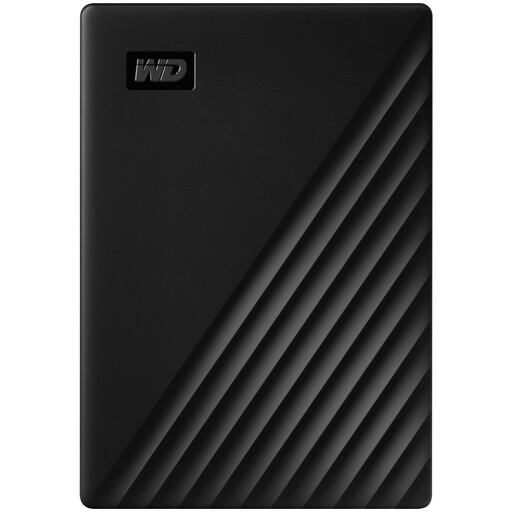
Western Digital My Passport 4 TB, black
This portable hard drive is an option when a backup drive may move away from the home workstation. Its stated capacity is 4 TB; check the computer connection and your intended backup workflow, particularly if you plan to use a Mac.
View on Joybuy
 No image available
Western Digital My Passport 2 TB, black
Consider this portable hard drive if 2 TB accommodates the files and backup history you intend to keep. Check the required computer connection and disk format before setting up the backup, especially for Time Machine.
View on Joybuy
Common questions
Can one external drive be my family’s only backup?
Do not rely on one external drive as the only backup of important family files. The NI Cyber Security Centre advises keeping copies on different devices, including one offline in another location; disconnect the routine backup drive when it is not in use.
How can I back up a Windows family computer regularly?
Microsoft says File History can make regular backups of supported libraries to an external drive or network location. Select the drive in File History, check that the folders you care about are covered, and test restoring a file.
Can I use one drive for Windows files and Mac Time Machine backups?
It may be possible with an appropriate disk setup, but do not assume a Windows-formatted drive is ready for Time Machine. Apple says Time Machine cannot back up to a disk formatted for Windows and prefers APFS or APFS Encrypted; copy existing data elsewhere before making formatting changes that could erase it.


