Families with growing photo archives
If photographs and videos keep accumulating, measure the collection before choosing a drive and leave room for future additions. Seagate and Toshiba list portable HDD ranges with several capacity options.


Choose a portable hard disk drive (HDD) if a growing photo archive needs substantial local capacity and the drive will usually stay somewhere safe. A portable solid-state drive (SSD) is worth considering if you carry the backup regularly or value faster transfers on compatible equipment. Whichever you choose, check its capacity and backup setup, then disconnect and store the completed backup separately; one drive should not be your only copy.
If photographs and videos keep accumulating, measure the collection before choosing a drive and leave room for future additions. Seagate and Toshiba list portable HDD ranges with several capacity options.
If cloud storage is not your backup destination, an external drive can hold a separate copy. The National Cyber Security Centre advises disconnecting backup storage when it is not in use, while the NI Cyber Security Centre recommends keeping an offline copy in a different location.
If the backup travels regularly, transfer time and handling matter alongside capacity. Samsung and Crucial publish speed and protection claims for their portable SSDs, subject to compatible connections and the stated test conditions.
Start with the size of the collection and where the backup drive will live. A portable HDD suits a largely stationary archive when capacity is the priority; a portable SSD offers a different choice for frequent carrying and transfers. Neither choice replaces a routine for making and checking separate copies.
Choose it when: The drive will mostly stay at home and a growing local archive is the main concern.
Accept that: A mechanical drive needs protection from knocks, particularly while it is operating.
Choose it when: You regularly carry the backup or transfer large batches of photographs using compatible equipment.
Accept that: Quoted speeds depend on the connection, and a protection rating does not make accidental damage harmless.
| Concern | What to check | Who this matters to |
|---|---|---|
| Archive capacity | Measure the photo and video collection, then allow room for additions and any backup history. For a whole-Mac Time Machine backup, Apple recommends a device with at least twice the Mac’s storage capacity. | If my family’s photo library keeps growing, I need space beyond today’s files so the backup remains usable. Around 29% of consumers put archive capacity first. |
| Offline protection | Plan when to disconnect the drive and where to keep it separately; occasionally restore a few photographs to check the copy. | I want a backup I can still reach if the computer or its connected storage is affected. For around 29% of consumers, keeping a recoverable offline copy is the primary concern. |
| Backup setup | Check the computer’s connector, the drive’s format and whether your photo folders are covered by the backup software before reformatting anything. | If new photos arrive every week, I need a Windows or Mac routine I can repeat without overlooking folders or erasing existing files. Ease of setting up that routine comes first for around 24% of consumers. |
| Carrying and transfers | Check the port and cable needed for quoted speeds, and read the conditions attached to any drop or ingress-protection claim. | When I move the drive between locations, transfer time and careful handling shape my choice. Around 18% of consumers chiefly prioritise portability and transfer performance. |
The National Cyber Security Centre warns that malware on a computer can also affect connected backup storage. A drive beside the computer may also be caught in the same local incident.
After a backup finishes, safely disconnect the drive and keep it separately. For irreplaceable photos, follow the NI Cyber Security Centre’s advice to maintain three copies on two devices, with one offline in a different location.
Toshiba says Canvio Basics is supplied in NTFS format for Windows and needs reformatting for the listed macOS versions. Apple warns that reformatting a Windows-formatted disk for Time Machine permanently removes its data.
Move any existing files to another safe location before changing the format, then decide whether the drive is for ordinary file copies or a dedicated backup workflow.
Samsung’s and Crucial’s maximum portable-SSD speeds depend on compatible USB equipment. An older port or unsuitable cable may not deliver the quoted figure.
Check the computer’s USB port, the drive connection and the cable you intend to use before making transfer speed the deciding factor.
Samsung describes its T7 Shield protection claims under test conditions and says liquid, dust and drop damage are not covered by its warranty.
Read the conditions for the exact model and continue to store and carry the backup carefully.
Seagate’s Expansion Portable HDD range is a USB-powered option for a local archive that usually stays at home.
Canvio Basics is a portable-HDD range suited to a straightforward Windows file-copy setup.
The T7 Shield SSD range is relevant when a photo backup travels regularly.
The X9 Pro SSD range is another option to examine for photographs moved between compatible USB-C devices.
The My Passport HDD range is worth checking if drive encryption is part of your local-backup plan.
These portable SSD and HDD choices cover different photo-library sizes and carrying needs. Compare the stated capacity with your collection before choosing, and check formatting and backup-software requirements before putting the drive into use.
 No image available
Consider this portable SSD if a 4 TB local photo archive suits your needs. Its title specifies USB Type-C 3.2 Gen 2; check your computer connection, capacity headroom and intended backup format before setup.
 No image available
Consider this portable SSD if your photo collection and future additions fit within its stated 2 TB capacity. Its title specifies USB Type-C 3.2 Gen 2; check the connection and backup format you need.
 No image available
This portable SSD is a local-copy option for a photo collection that fits within 2TB with room to grow. Check its connector and the format required by your backup workflow before choosing it.
 No image available
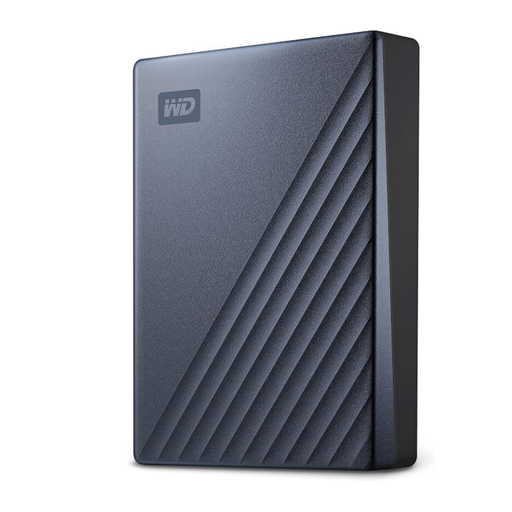
Consider this portable hard drive when a growing photo archive makes its stated 5TB capacity useful. Check the connection and format for your computer, and protect the drive from knocks while it operates.
 No image available
This portable SSD is an option if a smaller photo collection leaves sufficient headroom within 1TB. Its title specifies USB Type-C 3.2 Gen 2; check the exact variant’s protection claims and the format needed for your backup routine.
No: it provides a separate local copy, but should not be the only backup. The NI Cyber Security Centre recommends three copies on two devices, with one kept offline in a different location; disconnect the drive after backing up and occasionally test a restore.
A portable HDD suits a growing archive that mostly stays in a safe place, while an SSD is worth considering for frequent carrying or transfers on compatible equipment. Check the capacity of the particular drive and treat any speed or protection figure according to its stated conditions.
Apple allows separate APFS volumes on one physical device, but reserves the Time Machine volume for backups and recommends using the backup disk only for Time Machine. Before changing a disk’s format, move any files you need to keep: Apple warns that reformatting permanently removes existing data.
Microsoft’s File History can make regular backups of libraries to an external drive. Check that the folders containing your photographs are included, confirm a backup has completed, and disconnect the drive when it is not in use.