What matters when choosing a drive?
Decide how the records will be copied and safeguarded, then check where the drive must work, how much space the collection needs and whether transfer speed matters to your routine.
Portable SSD
Consider it when: The drive will travel regularly and large batches of scans need frequent transfers.
Keep in mind: Quoted speeds depend on the host connection, and an SSD is still only one archive copy.
Portable HDD
Consider it when: The archive must travel and the chosen drive has the capacity and connections your devices require.
Keep in mind: Check the exact device and formatting requirements rather than assuming a familiar connector ensures access.
Desktop HDD
Consider it when: A large or growing collection will usually stay at one workstation.
Keep in mind: A mains-powered setup is inconvenient for regular trips between home and school.
| Concern | What to check | Who this matters to |
|---|
| Independent copies |
Plan copies on different media in separate locations, following Library of Congress guidance. |
If family records would be difficult to recreate, I need the archive to survive the loss of one drive; around 40% of consumers put independent copies first. |
| Access between devices |
Check each computer’s operating system and port, plus the drive’s supplied cables and formatting requirements. |
When I take the project between home and school, I need to open it on the devices I use; around 30% of consumers prioritise portable, cross-device access. |
| Room to grow |
Measure the current folder and allow for planned scans, media files and future exports; check whether the drive needs mains power. |
With more records still to digitise, I need space beyond today’s folder size; around 20% of consumers make capacity growth their primary concern. |
| Transfer speed |
Check both the drive and computer interfaces; treat quoted sequential speeds as maximum specifications. |
If I repeatedly move large batches of scans, I want transfers to fit into the project workflow; around 10% of consumers put transfer speed first. |
External drives on Joybuy
These portable SSDs, portable HDD and desktop HDD cover different ways of storing a school genealogy project. Compare their stated capacity with your files and planned additions, and arrange independent copies whichever format you choose.
 No image available
Samsung Portable SSD T7 2 TB, Grey
Consider this portable SSD if the archive travels and you regularly transfer project files. The product name specifies 2 TB and USB Type-C 3.2 Gen 2; check your computers’ connections and whether the capacity covers future scans.
View on Joybuy
 No image available
SanDisk Portable SSD 2 TB
This portable SSD is an option when project files need to move between locations. Its stated capacity is 2 TB; check the required cable and computer compatibility, as well as the size of the growing archive.
View on Joybuy
 No image available
Samsung T7 Shield Portable SSD 1 TB, Blue
Consider this portable SSD for a project that travels, after checking whether 1 TB leaves enough room for new records. The product name specifies USB 3.2 Gen 2; confirm the connection required by each computer you will use.
View on Joybuy
 No image available
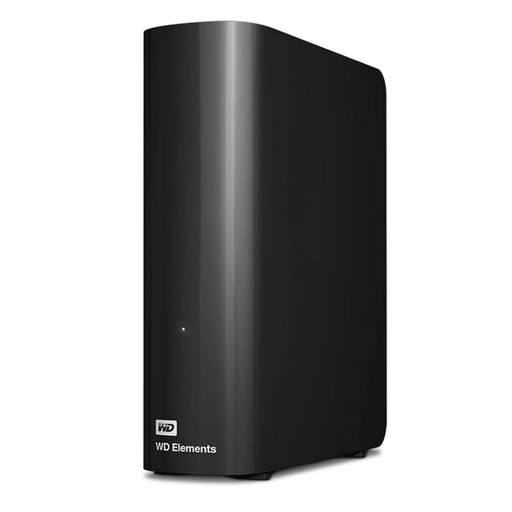
Western Digital Elements Desktop Hard Drive 6 TB
This 6 TB desktop HDD is a route to consider when a growing archive will stay at one workstation. Check its power requirements and the intended computer’s compatibility; it is not a substitute for a separately stored copy.
View on Joybuy
 No image available
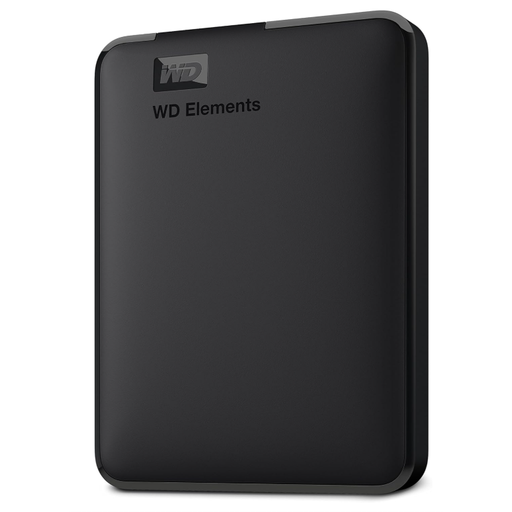
Western Digital Elements Portable Hard Drive 6 TB, USB 3.0
Consider this portable HDD if the archive must travel and you need room for an expanding collection. The product name specifies 6 TB and USB 3.0; check the computers’ ports and formatting needs, and protect the drive during transport.
View on Joybuy
Common questions
Is one external drive enough for a genealogy archive?
No: one external drive can hold a copy, but it should not be the entire preservation plan. The Library of Congress advises copies on at least two different storage media in separate physical locations; review the copies and plan to move them to current media over time.
Should I choose a portable SSD or portable HDD for school work?
Choose a portable SSD when frequent transfers are a priority and the computers can use its connection; consider a portable HDD when the required capacity and device connections matter more to your choice. For example, Toshiba says its Canvio Flex includes USB-C and USB-A cables, but you still need to check compatibility with the devices used for the project.
Can I put relatives’ or pupils’ personal information on my own drive?
Ask the school before copying school-held personal data to a personal drive; whether the project files fall under its procedures depends on the particular materials. Department for Education guidance says schools must not keep personal data longer than necessary, so confirm which files may be stored, where they may be kept and when they must be removed.
What should I do with an old external drive?
Check an appropriate electrical-equipment recycling route rather than putting the drive out as ordinary household waste. UK guidance from the Office for Product Safety and Standards and the Department for Environment, Food & Rural Affairs describes recovery, reuse and recycling under the waste electrical and electronic equipment framework; also follow the school’s instructions for removing project or personal data before disposal.


