For a mostly text-based journal on a cramped desk, a compact portable SSD suits frequent plug-in backups when easy storage matters; a portable hard drive makes more sense when the journal is part of a growing archive and capacity is the priority. Either way, check the computer connection and file-system requirements, set up a backup you can restore from, and keep another copy in a separate location.
Who is this for?
Small-desk journal keeper
If your backup is mainly a text journal with a few attachments, a drive that is easy to plug in and put away may matter more than a large capacity. Samsung describes its Portable SSD T7 as credit-card-sized, illustrating the compact SSD route.
Journal keeper who needs older versions
If an entry could be deleted or changed by mistake, plan for recovery of an earlier copy rather than a one-off folder transfer. Microsoft says Windows File History can save file versions to external storage; Apple says Time Machine can automatically back up Mac files to an external drive.
Growing personal archive keeper
If the journal sits alongside scans, photos, audio or video, check the size of that wider archive before choosing a drive. Seagate lists 2TB and 4TB options in its One Touch portable hard-drive line for personal backup.
What matters when choosing a drive?
Choose between a compact SSD and a capacity-led portable hard drive by what you need to store and where the drive will sit. Then check that your computer can connect to it and that your backup method can recover the journal files you need.
| Concern |
What to check |
Who this matters to |
| Desk space and connection |
Check the drive dimensions, supplied cable ends and your computer’s USB ports. |
I want to put the drive away after each backup without it taking over my desk. Around 40% of consumers put compact, convenient desk use first. |
| Recoverable journal versions |
Check that your backup method includes the journal folder, saves the versions you need and lets you test a restore. |
If I delete or overwrite an entry, I need an earlier copy I can actually retrieve. For around 40% of consumers, recoverable backups are the primary concern. |
| Room for a wider archive |
Assess the current folder size and expected attachments, allowing space for the backup history you intend to keep. |
My scans, photos or recordings may soon take up more room than the journal itself. Capacity is the first priority for around 20% of consumers. |
Backup mistakes to avoid
-
Treating one external drive as the entire backup plan
A drive beside the computer can be affected by the same loss or damage. The National Cyber Security Centre describes a backup as a copy kept in a separate safe location.
Keep another copy elsewhere. The NI Cyber Security Centre advises disconnecting an external backup drive when a backup is not being made.
-
Choosing an SSD by its maximum speed alone
Samsung says the Portable SSD T7’s stated maximum transfer speeds depend on a USB 3.2 Gen 2 host and cable, with UASP enabled. Those figures do not describe every computer connection.
Check your computer’s port and the cable before treating a quoted speed as a deciding factor for a small text journal.
-
Reformatting a drive that already holds files
Apple says Time Machine cannot back up to a Windows-formatted disk and that reformatting permanently removes the disk’s data.
Decide how the drive will be used before formatting it, and move any files you need to keep to another location before erasing it.
-
Making copies without checking recovery
A current copy may not help if you need an older journal entry or discover that its folder was never included in the backup.
Set up the intended backup schedule, confirm that the journal folder is covered and try restoring a file after setup.
Brands to consider for this use
Samsung
Samsung’s Portable SSD T7 line is a compact-drive reference for a journal kept at a small desk; Samsung describes its 2TB T7 as credit-card-sized.
- Samsung lists 1TB–4TB T7 options and USB 3.2 Gen 2 connectivity.
- Samsung says the T7’s maximum quoted speeds require a compatible host and cable with UASP enabled. Check the file-system setup for the computers you intend to use.
Seagate
Seagate positions its One Touch portable hard-drive line for personal backup, with 2TB and 4TB options suited to considering a wider file archive.
- Seagate lists USB-C connectivity, backup tools and hardware encryption for the cited One Touch line.
- Check the exact model’s availability and setup before choosing it; the cited Seagate product page identifies its displayed model as out of stock.
SanDisk
SanDisk’s Extreme Portable SSD range is relevant if files accompanying the journal also need portable storage.
- SanDisk lists Extreme Portable SSD capacities up to 8TB across the range.
- Check the exact model, capacity, cable and computer compatibility rather than assuming that a range-wide description applies to every variant.
Joybuy drive options
These portable SSDs and hard drives offer choices for a journal backup at a small desk, including capacities to consider if attachments become a wider archive. Select the drive separately from the backup method you will use with it.
 No image available
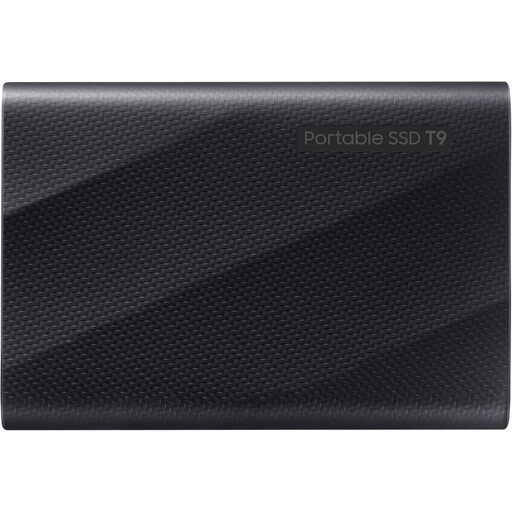
Samsung MU-PG4T0B 4TB portable SSD, black
Consider this portable SSD if you want a small-desk drive and expect the journal backup to grow into a broader archive.
The product name specifies USB Type-C and USB 3.2 Gen 2x2. Check your computer’s port and file-system requirements before choosing how to use it for backups.
View on Joybuy
 No image available
Western Digital My Passport 2TB portable hard drive, black
Consider this portable hard drive when room for journal attachments or other personal files matters more than choosing the SSD route.
As a mechanical drive, it should be handled carefully during transfers. If you use a Mac, check the required file-system and setup arrangements before relying on it for backups.
View on Joybuy
 No image available
Samsung MU-PE1T0S 1TB portable SSD, black
Consider this portable SSD for a journal and attachments when you prefer a compact drive to store away between backups.
The product name specifies USB Type-C and USB 3.2 Gen 2. Check the computer connection and the file-system setup required by your backup method.
View on Joybuy
 No image available
SanDisk Portable SSD 2TB
This portable SSD is an option if the journal backup includes attachments and you want to put the drive away after use.
Check the supplied cable ends against your computer’s ports, and confirm the file-system and backup-method requirements for your setup.
View on Joybuy
 No image available
Western Digital Elements Port. 4TB portable hard drive, black
Consider this portable hard drive if your journal backup is becoming a larger personal archive and capacity is the deciding need.
The product name specifies USB 3.0. Check the connection to your computer and its file-system requirements; Mac use may require reformatting.
View on Joybuy
Frequently asked questions
Can I use a portable external drive with Time Machine on a Mac?
Yes, Apple says Time Machine can use a USB drive or other external storage to back up Mac files automatically. Apple also says it cannot back up to a Windows-formatted disk; reformatting that disk permanently removes its existing data, so move anything you need to keep before setting it up.
How can I keep older versions of my Windows journal entries?
Windows File History can save file copies to an external drive or network location and let you restore earlier versions, according to Microsoft. Make sure the journal folder is included in a backed-up library, then test a restore.
Is one external drive enough for an important journal?
No: one drive should not be your only recovery copy. The NI Cyber Security Centre recommends at least three copies on two devices, with one kept offline in a different location; disconnect the local backup drive when it is not in use and check that you can restore your journal.


