For backups from one computer, choose a portable external drive if you want to put it away between backups, or consider a desktop drive if it will normally stay beside the computer and you need more capacity. A portable SSD is worth considering when you regularly carry the drive or copy large batches and have suitable connections; a NAS serves households that need a shared destination for several devices. None is a complete backup plan on its own: keep another copy separate from both the computer and the primary backup destination, as the National Cyber Security Centre advises.
Who each approach suits
One-computer households wanting a routine
An external drive can be a destination for regular backups without relying on manual file copying. Microsoft Support says Windows File History can back up files to an external drive or network location; Apple Support describes directly connected external storage for Mac Time Machine. In either case, check that the folders you care about are included.
Households with a growing photo archive
Start with the space used by photos, documents and any videos you intend to protect, then allow for future files and backup history. For a Mac using Time Machine, Apple Support recommends a backup disk with at least twice the Mac’s storage capacity; that is not a universal rule for manual copies or other backup software.
Families backing up several devices
A network storage hub can give several computers or household members a central place for files. Synology describes BeeStation Plus as one such hub, but says its internal restore points do not replace a full backup. Plan a separate copy of the hub’s data as well.
What to check before buying
Decide how the files will be backed up and restored before choosing capacity, connections or a shared-storage setup.
| Concern |
What to check |
Who this matters to |
| A repeatable routine |
Check which folders the backup software includes and when the drive must be connected. Try restoring a file before relying on the routine. |
If remembering to copy photos is the problem, an automatic or easily repeated routine matters most; about 33% of consumers would put that need first. |
| Room for a growing archive |
Count the files to protect, allow for growth and check whether the software keeps older versions. Apple Support’s twice-the-Mac-capacity recommendation applies specifically to Time Machine. |
A growing collection of photos and videos can outlast a drive chosen for today’s files alone. About 25% of consumers would prioritise capacity and backup history. |
| Carrying and transferring files |
Match the drive’s connector and cable to the computer’s port; check the USB specification if transfer speed is important. |
When the backup moves between computers or large batches are copied regularly, portability and transfer capability become the primary need for about 17% of consumers. |
| One destination for several devices |
Check each device’s backup method, network connection and user access, plus where a separate backup of the shared storage will go. |
If several people need to contribute files without passing around one USB drive, a managed shared location matters most. About 25% of consumers would put that need first. |
Backup mistakes to avoid
-
Treating one external drive as the whole plan
A drive beside the computer can be affected by the same loss, damage or connected-device incident. The National Cyber Security Centre recommends keeping copies across more than one device, including one off-site.
Keep the original files and make another backup in a separate location, such as a protected cloud account or a drive stored elsewhere.
-
Leaving a periodic backup drive connected
The National Cyber Security Centre warns that connected backup storage can be affected during malware or ransomware incidents. A drive left attached for automatic backups also needs another, separately protected copy.
For manual backups, finish and check the copy, eject the drive correctly and store it securely between uses.
-
Choosing a shared-file drive as a Time Machine disk without planning its format
Apple Support says Time Machine cannot back up to a disk formatted for Windows. Selecting a disk for Time Machine may also involve reformatting it, which removes files already on it.
Decide whether the device is for ordinary files shared with Windows or for a Mac backup. Move any existing files to another location before changing its format.
-
Buying an SSD for its quoted peak speed alone
Samsung says the T7 line’s maximum transfer figures require a compatible USB 3.2 Gen 2 host and cable with UASP enabled. Those figures do not describe what every computer will achieve.
Check the computer’s port and the intended cable. If backups are occasional, give capacity and the second-copy routine attention too.
Relevant brands to consider
Seagate
Its Expansion Portable line is relevant to households wanting a USB-powered drive for local backups.
- Seagate’s UK data sheet lists 1 TB, 2 TB, 4 TB and 5 TB models powered through one USB cable.
- USB 3.0 transfer rates require a USB 3.0 port. Like any single local drive, it needs another backup location for broader protection.
Samsung
The portable T7 SSD line is relevant when a household expects to carry its backup or copy large batches of files.
- Samsung’s UK T7 information lists USB-C-to-C and USB-C-to-A cables and capacity options from 1 TB to 4 TB.
- Samsung’s quoted maximum speeds depend on the host, cable, USB 3.2 Gen 2 support and UASP. Check the intended operating system and format too.
Synology
BeeStation Plus is an example of networked storage for a household bringing files together from several sources.
- Synology describes an Ethernet-connected hub for computer files, cloud accounts and external drives, with stated Mac Time Machine and PC backup options.
- The hub needs network setup and access management. Synology says its internal restore points are not a replacement for a separate backup.
Joybuy local-drive selections
These portable SSDs and portable and desktop hard drives offer local destinations for household photo and document backups. Choose according to the files you need to protect, the computer’s connections and whether the drive will travel; keep a separate backup as well.
 Image unavailable
Samsung T7 4 TB portable SSD, grey
Consider this portable drive if you regularly move a sizeable backup between suitable computers. Its listed capacity is 4 TB and its connection is USB 3.2 Gen 2; check your computer’s port and intended backup format before choosing it.
View on Joybuy
 Image unavailable
Western Digital Elements Portable 4 TB, black
This portable hard drive is a local-backup option for a household that wants to connect a drive when needed and put it away afterwards. The title lists 4 TB and USB 3.0; confirm the intended computer connection and backup format, particularly for a Mac.
View on Joybuy
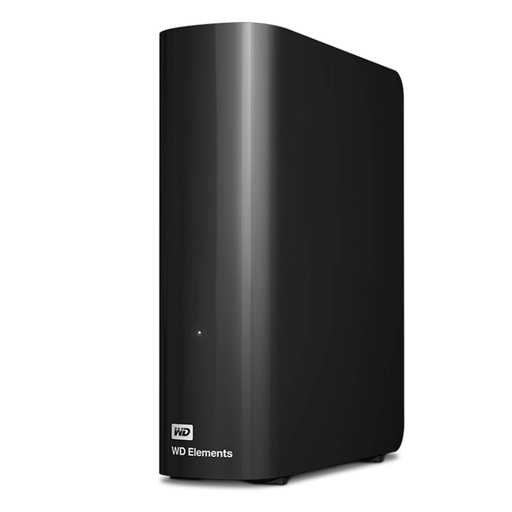 Image unavailable
Western Digital Elements Desktop 10 TB
Consider this desktop hard drive when the backup will normally remain at one computer and the archive calls for substantial capacity. Its title lists 10 TB; check its power requirements and the format needed for your backup software. A drive kept beside the computer still needs a separate second copy.
View on Joybuy
 Image unavailable
Western Digital My Passport Ultra for Mac 5 TB, silver
This 5 TB portable hard drive is a candidate for a Mac-centred household that wants to store the backup away between uses. Before buying for Time Machine or shared Windows files, confirm the drive’s format and the workflow each computer will use.
View on Joybuy
 Image unavailable
Samsung T7 Shield 1 TB portable SSD, blue
Consider this portable SSD if the files and backup history you plan to retain fit within its listed 1 TB capacity. The title specifies USB 3.2 Gen 2; check your computer’s connection and compare the capacity with your archive before choosing it.
View on Joybuy
Common questions
Can an external drive back up Windows photos and documents automatically?
Yes. Microsoft Support says File History can make regular backups to an external drive or network location. Check that the folders holding your photos and documents are included, and try restoring a file so you know the routine works.
Can I use one drive for Windows files and Mac Time Machine?
Do not assume the same format will serve both purposes. Apple Support says Time Machine cannot back up to a disk formatted for Windows and identifies APFS or APFS Encrypted as preferred backup formats. Decide whether the drive is for shared file copies or a Time Machine destination before putting irreplaceable files on it.
Does a NAS remove the need for another backup?
No. A NAS gives several devices a central storage location, but it remains one location. Synology says BeeStation’s internal restore points do not replace full backups and recommends backing its data up to an external location.
What should I do with personal files before disposing of an old drive?
Address the personal data before selling or recycling the drive. The Information Commissioner’s Office notes that external hard drives can retain accessible personal information, including when a device no longer turns on. Check an appropriate electrical recycling or retailer collection route for the device.


