For a growing photo catalogue kept mainly at home, start by assessing a mains-powered desktop hard drive; for a backup that travels or an active catalogue copied frequently, compare portable drives, particularly SSDs. Check the capacity of the exact drive, your computer connection and backup format before setting it up, and keep another independent copy of photos you cannot replace.
Who needs which drive?
Photographers with a growing home archive
If your catalogue stays at home and grows with each import, assess the exact drive capacity and space for future backups. A desktop hard drive suits a fixed location if a mains socket is available; Seagate positions its Expansion Desktop range for this kind of high-capacity storage.
Photographers who travel with active work
If you copy or restore shoots away from your desk, a portable SSD is worth comparing for its compact form and manufacturer-stated transfer capabilities. Check the computer port and cable, and treat any resistance rating as conditional rather than protection against every travel mishap.
Mac and Windows backup-tool users
Choose a drive you can set up for your intended backup tool. Apple prefers APFS or APFS Encrypted for a Time Machine backup disk; Microsoft says File History can use an external drive selected as its backup destination. Decide how you will back up before formatting a drive that already holds files.
What matters when choosing?
For a photo catalogue backed up without cloud storage, work out whether capacity, carrying the drive, transfer time or a dependable backup setup is your primary concern; then check the corresponding drive details.
| Concern |
What to check |
Who this matters to |
| Archive capacity |
Measure the catalogue and source-photo folders, allow for growth and any backup history, and check the exact variant’s capacity. |
I keep my photo archive at home and need room for new imports as well as today’s files; around 31% of consumers put archive capacity first. |
| Portability and handling |
Check whether the drive needs mains power, which connector it uses and the conditions behind any resistance rating. |
I take a backup between locations and need a drive I can carry and connect without relying on a desk setup; roughly 19% of consumers prioritise portability and handling. |
| Copy and restore time |
Match the drive interface to the computer port and cable; do not treat a stated maximum speed as your expected transfer rate. |
When I duplicate large shoots or restore active work, waiting for files to copy matters most; around 25% of consumers place transfer time first. |
| Backup setup and resilience |
Choose the backup tool and disk format before formatting, and plan a separate copy rather than relying on one connected drive. |
I need backups I can restore on my computer without making one drive the only safeguard for my photos; approximately 25% of consumers make setup and resilience their primary concern. |
Backup mistakes to avoid
-
Choosing capacity from today’s photo folder alone
RAW originals, edits, previews and video can make a catalogue larger over time. A maximum advertised for a product range is not necessarily the capacity of the variant you select.
Measure the catalogue and source folders, decide whether you will keep backup history, and check the capacity of the exact drive.
-
Formatting before choosing a backup workflow
Apple prefers APFS or APFS Encrypted for Time Machine, while a drive prepared for Windows may need reformatting for that use. Formatting can erase files already on the drive.
Copy existing files elsewhere first, then decide whether the drive is for Time Machine, Windows backups or manual copies across computers.
-
Keeping the only backup on one connected drive
A single drive can be lost, damaged or affected alongside the computer. The Cybersecurity and Infrastructure Security Agency recommends three copies of data on two types of media, with one copy off-site.
Keep another independent copy of irreplaceable photos in a separate location, and consider disconnecting a backup drive when it is not in use.
-
Taking SSD speed or resistance ratings as guarantees
Transfer rates depend on the computer, port, cable and work being copied. Samsung says its T7 Shield resistance ratings are based on controlled conditions; they do not cover every exposure or kind of damage.
Check the full connection path before choosing for speed, and carry a rated drive with the same care you would give other storage containing your photos.
Relevant brands and product lines
Seagate
Expansion Desktop is a stationary hard-drive range to consider when a growing home archive is the priority.
- Seagate UK lists Expansion Desktop capacities up to 30 TB across the range; check the capacity of the individual model.
- The desktop setup needs mains power, making it less convenient to take between locations.
Samsung
The portable T7 Shield SSD range is relevant to photo copies carried with active work.
- Samsung specifies USB 3.2 Gen 2 and an IP65 dust- and water-resistance rating under controlled test conditions for T7 Shield.
- Samsung says resistance can vary in real conditions and that liquid and dust damage are not covered under its warranty.
Crucial
The X10 Pro portable SSD range is relevant when copying and restoring active files is a frequent task.
- Crucial states read and write speeds of up to 2,100 MB/s for X10 Pro; this is a manufacturer maximum, not a promised speed for every computer or workflow.
- Its stated five-year warranty is subject to the published total-bytes-written limit and other warranty terms.
Toshiba
Canvio Basics USB-C is a portable hard-drive range for straightforward local copies away from a fixed desk.
- Toshiba specifies bus-powered USB 3.2 Gen 1 models with capacities up to 4 TB across the range.
- A portable drive still needs a separate backup copy if losing that drive would leave the photos unprotected.
External drives on Joybuy
These drives cover portable SSDs for travelling or frequently copied photo files, portable hard drives for local copies away from a desk, and a desktop hard drive for a fixed archive. Choose the exact capacity and setup for your own catalogue.
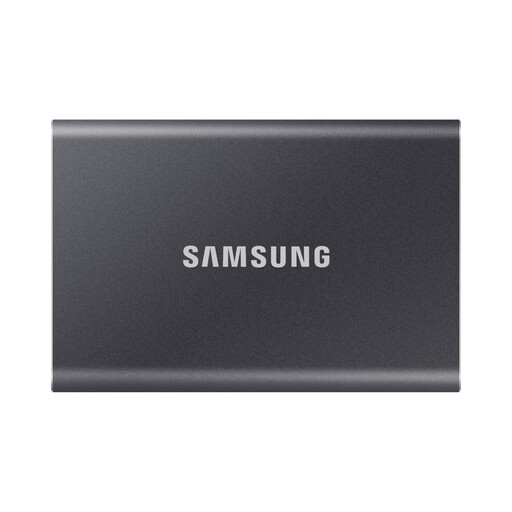 Image unavailable
Samsung T7 4 TB portable SSD, grey
Consider this portable drive if you regularly take a local copy of photo files between locations.
The listed variant is 4 TB with a USB 3.2 Gen 2 Type-C connection. Check that your catalogue fits with room to grow and that your computer and cable suit the connection.
View on Joybuy
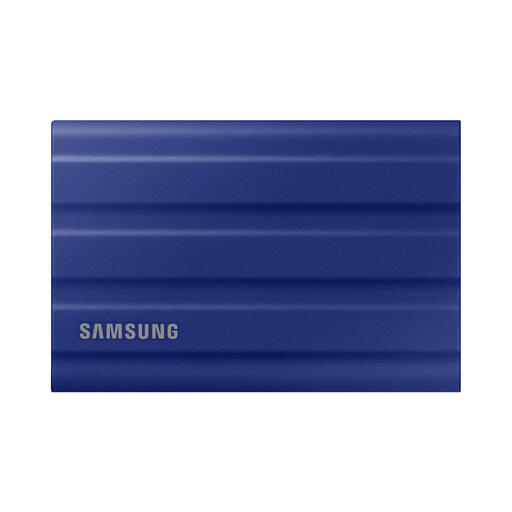 Image unavailable
Samsung T7 Shield 1 TB portable SSD, blue
This portable model is relevant if your photo backup travels and its 1 TB capacity accommodates the files you need to carry.
It uses USB 3.2 Gen 2. Samsung states an IP65 rating and resistance to drops of up to 3 m under controlled conditions; neither is a guarantee against damage in everyday use.
View on Joybuy
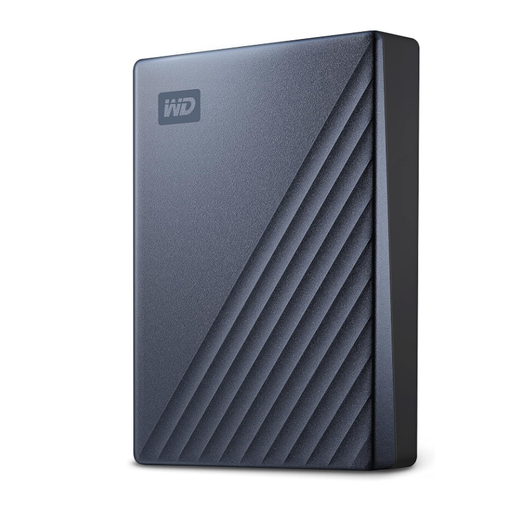 Image unavailable
Western Digital My Passport Ultra 5 TB portable hard drive, blue
Consider this portable hard drive if you want to carry a local photo archive and its 5 TB capacity suits your catalogue and planned growth.
Decide on your computer’s backup workflow before using or formatting the drive, particularly if it will move between Windows and Mac.
View on Joybuy
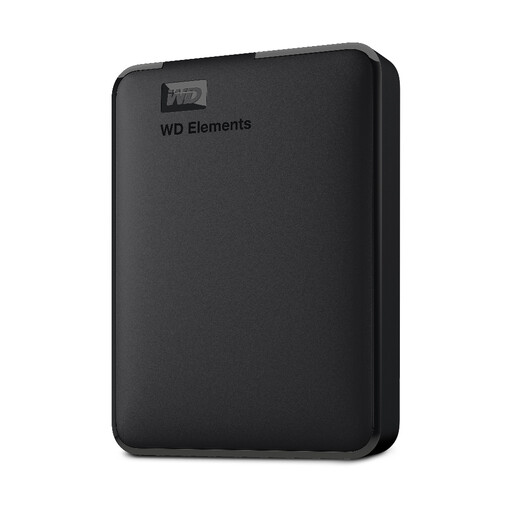 Image unavailable
Western Digital Elements Portable 4 TB hard drive, black
This portable hard drive is an option for periodic local photo copies if 4 TB leaves sufficient room for your files and future imports.
It has a USB 3.0 connection. Check your computer connection and intended backup format before setup.
View on Joybuy
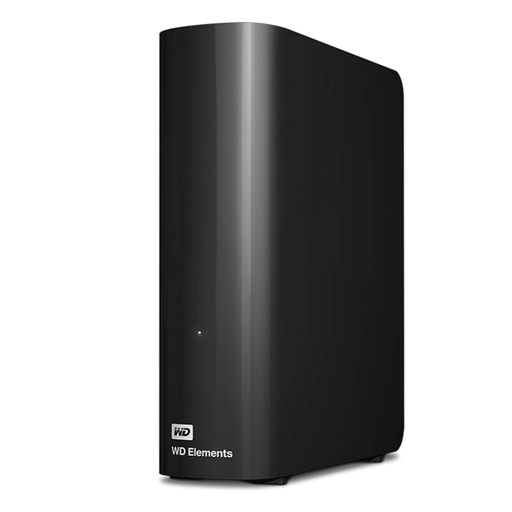 Image unavailable
Western Digital Elements Desktop 10 TB external hard drive
Assess this desktop drive for a photo archive kept in one place, provided you have a suitable location and mains power.
The listed capacity is 10 TB. Compare that figure with your catalogue, expected growth and backup history, then check the format required by your computer’s backup tool.
View on Joybuy
Frequently asked questions
Can I back up a Mac photo catalogue to an external drive without cloud storage?
Yes. Apple says Time Machine can back up files, including photos, to an external storage device and prefers APFS or APFS Encrypted for the backup disk. If the drive already holds files or was prepared for Windows, copy anything you need elsewhere before reformatting it.
Can Windows use an external drive for local photo backups?
Yes. Microsoft says you can select an external drive as a File History backup destination. Keep it connected when backups are due and check that you can restore the files you intend to protect.
Is one external drive enough for an irreplaceable photo catalogue?
One external drive should not be your only safeguard for irreplaceable photos. The Cybersecurity and Infrastructure Security Agency recommends three copies on two types of media, with one copy off-site; a separately stored drive can provide an off-site copy without cloud storage.
Should I encrypt a portable photo-backup drive?
Consider encryption if the drive carries personal, client or location-sensitive images and could be lost. The Cybersecurity and Infrastructure Security Agency advises encrypting removable media; before enabling it, make sure you can retain the recovery key securely.


