For recipe documents kept mainly on a home workstation, a USB hard drive is a practical way to keep a separate local copy; a portable SSD makes more sense if you regularly carry the archive or move larger scans and photos. A desktop hard drive also suits a fixed setup but needs a wall outlet, while a rugged SSD’s physical-protection claims do not replace another backup copy. Whichever drive you choose, check its connection and file format, test that you can restore files, and disconnect the backup when it is not in use.
Who needs which setup?
Home workstation document backers
If recipes live mainly on one Windows or Mac workstation, you need a separate copy that you can restore after deletion or a computer failure. The National Cyber Security Centre recommends checking that important files can be restored from a backup.
Mixed-device household organisers
If you update recipes on both Windows and macOS devices, check that each can write to the drive before moving the archive. Western Digital advises using exFAT for its drives when they need to work with both systems and warns that reformatting erases data.
Mobile recipe-archive keepers
If the archive travels between devices or locations, a compact SSD may suit the way you use it. If physical protection matters, read the particular drive’s test conditions and warranty limits rather than treating a rugged design as protection for your only copy.
What matters when choosing a drive?
Start with how you will recover the recipes, then check the workstation connection and file format. Consider speed and physical protection in light of how often you will move the drive.
| Concern | What to check | Who this matters to |
|---|
| Recoverable backups |
Choose a way to copy the recipe folder regularly, and make sure you can restore files. Keep another copy of recipes you cannot replace. |
If my workstation loses a recipe, I need a separate copy I can actually open again; around 50% of consumers put recoverability first. |
| Device compatibility |
Match the supplied cable to your USB ports, and confirm the file format needed if both Windows and macOS must write to the drive. |
When I update the archive on a Windows computer and a Mac, both need to write to it without risking the only copy; roughly 40% of consumers put compatibility first. |
| Portability and protection |
Consider how often the drive travels. Check the host and cable requirements for SSD speed claims and the conditions behind ruggedness claims. |
If I carry recipes and larger scans between devices, size and exposure to knocks matter more to me; about 10% of consumers make portability and physical protection their primary concern. |
Backup mistakes to avoid
-
Moving recipes to the drive and calling it a backup
If the external drive holds the only copy, losing that drive could still mean losing the recipes. The National Cyber Security Centre describes a backup as a separate copy and advises checking that files can be restored.
Keep a working copy, make regular backups and try restoring a few files. Retain another copy or service for recipes that would be difficult to recreate.
-
Leaving the backup permanently connected
A connected drive can be exposed when the workstation is affected by malware. The National Cyber Security Centre advises against keeping a backup device permanently connected.
Connect the drive for backups, check that the copy has completed, then disconnect it and store it separately when practical.
-
Reformatting the only recipe archive
Western Digital warns that formatting a drive erases its contents. A change of file format for Windows and macOS use should not put the only copy at risk.
Decide which computers must write to the drive before copying recipes. Move any existing files to another safe location before reformatting.
-
Choosing an SSD for a speed the workstation cannot use
Samsung’s stated maximum speeds for the T7 depend on a compatible USB 3.2 Gen 2 host and cable, with UASP enabled. Those peak figures are not a useful basis for choosing a drive if the workstation connection does not meet the conditions.
Check the workstation port and cable requirements; for a mostly stationary document archive, settle the compatibility and backup routine first.
Brands and product lines to consider
Western Digital
The WD Elements Portable line is a USB-connected hard-drive option for keeping files beside a workstation or taking them elsewhere.
- Western Digital identifies USB 3.2 Gen 1/USB 3.0 connectivity for its Elements Portable line.
- Check the capacity, connector and file format of the particular variant before choosing it for your workstation.
Seagate
Seagate’s Expansion Portable line offers USB-connected portable hard drives for a straightforward document-backup setup.
- Seagate provides specifications and setup resources for several Expansion Portable capacities.
- Its documentation describes a USB micro-B-to-USB-A cable; check how that cable will connect if your workstation has only USB-C ports.
Samsung
Samsung’s T7 portable SSD line is relevant when the archive moves between devices; the T7 Shield adds a rugged-design option.
- Samsung lists USB-C-to-C and USB-C-to-A cables for the T7, while its stated peak speeds require a compatible host, cable and UASP.
- Samsung says the T7 Shield’s resistance can vary outside controlled test conditions, and that liquid and dust damage are not covered by its warranty. Physical protection does not replace a backup copy.
Joybuy products for this setup
These external drives cover portable SSDs for an archive you carry, a desktop hard drive for a fixed workstation, and a portable hard drive for local storage. Choose by your connection, file-format and backup needs rather than treating product order as a ranking of drive types.
 No image available
Samsung Portable SSD T7 2 TB, Grey
Consider this portable SSD if you regularly move the recipe archive or also store larger scans and photos.
2 TB capacity; USB 3.2 Gen 2 interface. Check the file format required by each computer before copying files.
View on Joybuy
 No image available
Samsung Portable SSD T7 1 TB, Blue
This portable SSD is an option when you want to carry the recipe archive between compatible devices.
1 TB capacity; USB 3.2 Gen 2 interface. Confirm the format needed for your Windows or macOS workflow before copying files.
View on Joybuy
 No image available
Samsung T7 Shield Portable SSD 1 TB, Blue
Consider a rugged-design SSD if you frequently carry the recipe archive and physical exposure is a meaningful concern.
1 TB capacity; USB 3.2 Gen 2 interface. Check this variant’s protection conditions and warranty limits, and keep another backup copy.
View on Joybuy
 No image available
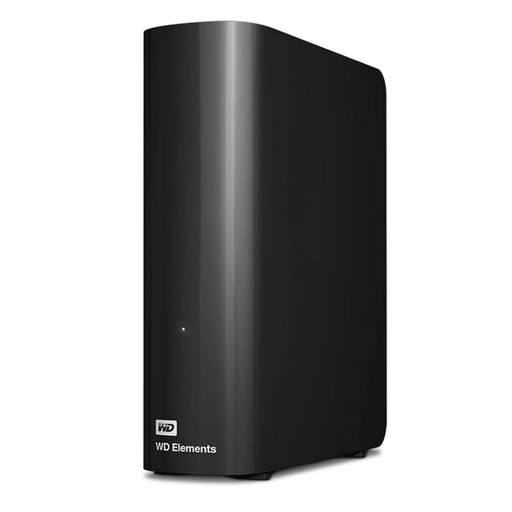
Western Digital Elements Desktop External Hard Drive 6 TB
This desktop hard drive suits an archive kept beside a home workstation, particularly if recipes share the drive with other household files.
6 TB capacity. It requires an AC adapter and a nearby wall outlet; check the required format before using it with macOS.
View on Joybuy
 No image available
Western Digital Elements Portable Hard Drive 4 TB, Black
This portable hard drive suits a mostly stationary recipe backup with room for other files.
4 TB capacity; USB 3.0 connection. Check that its USB-A cable fits your workstation, and confirm whether you need to reformat it for macOS.
View on Joybuy
Frequently asked questions
Is a portable hard drive sufficient for recipe documents?
A portable hard drive can serve as a separate local backup if the recipe archive mainly stays at one workstation. What matters is that it connects to your computer, has room for the files you intend to copy, and forms part of a routine in which you can restore them. Consider an SSD if you often carry the archive or copy larger scans and photos.
Should I format the drive as exFAT?
Use exFAT if the same drive must be written to from both Windows and macOS. Western Digital advises this for its drives used across the two systems and warns that formatting erases existing data, so secure another copy before making a change.
Can I leave the backup drive connected all the time?
Disconnecting it between backups is the safer routine recommended by the National Cyber Security Centre. A permanently connected drive can be exposed when the workstation is compromised; reconnect it for regular backups and check that you can restore the recipe files.
What should I do with an old external drive in the UK?
Use an appropriate electronics-recycling or retailer take-back route, and remove personal files before handing over the drive. UK government guidance identifies the Waste Electrical and Electronic Equipment framework for the collection and recycling of electrical and electronic equipment; check the arrangements available where you live.


