What matters when choosing?
Choose the backup routine before the drive: a fast or spacious device cannot replace a separated copy that the studio can restore. Then decide whether the main job is retaining an archive, transferring working files or keeping a local copy at a fixed location.
Portable HDD
Consider it: When retained teaching files are the main priority and staff can disconnect and secure the drive after backups.
Allow for: The exact model's cable and file-system requirements when computers differ.
Portable SSD
Consider it: When large working files regularly travel between rooms and transfer time matters.
Allow for: The host and cable conditions behind the exact model's stated speed; it still needs a separate backup.
Powered desktop drive
Consider it: When a growing local archive can stay in a secure, fixed studio location.
Allow for: Mains power and another copy kept away from the same local incident.
| Concern |
What to check |
Who this matters to |
| Recovery and separation |
Allow capacity for retained versions; agree where a disconnected copy will be kept and how restores will be tested. |
If I am responsible for the archive, I need teaching files to remain recoverable after a computer or connected drive is affected. Around 27% of consumers put recovery and separation first. |
| Personal-data protection |
Confirm the approved encryption method, authorised users and secure handling of recovery credentials. |
Where colleagues share a studio and a backup may hold personal information, I need to control who can take or open it. For around 33% of consumers, protecting that data is the primary concern. |
| Large-file transfers |
Check the exact SSD's stated speed conditions against the computer port, cable and required protocol. |
If I regularly move large video or image files, I want copying and restoring current work to fit the studio routine. Around 20% of consumers prioritise transfer time. |
| Movement between devices |
Check supplied connectors and whether the file system works on every approved computer. |
When I take a backup between rooms or use different studio computers, I need to connect and read it on each approved device. Device compatibility comes first for around 20% of consumers. |
Joybuy product choices
These choices cover a portable SSD for moving working files, portable HDDs for teaching-resource backups and a powered desktop HDD for a fixed local archive. Check the capacity, connections and backup routine against the studio's own files and computers.
 No image available
Samsung T7 Shield Portable SSD, 1 TB, Blue
Consider this portable SSD if staff frequently move large teaching-media files between rooms.
The named variant has 1 TB capacity and USB 3.2 Gen 2. Check whether that capacity fits retained backups and whether the host and cable meet the conditions for the speed you need.
View on Joybuy
 No image available
Western Digital My Passport Ultra for Mac, 5 TB, Silver
Consider this portable HDD for a teaching-resource archive that staff can disconnect and secure after a backup.
This is the 5 TB Mac variant. If studio staff also use Windows computers, check the required file-system and driver arrangement before depending on access from both systems.
View on Joybuy
 No image available
Western Digital My Passport Portable HDD, 2 TB, Black
Consider this portable HDD when the planned teaching-resource backups fit its capacity and the drive can be stored securely between uses.
The named variant has 2 TB capacity. Confirm the exact macOS and Windows file-system or driver requirements before using it across different studio computers.
View on Joybuy
 No image available
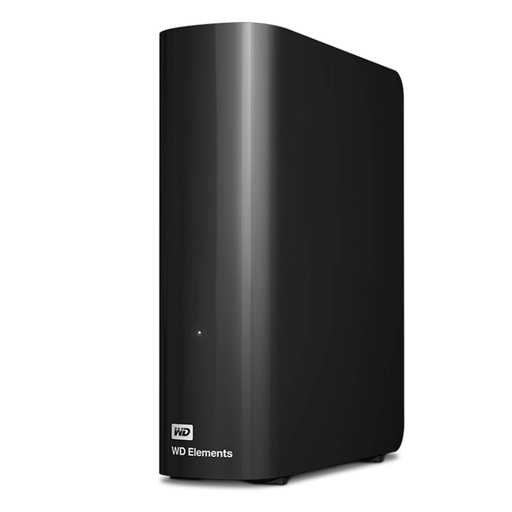
Western Digital Elements Desktop HDD, 10 TB
Consider this desktop HDD for a larger local archive kept in a secure, fixed studio location.
The named variant has 10 TB capacity and uses mains power. Arrange another separated copy rather than relying on a drive kept in the studio alone; check file-system requirements if Macs will use it.
View on Joybuy
 No image available
Western Digital Elements Portable HDD, 4 TB, Black, USB 3.0
Consider this portable HDD for an archive copy that staff can move to a secure location after backing up.
The named variant has 4 TB capacity and USB 3.0. Check its connection and file-system requirements against studio computers; if the copy will contain personal data, confirm an approved encryption and access process.
View on Joybuy
Frequently asked questions
Is one external drive enough to back up a shared teaching studio?
No: one external drive can be a backup destination, but it should not be the studio's only recoverable copy. The Department for Education Cyber Security Hub describes a three-copy, two-storage-form, one-off-site approach; keep a copy separated from the live computer and test that files can be restored.
Should a drive holding pupil or staff information be encrypted?
Use the organisation's approved encryption approach for personal information on a removable backup. The Information Commissioner's Office advises protection appropriate to the risk; also establish who may access the drive, where it is kept and how recovery credentials are secured.
Can Windows back up teaching files automatically to an external drive?
Yes, Microsoft describes File History as making regular backups to an external drive or network location once enabled. Check that the teaching-resource folders you need are included in the chosen routine, and plan when the external drive will be disconnected and secured.
What should staff do after a backup finishes?
Check that the expected files were copied, then safely disconnect the drive and return it to its approved secure location. The National Cyber Security Centre advises against leaving backup storage connected when it is not in use.
Will a portable HDD work with every studio computer?
Not automatically: check the exact drive's connector, supplied cable and file system against each approved computer. For example, Toshiba says Canvio Basics requires reformatting for macOS, while Seagate's One Touch HDD manual says its Micro-B-to-USB-C cable is not included.


