What matters when choosing a drive?
Decide how you will protect and restore the journal before choosing capacity or speed. Then check the computers that will write to and read from the drive: a convenient connection is only useful if those devices support it.
| Concern |
What to check |
Who this matters to |
| Privacy in a shared space |
Check password and encryption features on the exact drive, including how you will set them up and retain access to the password. |
If other studio users could pick up my drive, I want my private entries protected without locking myself out. Around 42% of consumers put access control first. |
| Recovering the journal |
Allow room for the copies you intend to keep, establish a repeatable backup routine and test restoring a file. |
A copy is of little use to me if I cannot retrieve an entry after deletion or computer failure. For around 33% of consumers, a recoverable backup is the primary concern. |
| Large files and portability |
Check the computer’s USB capability against an SSD’s stated speed conditions, and choose capacity for the journal and its media files. |
When my entries include substantial scans or recordings, I want frequent copying and carrying the drive to be manageable. Faster, more resilient portable use comes first for around 17% of consumers. |
| Access across devices |
Check each device’s port and operating-system compatibility, plus the cables supplied with the exact drive. |
I need to open the backup on both studio and personal devices without discovering that one cannot read it. Cross-device access is the leading need for around 8% of consumers. |
Joybuy drive choices
These choices include portable HDDs for separate journal copies and portable SSDs to consider when the backup also contains large media files. Match the exact drive’s capacity, connection and security setup to the computers and backup routine you will use.
 No image available
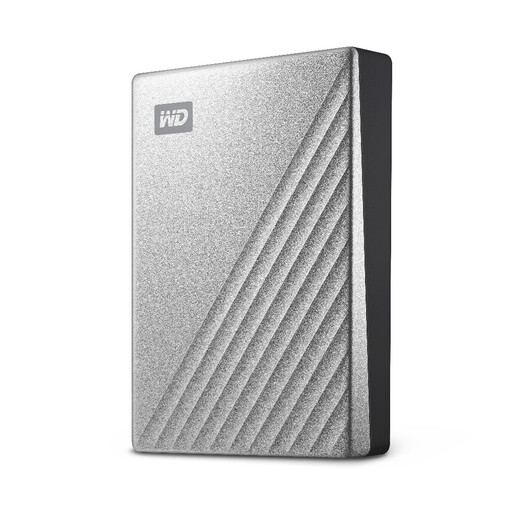
Western Digital My Passport Ultra 4TB, Silver
Consider this portable HDD for a journal archive when you want to establish a separate, regularly updated copy.
The named variant has 4TB capacity. Before relying on password protection or backup software, confirm the features and setup for this variant and your computer.
View on Joybuy
 No image available
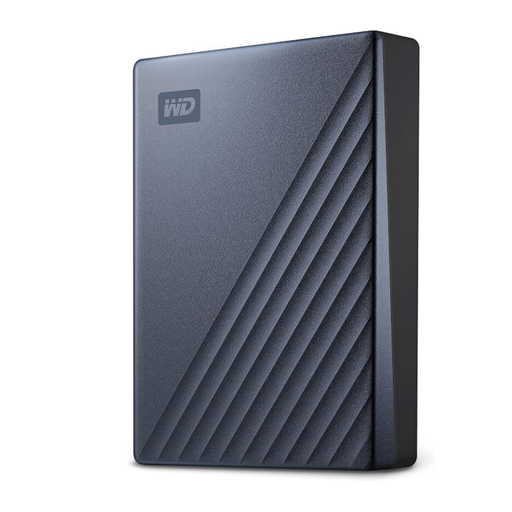
Western Digital My Passport Ultra 5TB, Blue
Consider this portable HDD if your journal backup also needs space for an archive of scans or other files.
The named variant has 5TB capacity. Check its security features and the file-system setup needed by the computer that will restore your files, particularly if you use a Mac.
View on Joybuy
 No image available
Western Digital My Passport 2TB, Black
This portable HDD is a choice to consider for a journal copy when 2TB meets your planned backup needs.
Check the password setup and the steps required on your intended computer before making it part of your routine; confirm the Mac setup if you expect to restore files there.
View on Joybuy
 No image available
Samsung Portable SSD T7 4 TB, Grey
Consider this SSD if your journal includes large scans or recordings and you copy them frequently.
The named variant has 4 TB capacity and USB 3.2 Gen 2 connectivity. Check your computer’s USB connection, the password setup and the backup method you plan to use. Keep the drive away from liquids.
View on Joybuy
 No image available
Samsung T7 Shield MU-PE1T0S 1TB, Black
Consider this portable SSD when a media-rich journal backup travels between locations and 1TB suits the files you plan to keep.
It uses USB 3.2 Gen 2. Samsung states that the T7 Shield’s transfer-speed and resistance claims apply under specified conditions; check your computer’s connection and do not treat its resistance features as a replacement for another copy or secure storage.
View on Joybuy
Common questions
Is one external drive enough for my journal backup?
Do not rely on the drive alone if losing the journal would matter. The National Cyber Security Centre advises keeping a backup in a separate, safe location and considering both online storage and an external device for extra safety. Disconnect the drive after use and test that you can restore a file.
Should I choose an HDD or SSD for a journal?
For an occasional, mostly text-based journal backup, prioritise a workable capacity, access controls and a routine you can test rather than transfer speed alone. Consider an SSD when you frequently copy large scans, photos or recordings; check the required computer connection before relying on a quoted maximum speed.
How do I choose a drive for both studio and personal devices?
Check the ports and supported operating systems of every device that will create or restore the backup. Toshiba says its Canvio Flex line includes USB-C and USB-A cables and is preformatted for several compatible device types, but compatibility still depends on the particular devices you use.
Does a drive warranty protect my journal files?
No: a product warranty is not a plan for recovering your journal. Western Digital lists a three-year limited warranty for the cited My Passport Ultra product line, while the National Cyber Security Centre’s backup guidance still calls for a separate, safely stored copy that you can recover.


