Choose cloud storage if automatic uploads and access across household devices matter most; choose an external drive if you want a local copy you control. For irreplaceable photos and documents, keeping a cloud copy and a separate local copy gives you two recovery routes, provided you check what each includes, how restoration works and whether the drive is stored separately between backups.
Who needs which backup approach?
Families protecting irreplaceable memories
If losing a phone or computer would also mean losing family photos, videos or essential documents, prioritise a recoverable copy stored away from that device. The National Cyber Security Centre advises keeping important data in a separate safe location.
Multi-device cloud households
Automatic uploading can help when files are spread across phones, tablets and computers. Apple and Google distinguish between device backups and separately synced photos, so check what each device actually sends to the account and whether there is enough storage.
Households wanting a local copy
An external drive offers a copy under your physical control and access without a cloud account. It still needs a regular backup routine and a separate storage location; a drive kept beside the original device does not address every loss or damage scenario.
What matters when choosing a backup?
For family files, choose the recovery arrangement before choosing a drive capacity or cloud allowance: decide where each copy will live and how you would restore it.
External drive
Choose it when: You want a local recovery copy for a computer.
Allow for: The drive must be compatible, updated regularly and stored separately when practical.
USB or other removable media
Choose it when: You need a separate copy of a selected set of important files.
Allow for: Check that everything selected fits and keep the media somewhere you can find it for recovery.
Cloud storage
Choose it when: Automatic uploads and access across household devices take priority.
Allow for: Recovery depends on account access, available storage and the service’s deletion and version-history rules.
Local and cloud copies
Choose it when: Irreplaceable files warrant a recovery route away from both the original device and the local drive.
Allow for: You will need to maintain both copies and check that each can be restored.
| Concern |
What to check |
Who this matters to |
| Independent recovery |
Confirm that a copy is separate from the original device and check how deleted or changed files can be restored. |
If our computer is lost or damaged, I want the family photos somewhere separate and recoverable. Around 29% of consumers put independent recovery first. |
| Multi-device coverage |
Check which devices, folders and photo libraries are included, and whether uploads run automatically. |
With files spread across our phones and computer, I need a routine that does not leave one device’s photos behind. Roughly 29% of consumers make automatic coverage their primary concern. |
| Local control |
Check the computer port, drive format and intended backup software before choosing a local drive. |
I want an offline copy I can access without signing in to a cloud account, but it must work with my computer. About 24% of consumers prioritise that local control. |
| Storage capacity |
Compare the space used by essential files with the drive or account allowance, leaving room for new files and retained copies. |
Our photo and video collection keeps growing, so I need enough space without committing to more storage than we intend to use. Around 18% of consumers put capacity and continuing costs first. |
Backup mistakes to avoid
-
Treating a synced folder as the only backup
Syncing makes files and edits available in more than one place, but recovery after deletion or overwriting depends on the service’s restore features and their conditions. Microsoft documents such limits for OneDrive.
Keep a separate copy of irreplaceable files, check deletion recovery and version history, and try restoring a non-critical file.
-
Leaving the only local backup drive connected
A drive that stays attached may be affected by a problem involving the computer, reducing the separation that makes a backup useful.
Run and check the backup, then store the drive separately when practical. Keep another copy away from that location for especially important files.
-
Choosing a drive before checking the backup workflow
A drive’s capacity alone does not establish that it will work with the intended computer and backup software. Apple states that Time Machine cannot back up to a disk formatted for Windows.
Check the ports, format and backup method before purchase. Copy any existing files elsewhere before reformatting a drive.
-
Assuming a phone backup contains every photo
Device backups and photo synchronisation can be separate. Apple says photos and videos synced through iCloud Photos are not included in the daily iCloud Backup.
Review the settings on each phone or tablet, confirm which data is included and check that the photo library has finished uploading.
Relevant brands for reference
Apple
Relevant to households backing up iPhone, iPad and Mac files through iCloud services or Time Machine.
- Apple says Time Machine can automatically back up Mac files to compatible external storage.
- iCloud Photos syncs separately from daily iCloud Backup; Time Machine cannot use a Windows-formatted disk without changing its format.
Google
Relevant when Android devices, Google Photos or Google Drive hold household files.
- Google provides Android device-backup settings and an option to upload photos and videos to a Google Account.
- Check which content is backed up, which files are merely synced and how much account storage remains.
Microsoft
Relevant to Windows households considering File History with an external drive alongside OneDrive file access.
- Microsoft documents File History backups to an external drive or network location.
- OneDrive recovery depends on the feature and circumstances: Microsoft says permanently deleted files cannot be recovered from its Recycle Bin, while some whole-OneDrive restore features require Microsoft 365.
Seagate
Relevant when considering an external drive for a computer-based local backup.
- Seagate describes Toolkit backup options for supported storage devices and computer files.
- Confirm the particular drive’s format and software support; a drive intended for Time Machine needs a compatible format.
External drives for a local copy
These Joybuy drives are options for keeping a separate local copy of family files. Choose capacity against the files you need to protect, then check the connection, format and backup method for your computer; a drive does not replace a separately maintained cloud copy.
 No image available
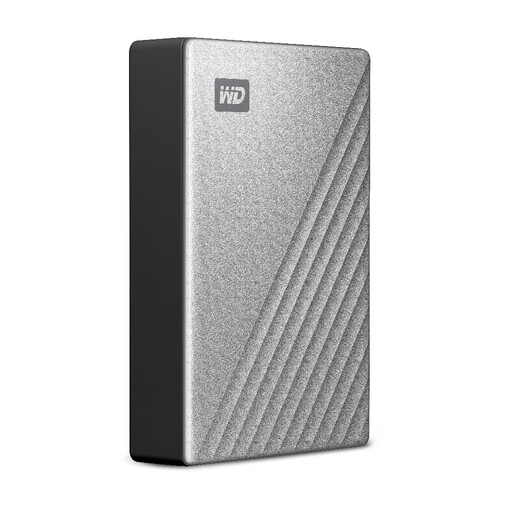
Western Digital My Passport Ultra for Mac 5TB, Silver
For a Mac household planning a local copy of photos and documents, this portable hard drive offers 5TB of stated capacity.
Check the intended Mac’s connection, drive format and backup-software requirements before setting up the copy.
View on Joybuy
 No image available
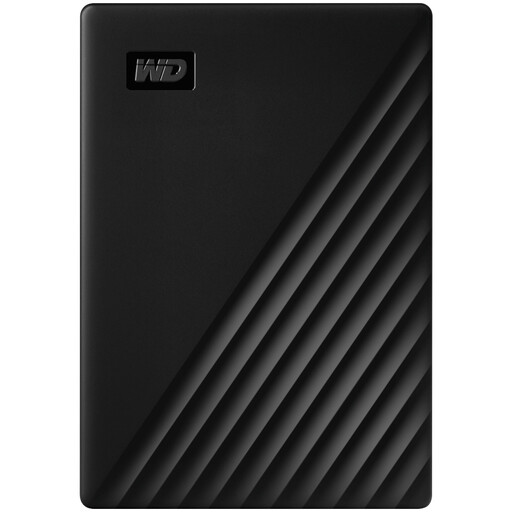
Western Digital My Passport 2TB, Black
This 2TB portable hard drive is a local-copy option if your selected household files and expected growth fit within its capacity.
Check the drive format and your computer’s backup workflow, particularly if you intend to use it with macOS.
View on Joybuy
 No image available
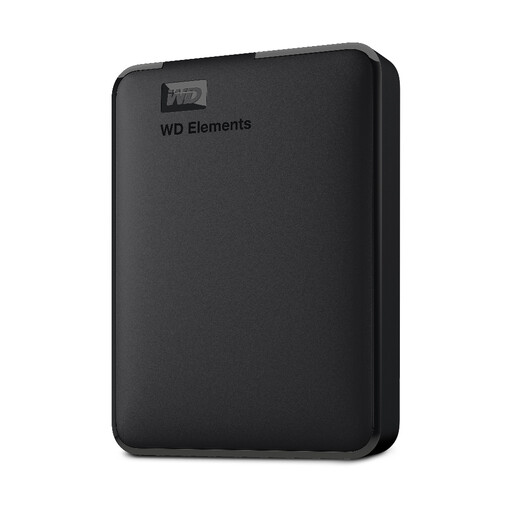
Western Digital Elements Port. 4TB USB 3.0, Black
With 4TB of stated capacity, this portable hard drive is a candidate for keeping a local copy of a photo, video and document collection.
Check the intended computer’s connection and file format, and establish how you will run and check regular backups.
View on Joybuy
 No image available
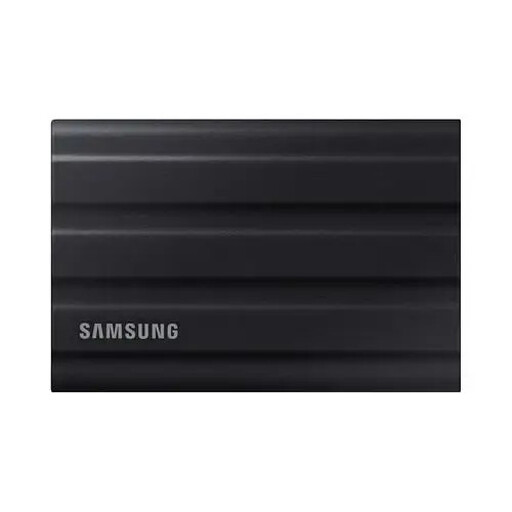
Samsung MU-PE1T0S 1TB USB Type-C 3.2 Gen 2, Black
This portable SSD is a local-copy option for a selected collection that fits within its stated 1TB capacity.
Check the device connection and file-system setup if you plan to move it between devices, and decide how backups will be updated.
View on Joybuy
 No image available
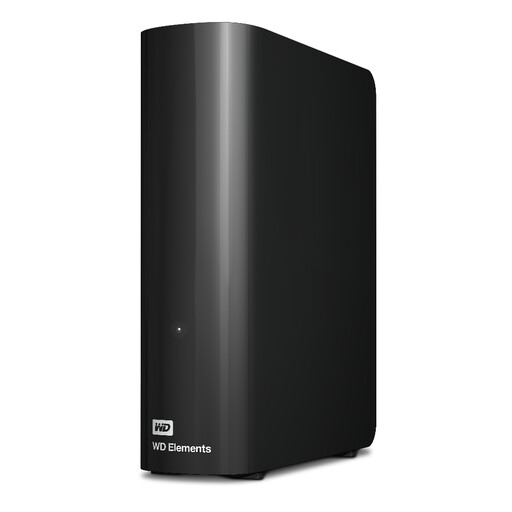
Western Digital WD Elements 12TB USB 3.2 Gen 1 Desktop Hard Drive
This 12TB desktop hard drive is a local-copy option for a large household file collection at a fixed computer setup.
Allow for a suitable mains-powered location. Check the computer’s file-system requirements and backup routine, especially for macOS use.
View on Joybuy
Backup questions answered
Is cloud synchronisation the same as a backup?
No: synchronisation keeps files and edits aligned, while a backup needs to remain recoverable if you lose access to the original. Check the service’s deletion and version-history rules, and keep a separate copy of files you cannot replace.
Can I use any external drive with Time Machine?
No: the drive must meet the Mac’s connection and format requirements. Apple says Time Machine cannot back up to a Windows-formatted disk, so check the format and copy off existing files before any reformatting.
Are my photos included in iCloud Backup?
Not when iCloud Photos is enabled: Apple says those photos and videos sync separately rather than being included in the daily iCloud Backup. Check that iCloud Photos has finished syncing, that account storage is available and what the device backup includes.
Can Windows File History back up to an external drive?
Yes. Microsoft documents an external drive as a File History backup location. Check that the folders you need are covered and reconnect the drive when backups are due.


