Choose an external drive for a separate copy you can restore from at home, or a cloud service that supports automatic backup when an off-site copy matters more. For irreplaceable photos, videos and documents, using both addresses different risks: disconnect the local drive between backups, and check the cloud service’s account security, retention and restore options.
Who is this for?
Households outgrowing free cloud storage
If photos and videos are taking up more space each year, compare the size of your whole library with both drive capacity and the space available in a cloud account. Google says its free allowance of up to 15 GB is shared across Drive, Gmail and Photos, so it is worth checking what already uses that space.
Families protecting irreplaceable files
If the priority is recovering family photos and documents after a computer or household incident, think about where each copy will be kept. The National Cyber Security Centre recommends an off-site copy as part of its backup approach; a drive stored beside the computer does not provide that separation.
Homes with files on several devices
If new files arrive on more than one computer or phone, consider how they will reach the backup without repeated manual copying. IDrive describes scheduled backup from PCs, Macs and mobile devices into one account. Check that any service you choose covers the devices and folders you actually use.
What matters when choosing?
For a growing household library, start with the risk you most need the next backup copy to address, then check capacity and how you would restore the files.
Portable external drive
Consider it when: you want a local copy that you can move or store separately from the computer.
Bear in mind: a drive kept at home remains exposed to incidents affecting that location, even when unplugged.
Desktop external drive
Consider it when: a large library is normally backed up beside one home computer; Seagate’s cited desktop range includes a 14 TB model.
Bear in mind: a stationary drive is less convenient to take to another location and is still a local copy.
Cloud backup
Consider it when: you need a copy away from the home or want a service that can back up selected devices automatically.
Bear in mind: uploading and restoring a large library depend on your connection, and recoverable versions depend on the service’s retention rules.
Local and cloud copies
Consider it when: the files would be difficult to replace and you want both a nearby copy and off-site separation.
Bear in mind: you need to check that both backups run and that you can restore files from each.
| Concern |
What to check |
Who this matters to |
| Room for a growing library |
Compare your library and expected growth with the drive or account allowance. Check whether cloud space is shared with other files or allocated per person. |
If my videos keep accumulating, I need the backup to hold the whole library, not just selected folders. Around 31% of consumers put usable capacity first. |
| Separation from loss at home |
Decide where another copy will live and whether a local drive can be disconnected and stored separately. Protect access to any cloud account. |
A copy beside my computer may be lost in the same incident, so I want one elsewhere. For around 31% of consumers, off-site resilience is the primary need. |
| Backup across devices |
Confirm the supported devices and folders, and whether files are backed up automatically rather than only synchronised. |
When photos and documents arrive on several devices, I do not want to remember every manual copy. Roughly 23% of consumers prioritise automation and multi-device coverage. |
| Restoring older files |
Read the version-history and deleted-file periods, then check how you would restore both one file and the entire library. |
If I notice a deleted photo weeks later, I need to know whether an older copy is still recoverable. Retention and restore terms come first for around 15% of consumers. |
Backup mistakes to avoid
-
Treating one connected drive as the whole plan
A drive left connected can be affected by a problem involving the computer, while copies kept together share a location risk. The National Cyber Security Centre recommends keeping a copy off-site and connecting an offline backup only when needed.
After a backup finishes, disconnect the drive if it is intended as an offline copy, and keep another copy away from the computer or home.
-
Assuming a cloud allowance is reserved for photos
Google says account storage is shared across Gmail, Drive and Photos. The space available for a photo library therefore depends on what else is already in the account.
Check current usage across those services and leave room for new photos and videos before choosing an allowance.
-
Assuming deleted files remain recoverable indefinitely
Backblaze says its default version history is 30 days. Microsoft Support describes a 30-day period for restoring a OneDrive account, so neither should be assumed to keep an indefinitely recoverable archive.
Choose retention settings that match how long a deletion might go unnoticed, and try restoring an older file.
-
Reading a portable SSD speed as a guaranteed transfer rate
Samsung says the quoted maximum sequential speeds for its T7 Shield require a compatible USB 3.2 Gen 2 host, cable and UASP mode.
Check the computer connection and cable before treating the quoted speed as relevant to your setup.
Relevant brands to consider
Seagate
Seagate’s Backup Plus portable and desktop lines are points of reference for a local drive kept near a home computer or stored separately.
- Seagate lists Backup Plus portable models up to 5 TB and a Backup Plus Hub desktop model at 14 TB; it describes Toolkit as supporting automatic backup to a storage device.
- These drives make local copies. Add an off-site copy if you need protection from an incident affecting the home.
Samsung
Samsung’s portable T7 Shield SSD line is relevant when you also move large files or work from the drive.
- For its 1 TB T7 Shield, Samsung quotes sequential read and write speeds of up to 1,050 and 1,000 MB/s, subject to the required host, cable and USB mode.
- Check that 1 TB accommodates the library and its growth; a portable SSD alone does not provide an off-site copy.
Backblaze
Backblaze Personal Backup is a computer-centred cloud route for an off-site copy.
- Backblaze describes computer backup and offers web and mailed-drive restoration options.
- Its default version history is 30 days, according to Backblaze Help. Review longer-retention settings and restore conditions if deletions may be discovered late.
IDrive
IDrive is relevant when files from several computers and mobile devices need scheduled cloud backup under one account.
- IDrive says it can schedule backups from PCs, Macs, iPhones, iPads and Android devices into a single account.
- Check that the chosen storage allowance covers the selected files and that the restore process suits the whole household library.
Microsoft
Microsoft 365 and OneDrive are relevant to households already keeping files in Microsoft accounts.
- Microsoft lists 1 TB of cloud storage for Microsoft 365 Personal. Its Family allocation is 1 TB per person for up to six people, rather than one pooled allowance.
- Microsoft Support describes a 30-day window for whole-account OneDrive restore; check whether that meets your need for older versions and deleted files.
External drives for a local backup
These Joybuy drives are options for making a local copy of a household photo and document library. Choose capacity for the files you have and expect to add; keep a separate off-site copy if loss of the computer or home is a concern.
 No image available
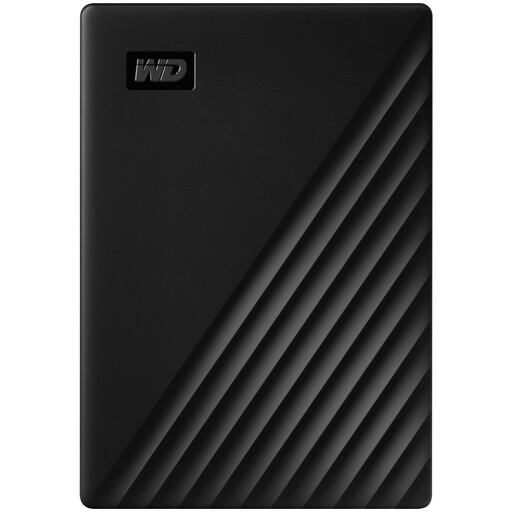
Western Digital My Passport 4 TB portable hard drive, black
Consider this portable drive if your current library and expected additions fit within 4 TB and you want a local copy you can store separately.
- Stated capacity: 4 TB.
- A drive kept only at home is not an off-site copy.
View on Joybuy
 No image available
SanDisk Portable SSD 2 TB
This portable SSD is a local-copy option if 2 TB leaves enough room for your photos, videos and documents to grow.
- Stated capacity: 2 TB.
- If automatic backup or encryption matters to you, check those features before choosing it.
View on Joybuy
 No image available
Western Digital Elements 10 TB desktop hard drive
Consider this desktop drive for a larger library that you normally back up beside a home computer.
- Stated capacity: 10 TB.
- Plan where the desktop drive will sit and how you will keep another copy off-site. Check automatic-backup and encryption features if required.
View on Joybuy
 No image available
Samsung T7 Shield 1 TB portable SSD, blue
This portable SSD makes more sense as a local copy if your library, including expected growth, fits within 1 TB.
- Stated capacity: 1 TB; USB 3.2 Gen 2 is specified in the product name.
- Samsung says its quoted T7 Shield transfer speeds require a compatible host, cable and USB mode. Check automatic-backup support if you need it.
View on Joybuy
Backup questions answered
Is one external drive enough for family photos and documents?
One external drive gives you a separate local copy, but it does not protect against an incident affecting both the drive and its storage location. The National Cyber Security Centre describes a backup approach with at least three copies on two devices, including one off-site; consider a copy elsewhere for files you cannot replace.
Should I leave a backup drive connected?
Disconnect a drive intended as an offline backup when it is not in use. The National Cyber Security Centre advises connecting offline backups only when necessary, so allow a backup to finish and safely eject the drive before storing it.
What should I check before relying on cloud backup for a large restore?
Check how long older or deleted files remain recoverable and how the provider delivers a full-library restore. Backblaze says its default version history is 30 days and offers web and mailed-drive restores; test a small restore and consider how your connection would handle the full library.
Should I encrypt a portable backup drive?
Use disk encryption when losing the drive or having it stolen is a realistic risk. The National Cyber Security Centre recommends disk encryption where removable media may be physically stolen; keep the means of unlocking the backup accessible to you without leaving it with the drive.


