What should you check before choosing?
Start with what you would need to recover, then check capacity, copy location and how each backup will remain accessible and protected.
| Priority | What to check | Your needs |
|---|
| Recovery scope |
Decide whether you need selected folders or a fuller device restore. Check exactly what your chosen Windows or Mac backup tool saves and how you would restore it. |
I want to know whether recovering my photos is enough, or whether I also need apps and settings after replacing a laptop. |
| Capacity |
Compare the files to be backed up, expected growth and any other computers using the space. For a Mac Time Machine disk, Apple advises at least twice the Mac’s storage capacity; check which services share a cloud allowance. |
My photo collection may grow, and I do not want other files or email in the same cloud account to use the space I have set aside for it. |
| Copy location |
Choose where you would retrieve files if the computer or local drive were lost. A local drive is available without an internet connection; online retrieval depends on account access and a connection. |
If the computer disappears, I want a copy somewhere else. If I need to restore at home without internet access, a local copy matters too. |
| Protection |
Check available drive encryption, cloud account protection and recovery arrangements. Keep at least one copy disconnected or otherwise separate: the National Cyber Security Centre has documented ransomware affecting connected backup storage. |
Personal documents should not be readable simply because a portable drive is lost, and one compromised computer should not put every copy within reach. |
| Portability |
Check the drive connection and compatibility with each intended computer. If transfer speed matters, compare stated speeds only alongside the required host connection; consider the risk of misplacing a drive you carry. |
I move large files between devices regularly, so a compact SSD may be useful. For a drive that stays at home for periodic backups, transfer speed matters less. |
Relevant brands and services
These references cover operating-system backup tools, cloud accounts and external drives; their features vary by account, plan and product model.
Microsoft
Windows Backup and OneDrive are options for households using a personal Microsoft account.
- Microsoft says Windows Backup can cover selected folders, settings and many installed apps on supported consumer devices.
- Microsoft lists 5 GB of free OneDrive storage. Check the selected folders’ size and whether you also want a separate local copy.
Apple
Mac owners can consider an external Time Machine disk alongside iCloud storage for files used across Apple devices.
- Apple says Time Machine can automatically back up Mac files and apps, and advises a disk with at least twice the Mac’s storage capacity.
- Apple lists 5 GB of free iCloud storage. Check what an iCloud setup includes rather than assuming it replaces a full Time Machine backup.
Google
Google One is a cloud-capacity option for households already storing files in Google Photos, Drive or Gmail.
- Google lists up to 15 GB with a standard Google Account and offers larger Google One plans.
- Drive, Gmail and Photos share the account allowance. Check existing use and the current plan terms before moving a photo archive.
Seagate
Seagate’s external-drive range provides portable and desktop formats to consider for local storage.
- Its UK range includes external drives in different capacities and formats.
- Check the individual model’s capacity, connection, formatting and available security features; range-wide descriptions do not establish them for every drive.
Samsung
Samsung portable SSDs are relevant when a compact local copy or frequent file transfer matters.
- Samsung identifies USB 3.2, 1 TB capacity and fingerprint recognition for its named T7 Touch model.
- Those T7 Touch features do not automatically apply to other Samsung SSDs. Check the complete model and variant before choosing.
External drives on Joybuy
These portable HDDs and SSDs offer local storage for photos, documents or computer backups. Choose capacity and connection for your intended device, and arrange a separate copy if the files cannot be replaced.
 No image available
Western Digital My Passport 2TB Portable HDD, Black
A local HDD for keeping a copy of a photo and document collection. The listing specifies USB 3.2 Gen 1, backup scheduling and optional 256-bit AES hardware encryption. It describes the drive as pre-formatted for Windows and says macOS use requires a driver; confirm the Mac setup and write support before buying. Keep another copy separately.
View on Joybuy
 No image available
Samsung Portable SSD T7 4 TB, Grey
A portable local drive for a larger file collection or frequent transfers. The listing specifies USB 3.2 Gen 2 and claims read speeds up to 1,050 MB/s and write speeds up to 1,000 MB/s; the connection used can affect achievable speed. It also describes AES 256-bit encryption support, which requires compatible software to set a password. This drive alone is not an off-site copy.
View on Joybuy
 No image available
Samsung T7 Shield Portable SSD 1 TB, Blue
A portable local copy to consider when carrying or transferring files. The listing specifies USB 3.2 Gen 2, claims speeds up to 1,050 MB/s read and 1,000 MB/s write, and describes IP65 protection and drop resistance up to 3 metres. It warns against immersion. Check the host connection for the stated speeds and the software setup before relying on encryption; retain another backup elsewhere.
View on Joybuy
 No image available
SanDisk Portable SSD 2TB
A portable 2TB local storage option for photos and documents. The listing claims read speeds up to 800 MB/s and drop protection up to 2 metres. Confirm the connection and operating-system compatibility with your computer before buying, and keep a separate backup copy.
View on Joybuy
 No image available
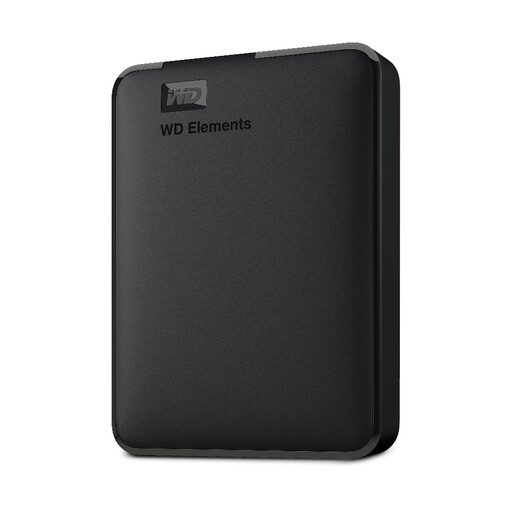
WD Elements Portable 2TB HDD, Black
A portable HDD for a local copy of computer files. The listing identifies this variant as 2TB, specifies USB 3.2 Gen 1 and describes plug-and-play use and PC and Mac formatting. If encryption or scheduled backups matter, confirm how you will provide them in your setup. One drive should not be your only copy.
View on Joybuy
Backup questions answered
Should I use an external drive or cloud storage for family files?
Use an external drive for a local copy and cloud storage when a copy away from the computer and access from another device matter. For irreplaceable files, use both where practical, with at least one copy separate and not continually connected; the National Cyber Security Centre warns that connected backups can be affected by ransomware.
Can Windows Backup replace an external drive?
Not if you also need an independent local copy. Microsoft says Windows Backup can cover selected folders, settings and many installed apps with a personal Microsoft account, but its free OneDrive allowance is 5 GB. Check your selected folders’ size and what you would need to restore.
How large should a Mac Time Machine drive be?
Apple advises a storage device with at least twice the Mac’s storage capacity. Check the capacity of the Mac you will back up, rather than choosing a drive based only on the current size of your photos.
Will free cloud storage hold a laptop photo library?
Compare the library’s size with the space remaining in your account. Microsoft and Apple each list 5 GB of free storage for their respective services; Google lists up to 15 GB shared across Drive, Gmail and Photos. Other account content may already use part of those allowances.
How do I protect a cloud backup from account problems?
Protect the account used for the backup, keep its recovery details current and check who can access the files. The National Cyber Security Centre warns that connected cloud backup locations can be affected in ransomware incidents, so consider a separate copy that is not continuously connected.


