What to check before choosing
Start by deciding where the separate copy will live, then check capacity, connection compatibility and the work needed to keep backups current.
| Priority |
What to check |
Your needs |
| Separate copies and recovery |
Keep the backup away from the original device; check whether files are included automatically; test that a file can be restored. |
I want a usable copy if a computer is lost, damaged, infected or files are deleted. |
| Storage capacity |
Compare the destination capacity with current used storage; allow room for extra versions where needed; check what shares a cloud allowance. |
My photo library, documents and device backups need room to grow without the backup filling straight away. |
| Drive speed and compatibility |
Choose HDD or SSD for the transfer pace you need; check ports, cable type and operating-system or file-format requirements. |
I need a drive that connects to my computer and makes regular copying practical, rather than one with speeds my hardware cannot reach. |
| Cloud access and privacy |
Check subscription renewal terms, quota alerts, two-factor authentication and folder-sharing permissions. |
I want files available away from home without unexpected upload interruptions or overly broad sharing access. |
Joybuy product options
Joybuy product options for local household backup with portable SSDs and external hard disk drives.
 No image available
Samsung Portable SSD T7 4 TB Grey
A local option for a large household photo, video and document library that is copied between compatible devices.
Stated 4 TB capacity, USB 3.2 Gen 2 and up to 1,050 MB/s read and 1,000 MB/s write speeds. USB-C-to-C and USB-C-to-A cables are supplied.
Maximum speed needs a compatible USB 3.2 Gen 2 connection. Compare the 4 TB capacity with current used storage and retained backup versions, and keep a separate off-site copy for irreplaceable files.
Joybuy
 No image available
Samsung Portable SSD T7 2 TB Blue
Suited to households that want a portable local copy for files and photo libraries across compatible computers or Android devices.
Stated 2 TB capacity, USB 3.2 Gen 2, up to 1,050 MB/s read and 1,000 MB/s write speeds, and supplied USB-C-to-C and USB-C-to-A cables.
Check whether 2 TB covers current data plus retained versions. USB 3.0 or USB 2.0 operation is stated to be slower, and the drive is not waterproof or dustproof.
Joybuy
 No image available
Western Digital My Passport Portable External Hard Drive 2TB Black
A local HDD option for routine copies of photos, documents and computer files where automatic scheduling is useful.
Stated 2 TB capacity, USB 3.2 Gen 1 connectivity, AES-256 hardware encryption and Acronis True Image scheduling for automatic local backups.
It is pre-formatted for Windows 10+; macOS 11+ use requires the specified downloadable driver components. Avoid moving or disconnecting the mechanical drive during transfers.
Joybuy
 No image available
Samsung MU-PG2T0B 2 TB USB Type-C SSD Black
A portable local-storage option for regularly copied folders and large photo libraries where fast transfers are a priority.
Stated 2 TB capacity, USB 3.2 Gen 2x2, USB-C connectivity, up to 2,000 MB/s transfer rates, password authentication and 256-bit AES hardware encryption.
The stated top rate depends on compatible USB 3.2 Gen 2x2 hardware. Confirm operating-system support, connection options and any reformatting needs before buying.
Joybuy
 No image available
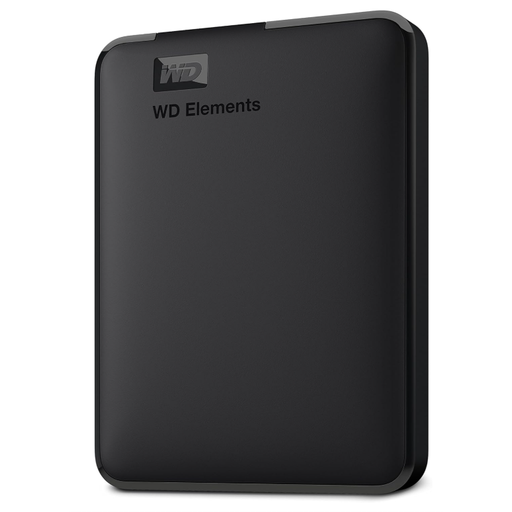
Western Digital Elements Portable External Hard Drive 6TB
A high-capacity local HDD option for large household photo, video and document collections.
Stated 6 TB capacity, USB 3.2 Gen 1 and USB 3.0 connectivity, USB bus power, Windows 10+ plug-and-play support and a supplied Micro-USB-to-USB-A cable.
macOS use requires reformatting, which erases existing data. No hardware encryption is stated, so consider how sensitive files will be protected if the drive is misplaced.
Joybuy
Frequently asked questions
How large should an external backup drive be?
For a computer backup, start with a drive at least as large as the system drive and choose more capacity if you will keep multiple versions or include a system backup. Which? presents this as general buying guidance; check the actual used storage on every computer, phone and photo library you intend to protect.
Is an external HDD or portable SSD better for home backup?
An HDD suits long-term local backup and larger storage needs when slower transfers are acceptable, while an SSD suits frequent large-file copying or carrying the drive between places. Which? says SSDs are generally faster but usually pricier, so confirm the exact model’s connection type and capacity.
Can cloud storage back up a Windows PC or Mac?
Yes, if the provider supports your device and you select the right folders or backup settings. Google states that Drive for desktop can sync chosen PC or Mac folders to Drive or back them up to Google Photos; Apple says iCloud+ can be upgraded from a Mac or PC, and Microsoft provides OneDrive storage through a personal Microsoft account or subscription.
Do cloud backups have an ongoing cost?
They can when free storage is insufficient. Google lists 15 GB for a Google Account, while Apple and Microsoft each list 5 GB for their free cloud storage; Apple states that upgraded iCloud+ plans are billed monthly. Check the provider’s current UK checkout or account page for renewal terms before subscribing.
What maintenance does a home backup need?
Check that recent photos and newly created files are included, then test that you can restore a file. Disconnect removable media when not in use, use a strong password and two-factor authentication for cloud accounts, and review sharing permissions for sensitive folders.


