Choose a portable SSD if the handover drive will travel frequently or you need to copy large files quickly; a portable HDD is another option when fitting a substantial archive is the main priority and the drive can be handled carefully. Whichever you choose, measure the finished archive, check the client’s connection and file access, and assess whether confidential or personal information calls for encryption.
Who is this for?
Owners of confidential handover files
If teaching resources include learner details, assessment materials or other confidential files, consider how the drive will be protected in transit and how the client will gain access. The Information Commissioner’s Office identifies encryption as a possible measure for securing personal information, depending on the risk.
Owners of large teaching-resource archives
A library of videos, slide decks, worksheets, images and editable source files needs enough space for the complete delivery folder. An organised copy that the client can open matters more than choosing capacity from a partially assembled folder.
People carrying drives between sites
If the copy will move between classrooms, offices and client premises, consider its size, transfer needs and exposure to knocks. Check the receiving computer as well: a portable drive is useful for handover only if the client can connect to it and read the files.
What matters when choosing?
Decide whether frequent travel or archive size drives the SSD-versus-HDD choice, then check security and recipient access before making the final copy.
Portable SSD
Consider it when: the drive will travel regularly or a large delivery folder needs copying promptly.
Allow for: protection claims apply to particular models and stated test conditions, not to every portable SSD.
Portable HDD
Consider it when: a substantial completed archive is the priority and the drive can be transported carefully.
Allow for: check the chosen model’s capacity and security features rather than assuming every HDD in a product line has the same setup.
| Concern |
What to check |
Who this matters to |
| Confidential files |
Assess whether personal information or confidential material needs encryption. Configure any password protection and test the client’s access. |
If a lost drive could expose learner details or sensitive course material, I want protection the client can still use. Around 40% of consumers would put secure handling first. |
| Complete archive |
Measure the final folder, including supporting files, and choose a capacity with room for corrections or updates. |
When videos and editable originals form a large delivery, I need the entire organised archive to fit, not just its main folder. For around 30% of consumers, capacity is the primary concern. |
| Transport and access |
Check the client’s USB connection and file-system access; test representative files on the intended computer before delivery. |
If I carry the drive between sites, I need it to arrive ready for the client to open without a connection or format problem. Safe, workable handover comes first for around 30% of consumers. |
Handover mistakes to avoid
-
Choosing capacity from an unfinished folder
The delivery may also need editable originals, exported files, media, templates and instructions. A drive that only fits the files currently visible leaves little room for a correction.
Assemble and measure the handover folder before choosing capacity. Keep another checked copy until the client has confirmed access.
-
Assuming advertised encryption is already active
Password protection needs setting up, and the recipient must be able to unlock the drive. Western Digital warns that, on supported WD Security drives, a forgotten password can mean erasing the drive before reuse.
Assess the sensitivity of the files, configure protection where appropriate and agree a secure way to pass on the password. Test access before relying on the protected copy.
-
Testing the drive only on your own computer
A connection or file format that works for the sender may not give the client the access needed. Apple Support lists ExFAT as Windows-compatible, but the intended computers and files still need checking.
Confirm the client’s port and operating system, take the required cable or adaptor, and open representative files on the agreed setup before delivery.
-
Leaving the backup connected after copying
The National Cyber Security Centre warns that malware on a computer can also affect connected storage. Password protection does not replace a separate, safe backup.
Verify the copied files, safely eject the drive and store it securely until handover. Retain another separate copy for recovery.
Relevant brands to consider
Samsung
The T7 Shield portable SSD line is relevant when the handover copy will be carried between sites.
- Samsung describes password protection, IP65 dust and water resistance, and resistance to drops of up to 3 m under its stated test conditions for the T7 Shield line.
- Those claims do not apply to every Samsung drive. Samsung states that liquid and dust damage is not covered by the cited warranty.
Seagate
The One Touch portable HDD line is an option for carrying a completed resource archive.
- Seagate lists One Touch portable models with capacities up to 4 TB, alongside password protection and hardware encryption.
- Check the selected variant’s capacity, connection and compatibility with the client’s computer before preparing the copy.
Western Digital
The My Passport portable HDD range is relevant to larger, organised handover archives.
- Western Digital lists My Passport capacities up to 6 TB and describes backup software and password-protection options for the cited range.
- Confirm security and software support for the exact model. Western Digital warns that forgotten passwords on supported WD Security drives cannot be recovered.
Joybuy product choices
These portable SSD and HDD options address different parts of a teaching-resource handover: regular transport, larger archives and recipient access. Compare their stated capacities with your finished folder before choosing a drive.
 No image available
Samsung T7 Shield MU-PE1T0S 1 TB, black
A portable SSD to consider when the handover copy will travel between sites. This 1 TB model has USB Type-C and USB 3.2 Gen 2 in its product title; Samsung describes password protection and IP65 dust and water resistance for the T7 Shield line under stated conditions.
Check that the finished archive fits, that the client has the required connection and that any password protection is configured and tested. Do not treat the resistance claim as permission to submerge the drive.
Joybuy
 No image available
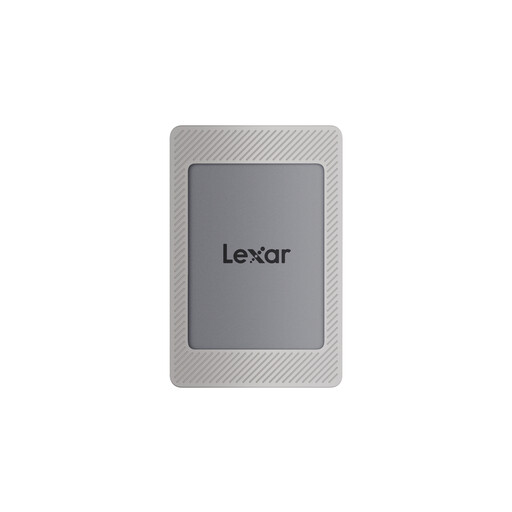
Lexar ES4 Magnetic Set 2 TB portable SSD
Consider this portable SSD if the finished archive calls for 2 TB of stated capacity. Its title lists USB 3.2 Gen 2 and claimed read and write speeds of up to 1,050 MB/s and 1,000 MB/s respectively; those figures are not a test of the client’s setup.
Confirm the required connection and format with the recipient. If password protection matters, configure it and test access before handing over the final copy.
Joybuy
 No image available
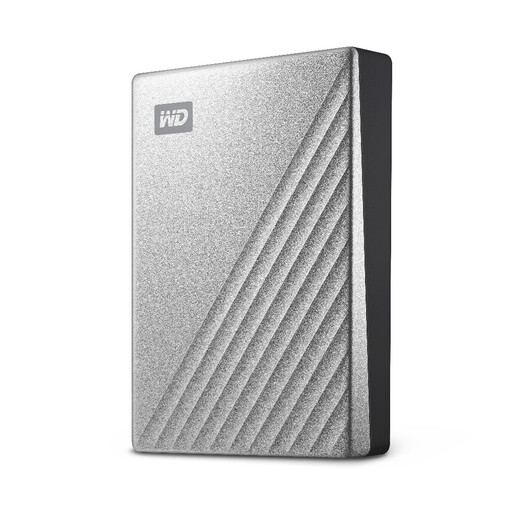
Western Digital My Passport Ultra 4 TB, silver
This portable HDD is a choice to assess for a larger, completed handover archive; the selected variant is labelled 4 TB. Measure the folder before deciding how much capacity it needs.
Check the client’s operating system and read-and-write access, particularly if they use a Mac. Handle the drive carefully in transit, and test any password setup before copying sensitive files.
Joybuy
 No image available
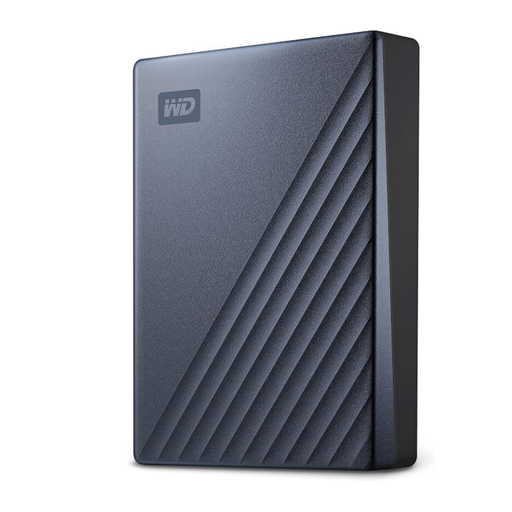
Western Digital My Passport Ultra 5 TB, blue
Consider the stated 5 TB capacity if the measured teaching-resource archive needs substantial space. This is a portable HDD, so plan for careful transport rather than assuming rugged-drive protection.
Confirm the client’s required file format before loading it. If reformatting is needed for their computer, do that before making the delivery copy and test that they can open the files.
Joybuy
 No image available
Western Digital My Passport 2 TB, black
This portable HDD offers a stated 2 TB capacity to compare with a measured handover folder. It may suit a completed archive that fits with room for corrections.
Check the recipient’s connection and read-and-write access, especially on macOS. Configure and test any password protection, and keep a separate copy in case access to the handover drive is lost.
Joybuy
Frequently asked questions
Should I encrypt a teaching-resource handover drive?
Assess encryption when the drive contains personal information or other confidential files; it is not automatically required for every archive. The Information Commissioner’s Office says UK GDPR calls for appropriate security measures for personal information and identifies encryption as an example, depending on the processing risk. Make sure the client can use the protection you choose.
Can the client use the same drive on a Mac and a Windows PC?
Possibly, but check the format and test access on the intended computers before handover. Apple Support lists ExFAT as Windows-compatible; that does not establish that every drive arrives in the format you need. Reformatting erases a drive, so preserve the files elsewhere before changing its format.
Is a password-protected handover drive enough as my only backup?
No. Keep another verified copy in a separate safe location until the client confirms they can access the delivery. The National Cyber Security Centre advises disconnecting backup storage when it is not in use because malware can also affect connected devices.
What if I forget the drive’s password?
The consequences depend on the drive’s security system. For supported WD Security drives, Western Digital says a forgotten password cannot be recovered and the drive must be erased before reuse. Agree a secure password-sharing process and test the client’s access before final delivery.


