Households making their first separate copy
If photos and documents mainly live on one Windows PC or Mac, an external drive can hold a local backup. Arrange another separate copy as well, rather than making that drive the only fallback.


For a photo and document backup kept mainly at home, consider a portable HDD; consider a portable SSD if you regularly carry the drive or copy large folders, and a desktop HDD if a growing library will stay beside one computer. Whichever type you choose, set up regular backups and keep another copy in a separate location or cloud service, so the external drive is not your only safeguard.
The National Cyber Security Centre describes a backup as a copy of important data stored in a separate safe location. That distinction matters if family files currently live mainly on one computer.
If photos and documents mainly live on one Windows PC or Mac, an external drive can hold a local backup. Arrange another separate copy as well, rather than making that drive the only fallback.
Check how much space the files already use and how the archive is growing. A desktop drive may suit a collection kept beside one computer, provided there is also a copy elsewhere.
A portable drive fits a backup routine that involves moving between places. If choosing an SSD for frequent transfers, check the computer’s USB support as well as how you will protect files if the drive is lost.
Start with the size and location of the files, then decide how often the drive will move and how backups will run. The device type cannot compensate for a backup routine that leaves important folders out.
| Priority | What to check | Your needs |
|---|---|---|
| Drive type | Consider a portable HDD for periodic local copies, a portable SSD for a drive carried or used for frequent transfers, or a desktop HDD for a growing archive kept at one desk. Decide where the drive will be stored between backups. | My backup will usually stay at home, travel between locations or remain beside one computer. |
| Capacity | Measure the folders to be backed up, including photos, documents and videos, and allow for growth and any backup versions. For Time Machine specifically, Apple recommends a disk with at least twice the Mac’s storage capacity. | The family archive is growing, and I want the drive to have room for the backup method I will use. |
| Backup routine | Check which folders the backup tool includes and whether it runs regularly. Microsoft says File History can make regular backups to an external drive or network location; Apple provides automatic backups through Time Machine. | I would rather set up a routine than rely on remembering to copy folders by hand. |
| Separate copy | Keep another copy in a separate location or cloud service. The National Cyber Security Centre advises connecting an offline backup to a live system only when necessary. | If the computer and its connected drive are affected by the same incident, I still need a copy I can use. |
| Connections | Check the computer’s port, the drive’s USB specification and the cable you will use. A USB-C connector alone does not establish transfer speed; Samsung says the T7 Shield’s quoted maximum speeds require a compatible host, cable and UASP. | I want the drive to connect to my computer without assuming its port can deliver an advertised speed. |
| File format | Decide whether the drive is for one backup tool or for sharing files between Windows and Mac. Apple identifies ExFAT as a format for disks over 32 GB used with Windows; copy existing files elsewhere before reformatting. | More than one computer may need access to the files, so I need to settle the format before using the drive. |
| Loss or theft | Consider disk encryption for removable storage at risk of theft, as advised by the National Cyber Security Centre. Keep access to the password and maintain another backup copy. | Sensitive family records may leave the home on this drive, and losing the drive must not mean losing my only copy. |
A connected drive can be affected by an incident involving the computer, while a single drive can also fail, be lost or be stolen.
Keep a further copy in a separate location or cloud service. Disconnect the local backup when it is not in use, in line with the National Cyber Security Centre’s guidance on offline backups.
The plug shape does not establish what the computer’s USB port can deliver. Samsung says the T7 Shield’s quoted maximum speeds require a USB 3.2 Gen 2 host, suitable cable and UASP.
Compare the computer’s port specification with the exact drive and cable before choosing it for frequent large transfers.
Formatting erases files already on the disk. A format chosen for sharing files between Windows and Mac may also differ from the setup intended for a dedicated backup tool.
Decide how the drive will be used first, and copy existing files elsewhere before any erase or reformat action.
Encryption addresses unauthorised access to a lost drive; it cannot restore a deleted file or replace a failed drive. A rugged design does not make the drive an independent second copy.
Use encryption when theft is a realistic risk, retain access to its password and keep another copy that you can restore separately.
These examples illustrate features to check on specific product lines; a brand name alone does not establish the capacity, connection or backup features of an individual drive.
Seagate UK lists 2 TB and 4 TB One Touch portable HDD variants and Expansion desktop drives in capacities from 4 TB to 30 TB. They illustrate the difference between a drive intended to move and one kept at a desk.
Samsung’s T7 Shield is a portable SSD example for a drive that will be carried or used for frequent transfers.
Expert Reviews’ 2025 review of a specific Canvio Flex model identifies it as a portable HDD with both USB-A and USB-C connectivity options.
These options cover portable HDDs, portable SSDs and a desktop HDD for a local copy of family files. Compare their stated capacities with your library and keep another backup separately.
 No image available
Consider this portable HDD for a local copy when 2TB accommodates the files you plan to back up and room for growth.
Check its setup for your computer before use, and keep another copy separate from the drive.
 No image available
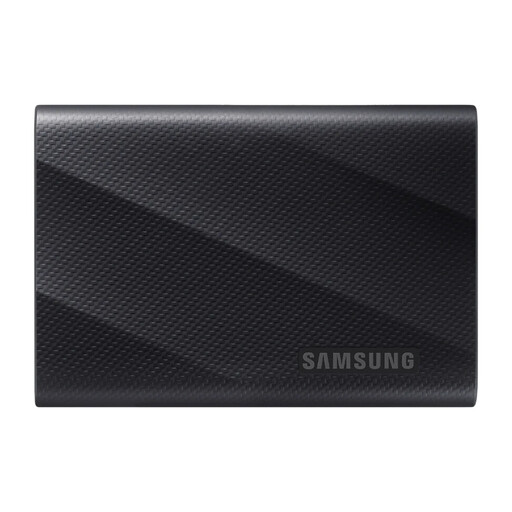
This portable SSD is an option when the backup drive will move between locations; check that 1TB leaves enough room for your files and backup method.
The stated connection is USB Type-C, USB 3.2 Gen 2 (3.1 Gen 2). Samsung says the T7 Shield’s quoted maximum speeds require a compatible host, cable and UASP.
 No image available
Consider this portable option for carrying a local copy, after checking whether 1 TB accommodates the family files and expected growth.
Its title specifies USB Type-C and USB 3.2 Gen 2x2; check the computer’s port before relying on that connection standard. Keep another backup in a separate location.
 No image available
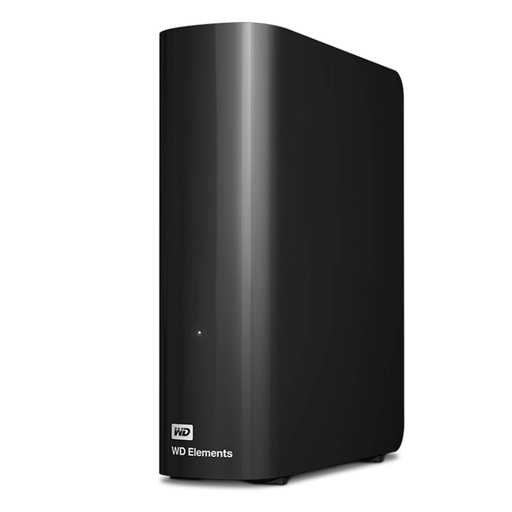
This desktop drive is an option for a large family archive kept beside one computer; compare its 10TB capacity with the files and backup versions you intend to store.
Plan how to maintain a separate copy elsewhere rather than leaving the desk-based drive as the only backup.
 No image available
Consider this 4TB portable HDD if you need to move a local copy of a larger photo and document collection. Measure the folders first to allow for growth.
The product title specifies USB 3.0; check the connection and intended computer before setting up the backup.
Measure the photos, documents, videos and other folders you will back up, then allow for growth and any versions your backup tool retains. For Mac Time Machine specifically, Apple recommends a backup disk with at least twice the Mac’s storage capacity; that is not a universal rule for manually copying files.
Consider a portable HDD for periodic home backups, a portable SSD when the drive will be carried or used for frequent large transfers, and a desktop HDD when a growing archive will remain at one desk. Check capacity and connections for the actual computer, and keep another separate copy regardless of drive type.
Yes. Microsoft says File History makes regular backups of files in libraries to an external drive or network location. Check whether important folders outside those libraries are included before relying on the backup.
Yes. Apple says Time Machine can automatically back up Mac files to external storage and advises using its backup disk only for Time Machine. Check the disk’s capacity against Apple’s recommendation of at least twice the Mac’s storage capacity.
Yes, if you choose a file format for that shared use rather than assuming a dedicated backup disk will serve both purposes. Apple identifies ExFAT for disks over 32 GB used with Windows; copy any existing files elsewhere before formatting, which erases the disk.