Choose an external drive that can hold the family files you intend to back up, with room for the backup history you want to keep. A portable drive makes sense if you plan to put it away between backups; a desktop drive suits a fixed location when a growing archive is the priority. Before buying, check the computer’s operating system, USB connection and backup format: Microsoft’s File History can use an external drive, while Apple says Time Machine cannot back up to a Windows-formatted disk without reformatting it.
Who needs a local backup drive?
Families with growing photo and video archives
If one computer holds an expanding collection of family files and the drive can stay beside it, capacity may matter more than portability. Seagate positions its Expansion Desktop range for high-volume, desk-based storage.
Windows households planning regular backups
If the family computer runs Windows, an external drive can be selected as a destination in Microsoft’s File History. Saved file versions can then be used for restoration; simply plugging in a drive does not set this up.
Households using both Mac and Windows devices
A drive used to exchange files between devices is not necessarily ready to serve as a Mac Time Machine disk. Apple says Time Machine cannot back up to a Windows-formatted disk without reformatting it, which removes existing data.
What should you check before buying?
Start with the computer and backup method, then size the drive for the files and history you want to keep. Decide whether it will remain connected or be put away between backups.
| Concern |
What to check |
Who this matters to |
| Capacity for a growing archive |
Count the files to be backed up and allow for growth and the backup history you want. For Time Machine, Apple recommends a disk with at least twice the Mac’s storage capacity. |
If family photos and videos keep accumulating, I need space beyond today’s files. Around 33% of consumers put archive capacity first. |
| A repeatable Windows backup |
If using File History, select the external drive as its destination and try restoring a non-critical file. Microsoft notes that a disconnected File History drive must be reconnected for scheduled backups to resume. |
I want the Windows family computer to save file versions regularly, not just have another connected drive. For around 25% of consumers, that routine is the primary concern. |
| Mac and Windows compatibility |
Decide whether the drive is for file exchange or a dedicated Time Machine backup. Check its format before setup: Apple says reformatting a Windows-formatted disk for Time Machine permanently removes its existing data. |
If our household uses Macs and Windows PCs, I need to know which device will actually make the backup before changing the drive’s format. Around 25% of consumers prioritise that compatibility question. |
| Portability and access |
Check the connection needed for your computer and whether the drive will be stored away. If you encrypt a Time Machine backup, keep its password somewhere you can retrieve it when restoring files. |
I plan to put the drive away after backing up, and I need a way to regain access to the files later. Portable handling and access are the leading need for around 17% of consumers. |
Backup-drive mistakes to avoid
-
Choosing by the capacity printed on the box alone
A drive must accommodate the files selected for backup as well as any history you want to retain. The capacity of the computer’s unused storage does not tell you how large that backup will need to be.
Check the current file collection, consider how it may grow and choose a capacity for the exact backup plan. If you use Time Machine, include Apple’s recommendation of at least twice the Mac’s storage capacity.
-
Assuming a Windows-formatted drive is ready for Time Machine
Apple says Time Machine cannot back up to a Windows-formatted disk. Reformatting it for Mac backup use permanently removes files already on that disk.
Check the drive’s format before setup, and copy any files you need to keep to another location before erasing or reformatting it.
-
Assuming a connected drive means files are being backed up
Windows File History needs a selected backup destination. Microsoft also advises reconnecting an external File History drive when it has been disconnected.
Set up the backup tool, run an initial backup and test restoring a non-critical file. If the drive is stored away, make reconnecting it part of your backup routine.
Relevant brands to consider
Seagate
Seagate’s external-drive range includes portable options and the desk-based Expansion Desktop range.
- Seagate lists Expansion Desktop capacities up to 30 TB, relevant when a fixed drive must accommodate a large archive.
- Check the exact model’s capacity, connection and power requirements rather than applying range-wide descriptions to one drive.
Toshiba
Toshiba describes Canvio Basics as a Windows-ready portable drive and Canvio Flex as portable storage for compatible Windows, Mac and USB-C devices.
- Toshiba says Canvio Flex includes USB-A and USB-C cables for compatible devices.
- Toshiba says Canvio Basics comes formatted as NTFS for Windows and requires reformatting for macOS; file-sharing compatibility alone does not establish Time Machine suitability.
Western Digital
Joybuy listings include Western Digital portable drives, including a Mac-oriented My Passport Ultra for Mac model.
- The Joybuy listing for My Passport Ultra for Mac identifies a 5 TB model with USB-C connectivity.
- For any particular variant, check the supplied format and the computer’s backup-software requirements before treating it as a backup destination.
Joybuy products for local storage
These portable external drives and the portable SSD offer different capacities and connections for keeping family files locally. Choose against your computer’s backup method and required capacity; a product’s portable design or stated device compatibility does not, by itself, establish that it is ready for Time Machine or File History.
 No image available
Western Digital My Passport Ultra for Mac 5TB, Silver
Consider this portable drive for a Mac-focused household after checking that its format suits the intended backup setup.
- 5 TB capacity; the Joybuy listing describes USB-C connectivity and HFS+ formatting.
- Check the Mac’s backup requirements and the space needed for files, growth and backup history before purchase.
Joybuy
 No image available
Western Digital My Passport 2TB, Black
This portable hard drive is an option when a 2 TB local backup destination meets the household’s capacity needs.
- 2 TB capacity.
- Confirm the drive’s format and compatibility with the backup method you plan to use, particularly for a Mac.
Joybuy
 No image available
Western Digital Elements Portable 4TB, Black
Consider this portable drive if the family archive calls for 4 TB and you want to move or put away the backup drive.
- 4 TB capacity; the product name specifies USB 3.0.
- Check its format before Mac backup use. If reformatting is necessary, move any files you need to keep elsewhere first.
Joybuy
 No image available
Samsung MU-PE1T0S 1TB USB-C SSD, Black
This portable SSD is worth considering when the intended local backup fits within 1 TB and the computer has a suitable connection.
- 1 TB capacity; the product name specifies USB Type-C 3.2 Gen 2.
- Check its supplied format against the Windows or Mac backup tool you intend to use.
Joybuy
 No image available
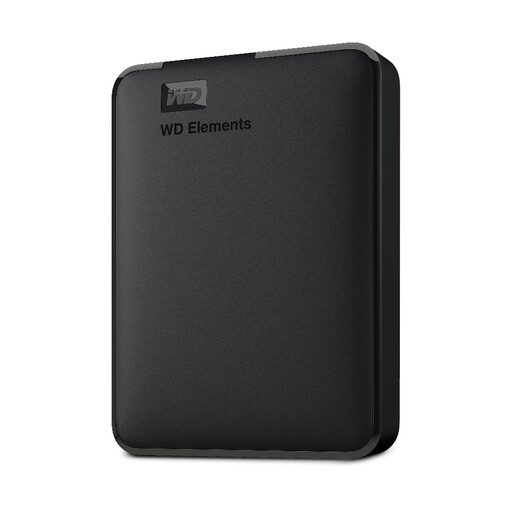
WD Elements Portable 2TB, Black
This portable drive is a choice to assess if 2 TB covers the files and backup history your household plans to keep.
- 2 TB capacity; the product name specifies USB 3.0 and describes it as formatted for PC and Mac.
- Confirm the exact file system before using it for Time Machine: a PC-and-Mac description does not establish Time Machine compatibility.
Joybuy
Questions about local backups
Can a Windows family computer back up to an external drive without cloud storage?
Yes, Microsoft’s File History can use an external drive as a destination for local file backups and saved file versions. Select the drive in File History, then check that you can restore a file rather than assuming a connected drive is already backing up.
How large should a drive be for Time Machine?
Apple recommends a backup disk with at least twice the Mac’s storage capacity. Compare that recommendation with the exact Mac you are backing up and the space you want for backup history before choosing a drive.
Can Time Machine use a drive formatted for Windows?
Not in its Windows format: Apple says the disk must be reformatted for Time Machine use. Reformatting permanently removes existing files, so copy anything you need to keep to another location before proceeding.
Should I encrypt a Time Machine backup?
Encryption is a Time Machine setup choice if you want to restrict access to the backup. Apple advises that you may need the backup password to restore files later, so make sure the household can retrieve it when needed.


