A powered desktop HDD suits a family-photo archive that stays at one studio workstation and needs substantial capacity and scheduled local backups. Choose a portable SSD if staff regularly move or work on photo batches away from the desk; a portable HDD can serve as a travelling secondary copy. Whichever drive you choose, keep another separated copy, test that files can be restored and plan access and computer compatibility before relying on it.
Who is this for?
Studio archive keeper
You need room for a growing family-photo archive at a fixed workstation and want backups that do not depend on someone remembering to copy files manually. Seagate lists scheduled backup software for its One Touch Hub desktop range.
Mobile photo workflow user
You move photo batches between shoots, home and the studio, or work from an external drive. Portability matters, while any advertised transfer speed needs a compatible computer and connection.
Shared-access photo custodian
Several people may handle the drive or identifiable family photographs. Your choice needs to fit an access, encryption and recovery plan, not just provide space for files. The Information Commissioner's Office advises considering encryption alongside broader data-security measures.
What matters when choosing a drive?
Decide where the drive will normally live before comparing capacity and connections: a fixed archive, a drive for working on the move and a travelling secondary copy solve different parts of the studio's workflow.
Desktop HDD
Choose when: The archive stays at a shared workstation and scheduled local copies matter more than carrying the drive.
Allow for: A powered desk location and a separate copy kept away from the workstation.
Portable SSD
Choose when: Staff regularly move or work on large photo batches between locations.
Allow for: Advertised speeds that depend on the host and cable; physical-protection claims do not replace a backup.
Portable HDD
Choose when: A compact copy needs to travel without a mains adapter and SSD-level transfer performance is not the priority.
Allow for: Checking the exact model's supplied format before sharing it between Windows and macOS computers.
| Concern | What to check | Who this matters to |
|---|
| Archive capacity and routine backups |
Allow for the current photo library and growth; check whether the exact drive and its software support the backup schedule you intend to use. |
If I maintain a growing studio archive, I need enough room and a repeatable copying routine rather than occasional manual transfers; around 33% of consumers put that need first. |
| Access and recoverability |
Set rules for unlocking and erasing the drive, keep a separated copy and practise restoring representative folders. |
When several people can handle family photographs, I need to control access and still recover files after a mistake or incident. This is the primary concern for around 27% of consumers. |
| Portable photo workflow |
Check the computer's USB capability and cable against the chosen drive; read the conditions behind speed and physical-protection claims. |
If I bring photo batches back from shoots or work away from the studio desk, carrying the drive and moving files efficiently come first; around 20% of consumers prioritise this need. |
| Shared-computer compatibility |
List the computers and their ports, then agree a file-system and software plan before loading the archive. |
I need colleagues using Windows and macOS computers to work with the planned archive without an unexpected reformat. Around 20% of consumers make compatibility their primary concern. |
Backup mistakes to avoid
-
Treating one external drive as the whole backup plan
If the only backup remains connected at the workstation, losing the drive or an incident affecting that setup could also affect the photographs. The Department for Education's 3-2-1 guidance calls for three copies, including one off-site copy, and for testing recovery.
Keep the working library, a separate local backup and an off-site copy, then restore sample files to check the process.
-
Buying an SSD for its maximum speed alone
Samsung's stated T7 Shield maximum speeds depend on compatible USB 3.2 Gen 2 equipment and UASP support; the figure is not a promise for every studio computer.
Check the ports and cable used at each workstation before making transfer speed the deciding factor.
-
Assuming a portable HDD is ready for both operating systems
Western Digital says the cited My Passport drives arrive formatted as NTFS and need reformatting for macOS. Formatting a drive that already holds photographs can remove those files.
Agree the shared file-system plan before the first archive copy, and retain another copy before reformatting a drive in use.
Changing the plan later can mean spending time migrating and checking the archive again.
-
Enabling encryption without a recovery plan
Encryption can help protect photographs from unauthorised access, but a shared studio also needs to manage who holds credentials and how files will be recovered. The Information Commissioner's Office treats encryption as part of wider data security.
Document who may unlock, copy or erase the backup and how authorised staff can regain access when someone leaves.
Relevant brands to consider
These product lines illustrate different drive formats; the brand alone does not establish that a particular model fits the studio's computers or backup routine.
Seagate
Seagate's One Touch Hub is a powered desktop HDD range for a backup destination that stays at the studio.
- Seagate lists 4 TB–16 TB retail capacities and Toolkit scheduled backup and mirroring features for the range.
- The cited UK data sheet specifies mains power and a USB Type-A host connection, so check the workstation setup and arrange a separate off-site copy.
Samsung
Samsung's T7 Shield portable SSD line is relevant when photo batches are regularly carried or worked on away from the studio desk.
- Samsung states maximum sequential read and write speeds of 1,050 MB/s and 1,000 MB/s for the cited T7 Shield under compatible USB 3.2 Gen 2 and UASP conditions.
- Samsung's IP65 and drop-test claims have stated test conditions; neither those claims nor the quoted speeds remove the need for a separate backup.
Western Digital
Western Digital's cited My Passport portable HDD family is relevant to a compact copy carried between locations.
- Western Digital describes USB connectivity and hardware-encryption options for the referenced My Passport family; check the feature set of the exact model.
- Western Digital says the cited drives ship in NTFS and need reformatting for macOS, so settle the shared-computer plan before storing photographs.
Joybuy drives for studio and portable copies
These portable HDD and SSD choices suit carrying photo batches or keeping a portable backup copy. If the main archive will remain at a fixed workstation, also consider the powered desktop-HDD route discussed above; none of these drives replaces a separated, tested backup routine.
 No image available
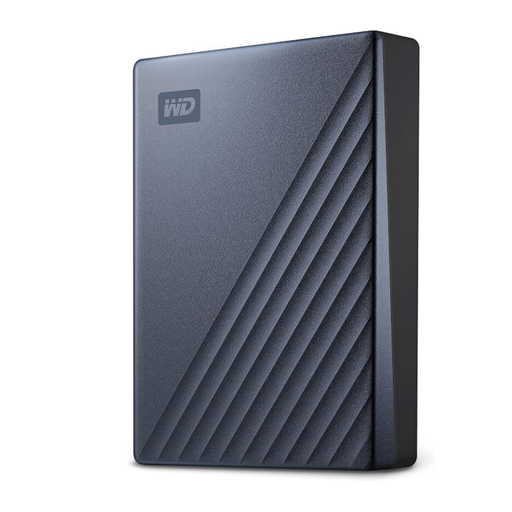
Western Digital My Passport Ultra 5TB Blue
Consider this portable HDD if a 5TB travelling copy fits the studio's archive plan. Agree how it will be used across the studio's computers and confirm the backup software and file-system setup before copying photographs.
View on Joybuy
 No image available
Samsung Portable SSD T7 4 TB Grey
This portable SSD is a choice for moving photo batches when 4 TB suits the planned copy. Its title specifies USB Type-C and USB 3.2 Gen 2; check each computer's connection and the software you will use for scheduled backups.
View on Joybuy
 No image available
Samsung MU-PE1T0S 1TB Black portable SSD
Consider this portable SSD for photo batches that travel, after checking whether 1TB will hold the intended copy. The title specifies USB Type-C and USB 3.2 Gen 2; confirm the studio's connection, security setup and backup routine separately.
View on Joybuy
 No image available
SanDisk Portable SSD 2TB
This 2TB portable SSD can be considered for a secondary copy of photo batches. Check its connector against the studio's computers and decide how files will be backed up and restored before relying on it.
View on Joybuy
Questions about shared-studio photo backups
Is one external drive enough to back up family photographs?
No: use the drive as one destination, not the only surviving copy. The Department for Education's 3-2-1 guidance calls for three copies, including one off-site, and recommends testing whether files can be recovered.
Should a shared studio encrypt its photo-backup drive?
Assess encryption as part of the studio's access and recovery plan, particularly where the photographs identify people. The Information Commissioner's Office advises choosing measures appropriate to the information and risk; staff also need a workable way to manage credentials and restore the backup.
Can a new portable HDD be shared between Windows and macOS straight away?
Check the exact drive's format before assuming it can be used as planned on both systems. Western Digital says the cited My Passport drives arrive as NTFS and need reformatting for macOS; keep another copy of any existing files before formatting.
How often should the studio test its photo backups?
Set a regular restoration check that reflects how often new photographs are added. The Department for Education advises testing backups frequently; try recovering representative files and folders rather than relying only on a completed-copy message.


