Choose a portable hard disk drive (HDD) for a growing photo archive kept mainly at home, or a portable solid-state drive (SSD) if you regularly carry the backup and copy large batches of photos. Measure the archive and check the computer connection, cable and backup routine before choosing. Whichever drive you use, keep another copy separate from the computer: a drive left connected should not be the family’s only backup.
Who needs which approach?
Households building a home photo archive
If years of phone, camera and scanned photographs need room to grow, start by measuring the files you intend to copy. A portable HDD is a route to consider when the drive will mostly stay at home; check its capacity, formatting and connection against your computer.
Families who need a repeatable routine
If manual copying is easy to forget, consider how the drive will work with scheduled backups on your computer. Seagate describes scheduling for its One Touch range, but the software setup and supplied cable need checking for the exact model. Test that you can restore a small folder, not just copy it.
Photographers who carry their backup
If you frequently move a photo library between places, a compact SSD or a specifically ruggedised HDD may suit that handling pattern. Check the exact drive’s connection and the conditions behind any stated speed or drop-protection claim; neither replaces a separate backup copy.
What matters when choosing a drive?
Start with the size of the files you need to protect, then choose a backup routine you will repeat. Connection, handling and protection features matter in the circumstances where you will actually use them.
| Concern |
What to check |
Who this matters to |
| Archive capacity |
Measure the photos, videos and other folders to include, then allow for growth. Compare the exact capacity variant; displayed space can differ from the label. |
I want every existing folder to fit without leaving later photos out. Around 33% of consumers would put archive capacity first. |
| Backup routine |
Check the intended computer’s backup workflow, any software setup requirements and whether you can restore a test folder. |
If copying depends on remembering each time, I may miss new family photos. For around 27% of consumers, a repeatable routine would be the primary concern. |
| Keeping copies separate |
Plan another copy away from the computer and disconnect a local backup when it is not being updated. Check access controls if the drive could be lost. |
I do not want a failed computer, theft or malware to affect the only copy. Keeping the archive protected would come first for around 27% of consumers. |
| Transfers and carrying |
Match the drive and supplied cable to your computer’s USB port. Read speed and handling claims with their stated conditions. |
Moving large batches of photos between places makes connection and handling more important to me. Around 13% of consumers would prioritise this need. |
Mistakes that can undermine a backup
-
Leaving the only backup permanently connected
The National Cyber Security Centre (NCSC) describes ransomware incidents affecting connected USB and network backup drives. A connected copy may be exposed alongside the computer.
Keep another copy separate and disconnect the local backup drive when an update is finished. Check periodically that files can be restored.
-
Choosing capacity without measuring the archive
Photos, videos, RAW files and future imports all take space. The capacity printed on a drive may also appear differently on a computer because of measurement conventions.
Measure the folders you intend to protect, allow room for growth and choose the capacity of the exact variant rather than relying on the product family name.
-
Assuming every USB cable fits or delivers the stated speed
Seagate’s One Touch HDD manual describes a supplied Micro-B-to-USB-A cable, while Samsung’s stated T7 transfer speeds depend on compatible USB hardware and a suitable cable.
Check the ports on both devices and the cable in the box before buying. Treat a maximum transfer speed as conditional, not as the speed every computer will achieve.
A USB-C-only computer may need a separate cable for the One Touch HDD described in Seagate’s manual.
-
Reformatting or disposing of a drive too soon
Changing a drive’s format can erase its files. An old drive can also retain private photographs after you stop using it.
Open files from another verified copy before reformatting. Before an old drive leaves your possession, follow NCSC guidance on securely erasing or destroying storage media, then use an appropriate electrical-waste route.
Relevant brands for reference
Seagate
Its One Touch range is relevant when a household wants a portable-drive backup routine rather than relying solely on manual copies.
- Seagate describes daily, weekly or monthly scheduled backups for One Touch.
- For the One Touch HDD in Seagate’s manual, Toolkit setup requires internet access and the supplied Micro-B-to-USB-A cable will not directly fit a USB-C-only computer. Check the exact model and bundle.
Samsung
Its portable T7 SSD line is relevant to people who regularly carry a photo library or copy large batches.
- Samsung states T7 sequential speeds of up to 1,050 MB/s read and 1,000 MB/s write under compatible connection conditions.
- Those maximum figures depend on the host and cable. Check the precise T7 model and your computer rather than assuming the stated speed will apply.
Toshiba
Canvio Basics is a portable HDD line to consider for an archive kept mainly at home.
- Toshiba lists Canvio Basics capacities up to 4 TB.
- Toshiba says the cited range is formatted NTFS for Windows and requires reformatting for macOS. Check the intended computer before putting files on the drive.
Transcend
StoreJet 25H3 is a portable HDD line to investigate when the drive will be carried regularly.
- Transcend describes a three-stage shock-protection system and a one-touch backup button for StoreJet 25H3.
- The button requires Transcend Elite software. The stated protection does not make this or any single drive a complete backup plan.
Joybuy drives for photo backups
These portable HDD and SSD options cover home-archive capacity and drives you may carry between places. Compare each stated capacity with your measured library, and check the exact computer connection before choosing.
 No image available
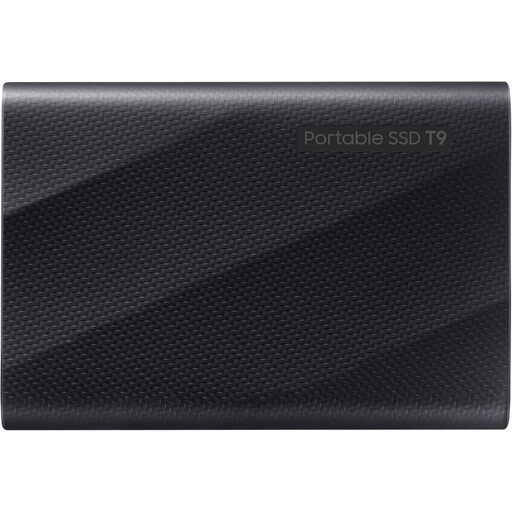
Samsung MU-PG4T0B 4 TB SSD, Black
Consider this portable SSD if you regularly move a large photo library. Its stated capacity is 4 TB and its interface is USB 3.2 Gen 2x2; check whether your computer supports that connection and whether 4 TB leaves room for new files.
View on Joybuy
 No image available
Samsung MU-PE1T0S 1 TB SSD, Black
This portable SSD is worth considering for a photo library you carry regularly, provided the measured archive fits. The stated capacity is 1 TB and the interface is USB 3.2 Gen 2; check the connection and allow for future files before relying on it as a backup copy.
View on Joybuy
 No image available
Samsung Portable SSD T7 2 TB, Grey
This portable SSD is a candidate if you often copy or carry photos and a 2 TB capacity fits the archive. The listed interface is USB 3.2 Gen 2; check the computer and cable before expecting the transfer speeds Samsung states for compatible T7 setups.
View on Joybuy
 No image available
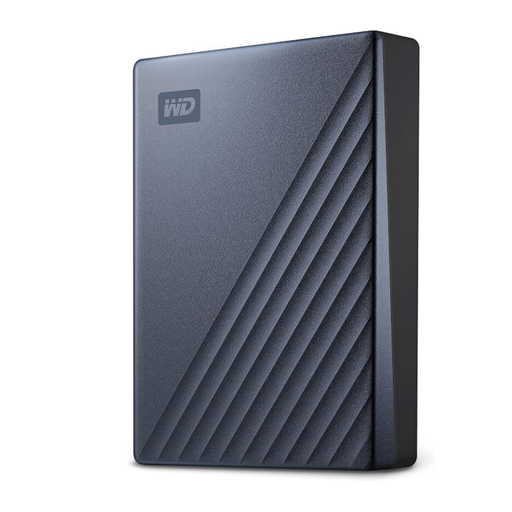
Western Digital My Passport Ultra 5 TB HDD, Blue
This portable HDD is a candidate for a growing archive kept mainly at home. Compare its stated 5 TB capacity with your files, and check formatting and any scheduled-backup software against the computer you intend to use. Test a restore before depending on the routine.
View on Joybuy
 No image available
SanDisk Portable SSD 2 TB
Consider this portable SSD for a photo library you take between places if its stated 2 TB capacity leaves enough room to grow. Check the connector and supplied cable against your computer before buying.
View on Joybuy
Questions about family photo backups
Is one external drive enough to protect family photographs?
No: use an external drive as one copy, not the only copy of the photographs. The National Cyber Security Centre advises keeping backups separate because connected USB storage can be affected alongside a computer; disconnect a local drive when you are not updating it and check that you can restore files.
Should I choose an HDD or an SSD for a family photo backup?
A portable HDD is a route for a growing archive that mostly stays at home; consider a portable SSD if you frequently carry the drive or copy large batches. In either case, measure your files first and check the exact drive capacity, computer port and cable. Advertised transfer speeds depend on the stated connection conditions.
Can I use a Windows-formatted external drive with a Mac?
Check the drive’s format before assuming it is ready for your Mac. Toshiba says its Canvio Basics range is formatted NTFS for Windows and requires reformatting for macOS. Because reformatting can erase files, verify another copy before changing a drive’s format.
What should I do with an old backup drive in the UK?
Make sure you can restore your photographs from another copy before retiring the drive. Follow National Cyber Security Centre guidance on securely erasing or destroying storage media that holds private files, then look for an appropriate electrical-waste recycling route.


