For a growing archive kept mostly at home, assess a desktop hard drive for capacity; choose a portable hard drive when the local copy needs to travel, or a portable SSD when frequent large-file transfers and compactness matter more. Whichever drive you choose, check its capacity, connections and backup-software setup, then plan another protected copy rather than relying on one local drive.
Who is this for?
Households with growing archives
If family photos, videos and computer files keep accumulating, start by checking how much space a repeatable local backup will need. A desktop drive is worth assessing when the archive stays in one place; Apple advises Mac users to allow at least twice the Mac’s storage capacity for a Time Machine drive.
People moving photo and video files
If you carry files between compatible devices, a portable drive makes more sense to assess than fixed-location storage. Check the connection and exact model before relying on advertised transfer speeds or resistance to handling.
Households protecting irreplaceable files
If losing the local drive would also mean losing the photos, plan a second protected copy. The National Cyber Security Centre advises disconnecting a backup device when it is not in use, reducing its exposure to incidents affecting connected storage.
What matters when choosing?
Choose the local drive around where the archive lives and how often it moves; decide separately how you will keep another protected copy. These drive types address different practical needs, but none replaces a backup routine.
Desktop hard drive
Consider it when: A growing household archive will stay in one place. Western Digital lists My Book desktop models with capacities reaching 26TB.
Trade-off: It is less convenient to carry between devices; check the exact model’s power, connection and software requirements.
Portable hard drive
Consider it when: The local copy needs to move between household devices. Seagate lists its Backup Plus Portable line in capacities up to 5TB.
Trade-off: Check whether the chosen capacity leaves room for future files and whether its format suits your backup software.
Portable SSD
Consider it when: You regularly move large media files and want compact storage. Samsung lists USB 3.2 Gen 2 and model-specific resistance claims for its T7 Shield.
Trade-off: Quoted speeds depend on a compatible host and cable; resistance claims do not replace another backup copy.
| Concern | What to check | Who this matters to |
|---|
| Capacity and backup routine |
Compare the files you need to protect with the drive’s capacity. For Time Machine, Apple advises a drive with at least twice the Mac’s storage capacity; check how your chosen backup tool will run. |
If our photo and video archive keeps growing, I need space for future copies and a routine I can maintain; around 37% of consumers put capacity and regular local backup first. |
| Portable transfers and handling |
Check the ports and supplied cable, plus the conditions behind any stated speed or resistance rating on the exact model. |
When I move large media files between devices, carrying the drive and using the right connection matter most; for around 27% of consumers, portable transfer and handling are the primary concern. |
| Protection beyond one copy |
Plan when to disconnect the local drive and where to keep another protected copy, whether off-site or through a suitable cloud service. |
I do not want one incident at home to affect both my computer and its backup; around 18% of consumers put protection beyond a single local copy first. |
| Compatibility and privacy |
Confirm the required drive format and backup-tool support on each computer. Check how any password or encryption feature is set up and recovered. |
If our household uses different computers, I need a backup I can actually set up and unlock when needed; compatibility and privacy come first for around 18% of consumers. |
Backup mistakes to avoid
-
Buying a drive but never setting up backups
A one-off file transfer will not keep later photos and documents protected. Microsoft’s File History and Apple’s Time Machine can automate backups once configured for the files you need.
Decide which devices and folders to cover, set a routine, and test restoring a recent file after setup.
-
Leaving the only backup connected
The National Cyber Security Centre warns that incidents affecting a computer can also affect connected backup storage. A nearby drive can also be exposed to the same local loss or damage.
Disconnect the drive when it is not updating where practical, and keep another protected copy of irreplaceable files off-site or through a suitable cloud service.
-
Checking the connector but not the drive format
A plug that fits does not establish that the drive is ready for the intended backup tool. Apple says Time Machine cannot back up to a Windows-formatted disk; stated SSD speeds can also depend on the host and cable.
Check each computer’s ports, required format and backup software before moving files. Copy existing data elsewhere before reformatting.
Reformatting can permanently erase files already on the drive.
-
Treating resistance or encryption labels as complete protection
Samsung’s T7 Shield resistance statements are based on specified tests and carry warranty exclusions; Western Digital’s cited My Book encryption features require compatible setup. Neither feature protects the only copy from every cause of loss.
Read the exact model’s conditions and setup instructions, keep any backup password safely, and maintain another copy.
Relevant brands to consider
Western Digital
Its My Book desktop line is relevant when a household archive stays at home and capacity is the main consideration.
- Western Digital lists My Book capacities reaching 26TB; its My Book documentation describes scheduled backup and optional password protection with hardware encryption.
- Check the exact model and compatible software for those features. A fixed-location local drive still needs another protected copy.
Seagate
Its Backup Plus Portable line is relevant when household files need to travel on a multi-terabyte hard drive.
- Seagate lists capacities up to 5TB and Toolkit options for daily, weekly or monthly scheduling on the cited line.
- Check whether the supplied USB Type-A connection suits your devices; Time Machine use may require reformatting.
Samsung
Its cited T7 Shield model is relevant to portable SSD users considering large-file transfers and model-specific handling protection.
- Samsung lists USB 3.2 Gen 2 and IP65 and drop-test claims for the cited model.
- Samsung’s quoted transfer figures depend on a compatible host, cable and UASP mode. Its resistance claims reflect controlled tests, with liquid, dust and drop damage excluded under the cited warranty wording.
Joybuy products for portable storage
These portable hard drives and SSDs offer local storage options for household photos, videos and computer files. Compare their stated capacity with your archive, then check the backup setup on your own devices; keep a separate protected copy of important files.
 No image available
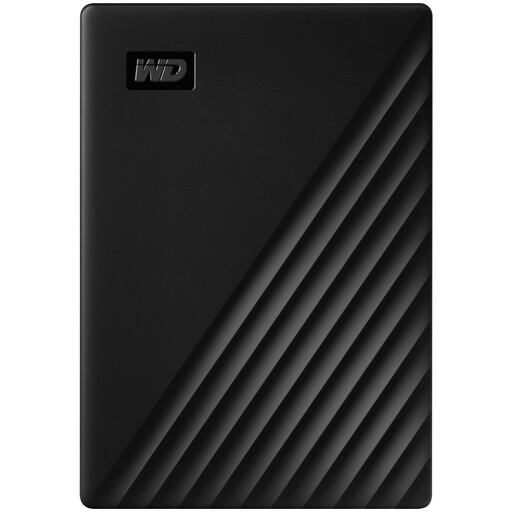
Western Digital My Passport 4TB Portable Hard Drive, Black
Consider this portable hard drive if a local photo and video copy needs to move between locations.
Check the format and backup-software setup for each intended computer before choosing it.
View on Joybuy
 No image available
Western Digital My Passport Ultra for Mac 5TB, Silver
Consider this portable drive for a Mac-centred household archive that also needs room for growing files.
Confirm that its format and any required software suit the backup workflow on every computer you intend to use.
View on Joybuy
 No image available
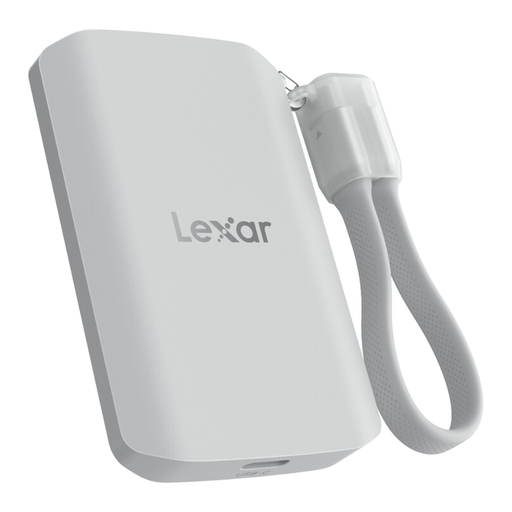
Lexar ES5 1TB Portable SSD, USB 3.2 Gen 2x2, IP65
Consider this compact SSD if you move photo or video files and want to assess its stated IP65 rating for travel.
Check that your devices support its connection and the particular media-backup workflow you need; its stated transfer speed depends on host support.
View on Joybuy
 No image available
Samsung T7 Shield 1TB Portable SSD, Blue
Consider this portable SSD for moving large media files between compatible devices.
The title specifies USB 3.2 Gen 2. Check your host and cable before relying on quoted speeds, and review the exact conditions of any resistance claim.
View on Joybuy
 No image available
Western Digital Elements Portable 4TB, Black, USB 3.0
Consider this portable hard drive for carrying a local copy of household photos, videos and other files.
Before using it for backups, check the required format and software on your computer, particularly if you use a Mac.
View on Joybuy
Common questions
How much space should a Mac Time Machine drive have?
Apple advises a storage device with at least twice the Mac’s storage capacity. Apple also advises using the Time Machine backup disk for Time Machine backups rather than storing other files on it.
Can Windows back up files automatically to an external drive?
Yes. Microsoft says File History can back up libraries to an external drive or network location; check that the folders you want are included, as folders outside the standard libraries may need to be added.
Can I use a Windows-formatted drive unchanged for Mac Time Machine?
Do not assume so: Apple says Time Machine cannot back up to a Windows-formatted disk and identifies APFS or APFS Encrypted as preferred formats. If reformatting is needed, copy existing files elsewhere first because reformatting erases the drive’s data.
Is a permanently connected drive enough for family photos?
No, not as the only protected copy. The National Cyber Security Centre warns that connected backup storage can be affected by ransomware and advises disconnecting a backup device when it is not in use; plan another protected copy for irreplaceable files.


