
24/7 全天候客户支持

免费退货

当日/次日达

品质保障

开启新人专享福利: 全场免邮 | 低至 2 折 | 免费试用 30 天 JoyPlus 会员
下载 Joybuy
Whether your laptop is flashing a "Storage Almost Full" warning, you need a secure place for precious family photos or you're a creative professional juggling massive video files, finding the right external hard drive is essential. The market is filled with options, from pocket-sized portable drives to high-capacity desktop units, making it difficult to know where to start.
This guide is designed to help you understand the key features to look for. We will walk you through the differences in storage technology, capacity and connectivity to help you make an informed choice. We will also share our top recommendations for different needs, from simple file archiving to high-speed creative workflows.
Before diving into specific models, let's cover a few key considerations. Focusing on these three areas will help you narrow down your options significantly.
The first question is always about size. A 4TB external hard drive or a 5TB portable drive is often a great starting point for general use, offering ample space for documents, a large photo library and system backups. However, if you are a content creator, videographer or simply want to archive your entire digital life, you might look towards high capacity storage options, such as a 22TB desktop hard drive, which can act as a central data vault for your home or office.
The technology inside the drive dictates its performance.
The connection type affects both compatibility and speed. Most modern drives use a USB-C external drive interface, which is small, reversible and supports high-speed data transfer protocols like USB 3.2 Gen 2x2. Many drives also come with adapters or alternative cables for older USB-A ports, ensuring they work with a wide range of PCs, Macs and other devices. Always check the ports on your computer to ensure compatibility.
Here are our recommendations, selected to meet a variety of common storage needs in the UK.
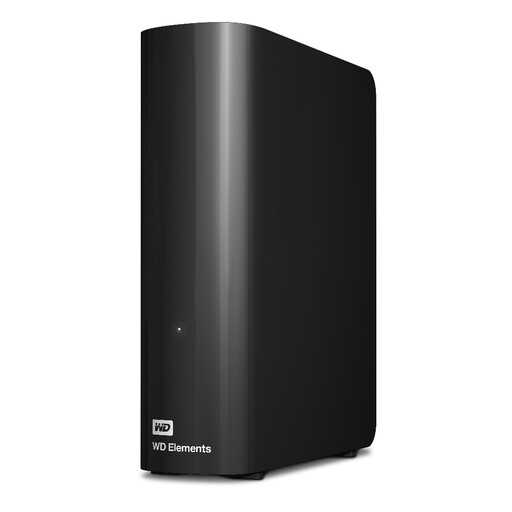
Why It Stands Out: This drive is all about maximum capacity. With a colossal 22TB of space, it's built to be a central digital library for your entire collection of photos, videos, music and important documents, removing any worry about running out of room.
Pros:
Who is it for? Home users, photographers and small business owners who need a dependable, high-capacity desktop solution for backing up multiple computers or archiving vast amounts of data.
View Details for WD Elements 22TB
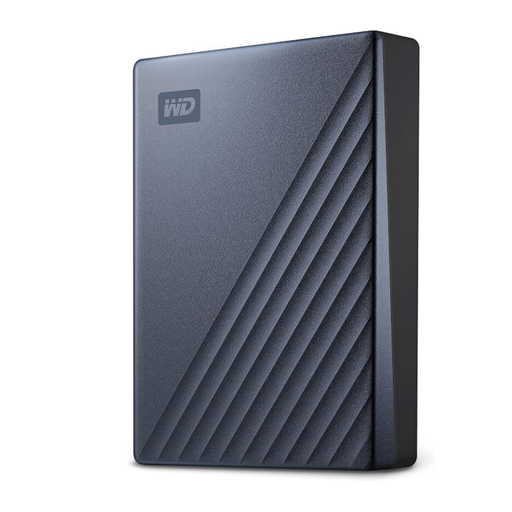
Why It Stands Out: The My Passport Ultra strikes a fantastic balance between generous storage and true portability. Its sleek metal design, modern USB-C connectivity and lack of a need for an external power adapter make it a superb travel companion.
Pros:
Who is it for? Students, business travellers and anyone who needs to carry large files securely and access them on the move without being tied to a power socket.
View Details for WD My Passport Ultra 5TB
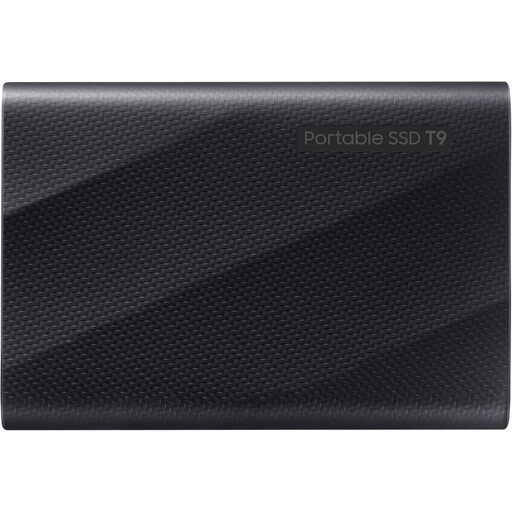
Why It Stands Out: Speed. The Samsung Portable SSD T9 is engineered for performance, with read and write speeds of up to 2,000 MB/s. This makes it an exceptional tool for professionals who can't afford to wait, allowing for near-instantaneous transfer of huge files.
Pros:
Who is it for? Content creators, 4K/8K video editors, gamers and professionals who need the fastest possible transfer speeds from a rugged and portable hard drive.
View Details for Samsung Portable SSD T9 4TB
If these selections don't quite match what you're looking for, there are many other models available with different capacities and features.
Explore our full range of Desktop Backup Hard Disk Drives to find the perfect storage solution for your needs.
An HDD (Hard Disk Drive) uses mechanical spinning platters to store data. It is generally more affordable and offers higher capacities, making it ideal for archiving and backups. An SSD (Solid-State Drive) uses flash memory with no moving parts. It is much faster, more durable and more compact, making it better for tasks that require high-speed performance, like video editing or gaming.
Most external hard drives come pre-formatted for Windows systems (usually with the NTFS file system). If you are using a Mac, you will need to reformat the drive to a compatible file system like APFS or exFAT. This is a straightforward process that can be done in a few minutes using the "Disk Utility" application on your macOS device. The exFAT format is a good choice if you need to use the drive on both Windows and Mac computers.