Who needs a household backup drive?
A separate copy matters most when the files on a phone or computer would be difficult to replace. The National Cyber Security Centre describes a backup as a copy kept in a separate safe location.
Households making their first local backup
If family photos, documents and computer files exist on only one device, an external drive can provide a separate local copy. Choose a backup routine you can repeat and check that you can restore a file from it.
Families with a growing photo or video archive
A desktop drive may suit an archive kept at a regular workstation, where carrying the drive is less important. Measure the files you have and allow for future backup versions before choosing a capacity.
People who carry large files between devices
A portable SSD is worth considering if you frequently move photo or video libraries. Check the ports and cable on each device: a drive’s maximum stated transfer rate may require a particular connection.
What should you check before choosing?
Start with the files and devices you need to protect, then decide how often the drive will be connected and whether another backup location is needed.
| Priority |
What to check |
Your needs |
| Capacity |
Measure the files to protect and allow for archive growth and backup history. For Time Machine, Apple recommends a disk with at least twice the Mac’s storage capacity. |
My photo and video collection is growing, so the drive needs room for more than today’s files. |
| Backup routine |
Check which folders the backup software includes and how to restore an earlier file. Microsoft says Windows File History can make regular backups to an external drive or network location. |
I’m more likely to keep a backup current if it fits my routine, and I want to know how to retrieve a deleted file. |
| Device compatibility |
Confirm the computer ports, cable and intended file system before setup. Apple distinguishes ExFAT for shared Windows–Mac data from APFS or APFS Encrypted, its preferred formats for a Time Machine disk. |
The same drive may need to serve two computers, or it may be dedicated to backing up one Mac. |
| Speed and handling |
For frequent large transfers, compare the exact SSD model’s interface with the host port and cable. Treat drop or water-resistance claims as specific to the named model and its test conditions. |
I carry files between devices often; for an archive that stays at home, transfer speed and portability matter less to my choice. |
| Privacy and backup locations |
Check how encryption is unlocked and where recovery details will be kept. Keep another copy in a separate location for irreplaceable files; the National Cyber Security Centre identifies both removable media and cloud storage as backup locations. |
Some files are private, and I do not want one incident to affect both the computer and its only backup. |
Which brands and product lines are relevant?
These references describe particular product lines and models, not every external drive made by each brand.
Samsung
Samsung’s portable SSD range includes models aimed at compact storage, frequent transfers and model-specific security or protection features.
- Samsung states maximum sequential speeds of 1,050 MB/s read and 1,000 MB/s write for the named T7 Shield 2 TB model.
- Those figures require a compatible USB 3.2 Gen 2 host and cable with UASP enabled; check protection and warranty terms for the exact model.
Seagate
Seagate’s Expansion Desktop line is relevant to a household archive kept at a workstation.
- Seagate UK lists Expansion Desktop capacities from 4 TB to 30 TB for home and office backup and archiving.
- Check the exact model’s power, operating-system and warranty terms before choosing it for a fixed desk setup.
Crucial
The Crucial X10 is a portable SSD to consider when comparing compact drives for moving files.
- PCMag UK named the X10 its overall external-SSD pick in its August 2026 roundup, which considered speed, capacity, size, ruggedness, security and interface.
- Crucial says its maximum speed figures come from a high-performance desktop test environment and that performance can vary. Check the exact drive and host connection.
Joybuy drives for household backups
These portable SSDs, a portable HDD and a desktop HDD offer different ways to keep a local copy of household files. Whichever drive you choose, consider a separate backup location for files you cannot replace.
 No image available
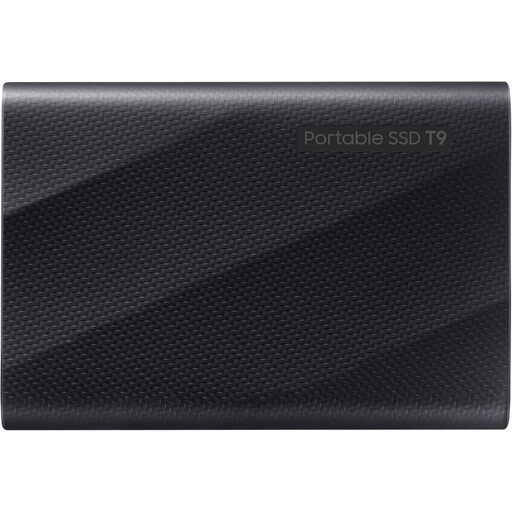
Samsung MU-PG4T0B 4 TB USB-C SSD
Consider this portable SSD if you carry a growing photo or video collection between compatible devices. Its title specifies USB 3.2 Gen 2x2; check the host port and cable if transfer speed matters, and compare 4 TB with your planned backup history.
View on Joybuy
 No image available
Samsung MU-PE1T0S 1 TB USB-C SSD
This portable SSD is an option for a local copy carried between compatible devices. Check whether 1 TB leaves enough room for your files and backup history, then confirm the file system required by your backup method.
View on Joybuy
 No image available
SanDisk Portable SSD 2TB
A portable SSD to consider for a local copy of photos and documents. Compare its 2TB capacity with your files and future backups, and confirm the connector and intended computer setup before buying.
View on Joybuy
 No image available
Western Digital Elements Portable 4TB USB 3.0 HDD
This portable HDD suits consideration for a local archive of household photos and files. Check whether 4TB covers the archive and backup versions; if using a Mac, confirm the format and backup method before putting files on the drive.
View on Joybuy
 No image available
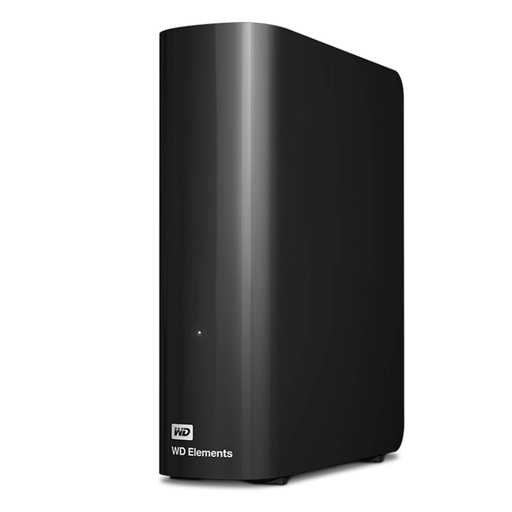
Western Digital Elements Desktop 10TB HDD
This desktop HDD is a choice for a larger household archive kept at one workstation, rather than a drive carried regularly. Compare 10TB with the data you plan to protect, and check the power and file-system setup for your computer.
View on Joybuy
Household backup questions
How large should a drive be for Time Machine?
Apple recommends a backup disk with at least twice the Mac’s storage capacity: for a Mac with 1 TB of storage, that means a 2 TB disk. This is Time Machine guidance; assess your files and planned backup history separately if you use another method.
Can I use one drive with both Windows and Mac?
Yes, for shared files: Apple identifies ExFAT for an external disk over 32 GB intended for both Windows and Mac. Formatting erases existing files. For a dedicated Time Machine backup, Apple instead prefers APFS or APFS Encrypted and says Time Machine cannot back up to a Windows-formatted disk.
Can Windows back up files automatically to an external drive?
Yes. Microsoft says File History can make regular backups to an external drive or network location. After setting it up, check that the libraries being backed up include the folders holding your household photos and documents, and try restoring a file.
Should I encrypt a household backup drive?
Consider encryption if the drive contains private information or could be lost or accessed by someone else. The Information Commissioner’s Office describes encryption as protection against unauthorised access to stored personal information. Keep the password and any recovery key somewhere separate that you can access when needed.
Is one external drive enough to protect my files?
Do not rely on one external drive as the only backup for irreplaceable files. The National Cyber Security Centre describes a backup as a copy kept in a separate safe location; another separated drive or cloud backup can provide a second location. Disconnect a local backup drive outside backup sessions where practical.


