What to check before buying
Start with the files you need to protect and the way you will back them up, then match capacity, connections and handling needs to that routine.
| Priority |
What to check |
Your needs |
| Backup routine |
Identify the folders to include; check whether your operating system or chosen software can run regular backups; restore a test file before relying on the drive. |
I want photos, documents and other important folders copied regularly, rather than depending on occasional manual transfers. |
| Capacity |
Measure the current backup set; allow for future growth and retained versions; check formatting and usable capacity. For Time Machine, Apple recommends a device with at least twice the storage capacity of the Mac. |
I need room for today’s files as well as future photos, documents and backup history. Apple’s capacity guidance applies specifically to Mac Time Machine backups. |
| Transfer and handling |
Check the computer port, cable and protocol; compare HDD and SSD transfer needs; treat quoted SSD speeds as dependent on compatible host hardware. |
Frequent large transfers or carrying the drive may justify an SSD. For occasional scheduled backups kept at home, an HDD may be a practical local-copy route. |
| Separate copies |
Plan another copy away from the computer; disconnect a local drive outside backup sessions where practical; test restoration. |
I do not want one incident affecting both my computer and its only backup. Northern Ireland Cyber Security Centre guidance recommends three copies on two devices, with one offline in another location. |
Joybuy product options
These Joybuy options cover portable SSDs for faster transfers, portable HDD storage for local copies and desktop storage for a larger fixed home archive.
 No image available
Samsung MU-PE1T0S 1TB USB Type-C 3.2 Gen 2
A portable SSD option for frequent transfers or a drive carried away from the desk.
1TB capacity; USB Type-C 3.2 Gen 2; stated sequential speeds of 1,050MB/s read and 1,000MB/s write; stated IP65 resistance and up-to-3m drop resistance.
Check that 1TB suits the backup set and future growth. Maximum stated speeds require a USB 3.2 Gen 2 and UASP-capable host and connection.
Joybuy
 No image available
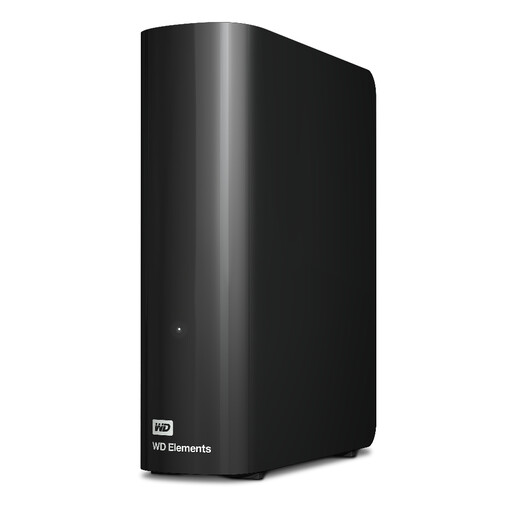
Western Digital 16TB WD Elements Desktop Hard Drive
A desktop HDD option for a large archive that stays beside a regular computer.
16TB capacity; USB 3.2 Gen 1 and USB 3.0 connectivity; supplied USB cable and AC adapter.
It requires mains power and a fixed location. Mac use requires reformatting, which removes existing data, so confirm the intended file system and backup workflow.
Joybuy
 No image available
Western Digital Elements Portable 4TB USB 3.0
A portable HDD option for a sizeable local copy that can be stored away after backup sessions.
4TB capacity; USB 3.2 Gen 1 and USB 3.0 connectivity; supplied USB-A cable.
Handle the mechanical drive carefully around drops, liquid and shock. Non-Windows use may require reformatting, so check the backup format before use.
Joybuy
 No image available
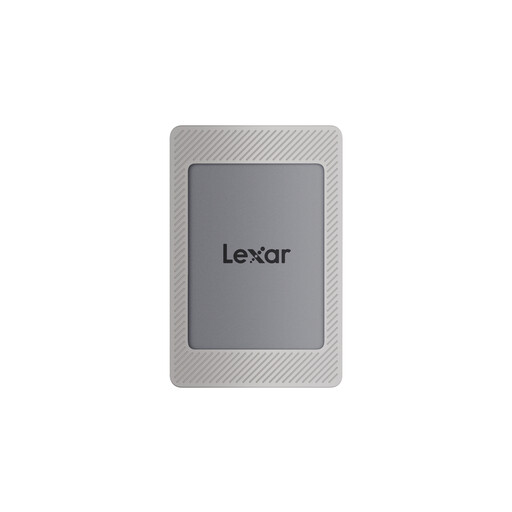
Lexar ES4 Portable SSD with Magnetic Set 2TB
A portable SSD for households moving files between USB-C and USB-A computers.
2TB capacity; USB 3.2 Gen 2; stated speeds up to 1,050MB/s read and 1,000MB/s write; USB-C-to-C and USB-A-to-C cables are stated as included.
Formatting may be required for the chosen operating systems and removes existing contents. The magnetic set is relevant only for compatible iPhone 15/16 use.
Joybuy
 No image available
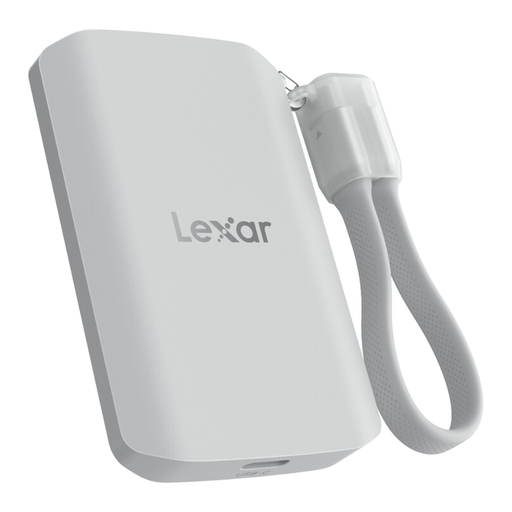
Lexar ES5 Portable SSD 1TB USB 3.2 Gen 2x2
A fast portable SSD route for frequently transferred family media or compatible mobile recordings.
1TB capacity; USB 3.2 Gen 2x2; stated read and write speeds up to 2,000MB/s; stated IP65 resistance and up-to-3m drop resistance.
Performance may be lower on Macs and other systems without USB 3.2 Gen 2x2 support. Check capacity, host-port capability and cable support before buying.
Joybuy
Frequently asked questions
How much capacity should an external backup drive have?
Total the files, folders and system data you need to protect, then allow room for growth and retained backup versions. For a Mac using Time Machine, Apple recommends a backup device with at least twice the storage capacity of the Mac; this is Time Machine guidance rather than a universal formula.
Can one external drive work for Windows and Mac backups?
It can connect to either system when the connection and formatting are appropriate, but the backup workflow matters. Microsoft File History can use an external drive or network location, while Apple says a Windows-formatted disk may need reformatting for Time Machine, permanently removing its contents.
How do you set up automatic backup on a Windows computer?
Connect the external drive, open Control Panel, choose System and Security, then select “Save backup copies of your files with File History”, choose the drive and turn File History on. Microsoft states that File History backs up standard libraries and can include other folders once added to a library.
Should an external backup drive stay connected all the time?
Not necessarily. Northern Ireland Cyber Security Centre guidance advises disconnecting an external hard drive when a backup is not being performed, so it is less likely to be stolen or damaged with the computer; schedule backups and practise restoring files.
Is an external drive alone enough for important family files?
No single local drive protects against every loss scenario. Northern Ireland Cyber Security Centre guidance recommends three copies on two devices, with one kept offline in another location, helping protect against events such as theft, fire or damage affecting the home.


