Choose a portable external hard drive for a capacity-led copy, an external SSD for frequent large transfers, a high-capacity USB flash drive when small size and direct connection matter most, or network-attached storage when several household devices need a shared destination. Measure the full photo and video collection, check how files will reach the storage, and keep another separate copy: none of these devices is a complete backup plan on its own.
Who each route suits
Households with a growing collection
If fitting the entire photo and video library is the main challenge, measure its occupied space before choosing a portable drive. Allow for growth, check the connection to the backup computer and plan a separate copy as well.
People making frequent large transfers
If you regularly move camera, phone or computer files, an external SSD may suit the workflow. Check the ports and cables on the devices you will actually use before relying on a stated transfer speed.
Households sharing one local library
If several phones and computers need to contribute to or access a local photo collection, network-attached storage offers a shared route. It also brings drive selection, setup, maintenance and a need for an independent backup.
What matters when choosing
Start with the size and location of the complete library, including videos. Then choose where the additional copy should live and how each device will transfer files to it.
External hard drive
Choose when: A portable, high-capacity copy connected to a computer suits occasional or scheduled backups.
Allow for: One removable drive still needs a separate safeguard against loss or failure.
External SSD
Choose when: You repeatedly copy large batches or expect to restore files regularly.
Allow for: Stated peak speeds depend on the drive, host and connection working together.
High-capacity USB flash drive
Choose when: Direct connection and a very small device take priority, provided the whole collection fits.
Allow for: Its small size makes it easier to misplace; do not make it the only copy.
Network-attached storage
Choose when: Several household devices need a shared local destination or automatic photo intake.
Allow for: Drives, configuration and ongoing maintenance, plus a backup beyond the NAS.
| Concern |
What to check |
Who this matters to |
| Capacity for the whole collection |
Measure the complete photo and video library; compare it with available space after formatting and leave room for growth. |
If my collection is large and still growing, I need the additional copy to hold every original rather than just a selection. Around 36% of consumers put complete-library capacity first. |
| Transfer and restore time |
Check the exact drive interface against the computer port and cable; a stated maximum is not a speed promise for every setup. |
Regular large imports make lengthy copies and a future restore harder to work around. Roughly 27% of consumers prioritise transfer and restore time. |
| Portability and connection |
Match the storage connector or supplied cable to the devices used for transfer, and check their file-system requirements. |
If I carry the copy between devices, I want a connection that fits my workflow without overlooking how easily a small drive could be lost. About 19% of consumers place direct-device portability and connection first. |
| Shared household access |
For a NAS, check the drives required, usable rather than raw capacity, and the phone and computer backup features. |
Photos spread across household phones and computers call for one accessible local destination instead of repeated manual connections. Around 18% of consumers make shared access and local intake their primary concern. |
Backup mistakes to avoid
-
Counting one new drive as the whole backup plan
The National Cyber Security Centre describes a backup as a copy kept separately from important data. A drive kept with or connected to the original device can be affected by some of the same incidents.
Keep the original and a separate backup, disconnect or store removable media separately when appropriate, and check that selected files can be restored.
-
Choosing capacity before checking the files
A capacity printed on a drive does not tell you whether your complete collection, including original videos, will fit in its available space after formatting. A cloud collection may also take several download stages to transfer.
Measure the library or completed export, allow for growth, and compare the copied files with the source before depending on the backup.
-
Taking USB-C to mean full advertised speed
Samsung says the T7’s stated maximum speeds require a USB 3.2 Gen 2 host, a suitable cable and UASP support. The connector’s shape alone does not establish those conditions.
Check the computer’s USB specification and the cable alongside the exact drive model before choosing on the basis of speed.
-
Reformatting the only copied files
Changing a drive’s file system by erasing or reformatting it deletes the files already stored there, as Apple explains in its Disk Utility guidance.
Decide which devices need to read the drive before the main transfer. If you must reformat later, copy its files to another location and check that copy first.
Relevant brands for reference
Western Digital
Its portable My Passport hard-drive line is relevant to a capacity-led local backup.
- Western Digital specifies 6 TB, USB-C connectivity and a transfer rate of up to 5 Gb/s for the cited My Passport USB-C model.
- Check the exact model’s connector and available capacity against your workflow; one drive does not provide a second independent copy.
Samsung
Its T7 external SSD range is relevant when repeated transfers and use across compatible computer connections matter.
- Samsung lists T7 capacities from 1 TB to 4 TB and USB-C-to-C and USB-C-to-A cables for the cited range.
- Samsung’s stated peak T7 speeds require a USB 3.2 Gen 2 host, a suitable cable and UASP; check the capacity of the exact variant too.
SanDisk
Its Extreme PRO USB-C flash-drive line is relevant when a direct connection and small carry size are priorities.
- SanDisk lists capacities up to 2 TB for the cited flash-drive line.
- Check whether the chosen capacity holds the complete collection and keep a separate copy in case the small device is lost.
Synology
Its DS223 NAS is relevant to a shared household destination for photos from several devices.
- Synology describes automatic mobile media upload and computer-folder backup for the DS223.
- Its stated capacity of up to 40 TB is raw capacity and depends on installed drives and RAID configuration. Drives, maintenance and an independent backup need separate planning.
External drives on Joybuy
These portable SSDs and hard drives are options for making a local copy from a computer-based photo backup workflow. Compare their stated capacity with your full library and check the connection and file system for your devices; a NAS or USB flash-drive workflow calls for different equipment.
 No image available
Samsung Portable SSD T7 2 TB, Grey
Consider this portable SSD if you make repeated photo or video transfers and its capacity accommodates your collection and growth.
Stated variant: 2 TB; USB Type-C 3.2 Gen 2 (3.1 Gen 2). Check the host connection and file system before moving the backup between devices.
View on Joybuy
 No image available
Samsung MU-PE1T0S Portable SSD 1 TB, Black
This portable SSD is worth considering for a separate local copy only if your full library and expected growth fit its capacity.
Stated variant: 1 TB; USB Type-C 3.2 Gen 2 (3.1 Gen 2). Check compatibility with the devices used for the transfer.
View on Joybuy
 No image available
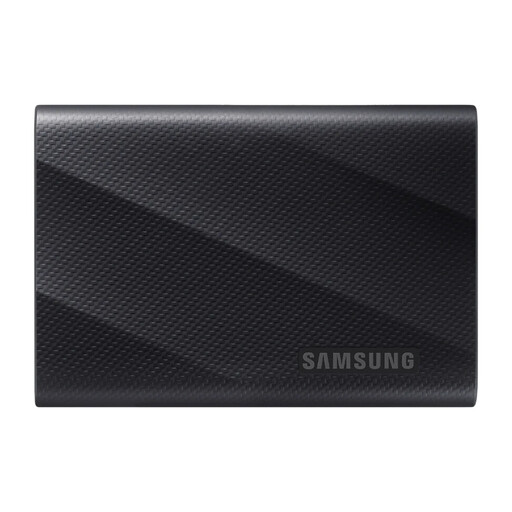
Samsung MU-PG1T0B Portable SSD 1 TB, Black
This SSD suits consideration for regular large-file transfers when a 1 TB drive can hold the intended backup.
Stated variant: 1 TB; USB Type-C USB 3.2 Gen 2x2. Check the computer’s USB interface and cable before basing the choice on transfer-speed expectations.
View on Joybuy
 No image available
SanDisk Portable SSD 2 TB
Consider this portable SSD for a local photo copy if its capacity meets the size of your complete collection.
Stated capacity: 2 TB. Confirm the exact connector and file-system compatibility for the devices in your transfer workflow.
View on Joybuy
 No image available
Western Digital My Passport Ultra Portable Hard Drive 5 TB, Blue
This portable hard drive is a capacity-led option for an additional photo and video copy, provided the full collection and future growth fit.
Stated capacity: 5 TB. Check its connection and intended file system before transferring files, particularly if the drive will be used with a Mac.
View on Joybuy
Photo backup questions
How much storage does a large photo backup need?
Choose capacity from the size of your own complete collection, not a fixed TB figure. Measure the local library or completed cloud download, include original videos, and allow space for growth and the difference between labelled and available capacity.
Can the same backup drive be used with a Mac and a Windows computer?
It can be, provided the connection and file system suit both computers. Apple identifies ExFAT as an option for Windows volumes over 32 GB; decide on the format before putting your only copied files on the drive, because reformatting erases them.
Is one external drive enough to protect a photo collection?
No: one drive gives you an additional copy, but that drive can still be lost, damaged or fail. Keep the original and a separately stored copy, and periodically check that files can be opened or restored, in line with the National Cyber Security Centre’s guidance on separate backups.
Can I copy an Amazon Photos collection straight to an external drive?
Plan for a download step rather than assuming a one-click transfer of the whole collection. Amazon Customer Service describes selecting photos or videos for download and says whole albums cannot be downloaded as albums; after transferring files to the drive, check the copied file set and open a sample.


