Who needs a local photo backup?
The right drive depends partly on where the photographs come from, how quickly the library grows and whether the backup leaves home.
Home-photo custodians
If you look after a household collection of phone, camera and scanned photographs, choose a setup you can repeat rather than relying on occasional manual copies. Microsoft Support says Windows File History can include the Pictures library in regular backups.
Travelling family archivists
If you copy photographs away from home or carry the drive between locations, connection compatibility and handling conditions matter alongside capacity. Check what a drive’s stated protection covers before relying on it during travel.
Growing-library planners
If your archive includes frequent video as well as photographs, allow room for future imports and plan where a separately stored copy will live. The National Archives advises keeping copies in different physical locations.
What matters when choosing an SSD?
Start with the number and location of your copies, then size the drive for the files you intend to keep. Check your computer and backup software before deciding whether extra physical protection or a headline speed matters to you.
| Concern |
What to check |
Who this matters to |
| Separate, usable copies |
Plan another copy stored apart from the computer and this SSD; open copied photographs periodically to check access. |
If my computer and backup drive are lost in the same incident, I need another copy elsewhere that I can actually open. Keeping a separate, checked copy is the primary concern for around 40% of consumers. |
| Capacity for growth |
Measure the existing photo and video library, then choose an exact capacity variant with room for future imports. |
My videos and new photographs will keep adding to the archive, so a drive that only fits today’s files may soon feel restrictive. Around 30% of consumers put capacity headroom first. |
| Computer and backup setup |
Confirm the connector, current file format and requirements of the backup tool you intend to use. |
I want backups to run regularly on the household computer, not depend on remembering to copy folders by hand. Straightforward compatibility and setup come first for around 20% of consumers. |
| Protection while travelling |
Check the conditions and exclusions behind any ingress or drop claim; retain a separate copy regardless. |
When I carry the drive between places, knocks, dust and splashes are more immediate concerns than at a desk. Physical protection is the leading consideration for around 10% of consumers. |
The Digital Preservation Coalition describes a 3-2-1 approach: three copies, on two types of storage medium, with at least one copy offsite. For a household avoiding cloud storage, that makes the location of each local copy as important a decision as the SSD itself.
Relevant brands to consider
These product lines illustrate different selection needs; check the specifications and conditions of the particular capacity and model you choose.
Crucial
The X9 portable SSD range is a route to consider for a home-computer backup routine. Crucial offers 1 TB, 2 TB and 4 TB versions.
- Crucial states that the X9 works with Windows File History, Apple Time Machine and Acronis True Image, and ships formatted as exFAT.
- Formatting and host capabilities affect compatibility and speed. Crucial says reformatting the drive erases its existing contents.
Samsung
The T7 Shield range offers 1 TB, 2 TB and 4 TB options for people who intend to carry a backup drive.
- Samsung states that T7 Shield has an IP65 rating and a 3 m drop-resistance claim under controlled test conditions.
- The ratings do not cover every accident: Samsung excludes liquid, dust and drop damage from its warranty. Its stated maximum speeds also require compatible host hardware and a suitable connection.
SanDisk
SanDisk lists Extreme Portable SSD capacities from 500 GB to 8 TB, making exact variant selection relevant to a growing photo-and-video library.
- SanDisk lists a USB 3.2 Gen 2 interface and a five-year limited warranty for the Extreme Portable SSD product line.
- Check the complete model number before applying specifications or support guidance to a drive. SanDisk’s firmware guidance identifies particular SDSSDE61 capacities, not every similarly named product.
Portable SSDs for different backup routines
These portable SSDs offer different capacities and connections for home photo archives, growing libraries and drives carried between locations. Match the exact model to your computer and intended backup routine, then plan where your additional copy will be stored.
 No image available
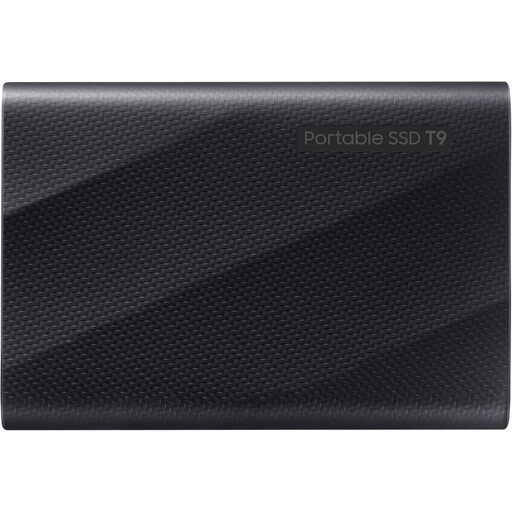
Samsung MU-PG4T0B 4 TB portable SSD
The stated 4 TB capacity is worth considering if your photo archive also contains videos and has room to grow. The product name specifies USB Type-C and USB 3.2 Gen 2x2; check that your computer and chosen backup method suit this drive before buying.
Joybuy
 No image available
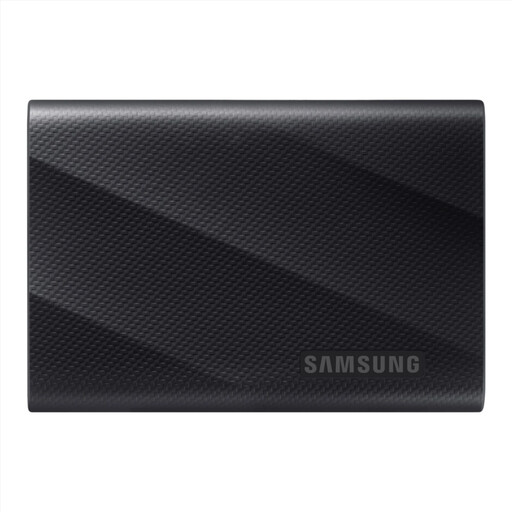
Samsung MU-PG2T0B 2 TB portable SSD
This 2 TB option may suit a household archive if its current files and expected additions fit with room to spare. It is identified as a USB Type-C, USB 3.2 Gen 2x2 drive; confirm the file format and backup-software fit for your computer.
Joybuy
 No image available
Samsung T7 Shield MU-PE1T0S 1 TB
Consider this 1 TB drive if you will carry your photo backup and its capacity is sufficient for your library. It has a USB Type-C connection; Samsung states IP65 and 3 m drop resistance for T7 Shield under controlled conditions, with liquid, dust and drop damage excluded from its warranty. Check your backup setup and keep another copy separately.
Joybuy
 No image available
SanDisk Portable SSD 2 TB
The stated 2 TB capacity makes this a possible destination for a local photo-and-video copy if it leaves enough room for growth. Check its exact connector, computer compatibility and file format for your intended backup routine; do not assume it has the specifications of SanDisk’s separately named Extreme range.
Joybuy
 No image available
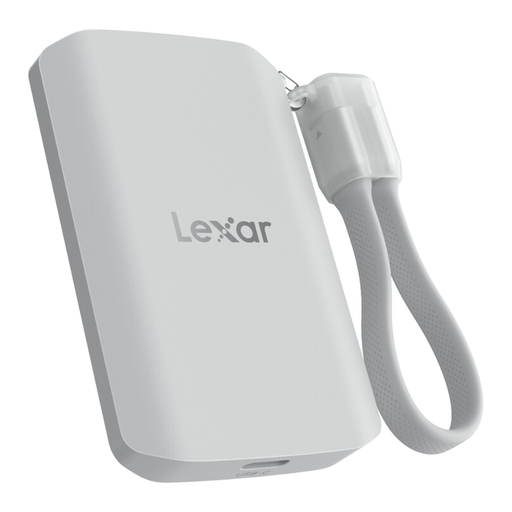
Lexar ES5 1 TB portable SSD
This 1 TB model is worth checking if you want to copy phone media locally as well as store photographs, but confirm that your device and the Lexar App support the backup you intend to make. Its product name states USB 3.2 Gen 2x2, IP65 and up to 2,000 MB/s read and write speeds; those speed figures are maximum claims, not a result to expect from every device.
Joybuy
Questions about local photo backups
Is one external SSD enough to protect family photographs without cloud storage?
No: one SSD can hold a backup, but it remains one physical location. The Digital Preservation Coalition’s 3-2-1 guidance calls for three copies on two types of storage medium, with at least one copy offsite. If you avoid cloud storage, plan separately stored local copies and check that the photographs remain accessible.
Can I use the same SSD with a Mac and a Windows PC?
You may be able to, but check both the drive’s format and the requirements of the backup tools you plan to use. Crucial says its X9 ships as exFAT and can be reformatted to NTFS or APFS; reformatting erases files already on it, and compatibility depends on the host and format.
Can Windows back up photo folders to an external SSD automatically?
Yes, Windows File History can back up files to an external drive when it is set up for that purpose. Microsoft Support says it includes standard libraries such as Pictures and allows other folders to be added to a library. Check that the folders containing your photographs are included, then open files from the backup to confirm access.
Will a drive rated at 1,050 MB/s always copy photos at that speed?
No: a stated maximum sequential speed is conditional, not a promise for every photograph transfer. Samsung says the T7 Shield’s maximum figures require a USB 3.2 Gen 2 host, a suitable cable and UASP; Crucial also notes that X9 performance varies with the host configuration.


