Choose an external SSD that connects to the computer you would use to restore your journal. If the drive will travel with your belongings, consider the exact model’s published protection claims; if the writing is private, plan how you will encrypt the copy and keep access to its recovery information. Make and open-test the backup before packing, then keep it separate from the original device.
Who needs which approach?
Move-day protection prioritiser
Your backup will travel through the move, so the exact drive’s published dust, water and drop-test conditions matter more to you than its headline transfer speed. Samsung UK, Crucial and SanDisk publish differing protection claims for the models discussed below.
Private-journal keeper
You want a misplaced drive to be less likely to expose your writing. Check how encryption is set up on the exact drive or computer, and how you will retain the password or recovery key.
Simple multi-device backupper
You need to create and open a document copy using the computers available to you, perhaps including one with a USB-A port. The supplied connection accessories and drive format deserve attention before peak speed.
What matters when choosing an SSD?
Start with the computer and connection you would need for a restore. Then decide whether transport exposure or the privacy of a misplaced drive calls for additional protection.
| Concern |
What to check |
Who this matters to |
| Protection in transit |
Check the exact model’s ingress rating and drop-test conditions. Keep the drive protected and separate from the original device. |
If my backup is travelling among moving-day belongings, I want to reduce the risk from knocks, dust and splashes without treating a test rating as a damage guarantee. Around 40% of consumers put transport protection first. |
| Journal privacy |
Check the exact drive’s password features or your computer’s encryption options; plan where to keep recovery information. |
If the drive goes missing, I do not want someone else reading my journal, but I still need to be able to unlock my own copy. For around 30% of consumers, privacy is the primary concern. |
| Usable backup |
Check the journal folder’s size, the restore computer’s port, the supplied cable and the drive format before copying or reformatting. |
I need to connect the SSD and open my files on the computer available after the move, even if it is not the one I used to make the copy. Straightforward creation and restoration come first for around 30% of consumers. |
Backup mistakes to avoid
-
Moving the only backup with the original device
A single misplaced or damaged bag could take both copies. The National Cyber Security Centre describes a backup as a copy kept in a separate safe location.
Copy and open-test the journal before packing, then store the SSD apart from the original device. Consider a separate online copy of the important files.
-
Leaving the SSD connected
Malware on a computer can also affect connected storage, according to National Cyber Security Centre guidance.
Eject and disconnect the SSD after completing the backup, then store it securely until you need it again.
-
Expecting the advertised maximum speed on every computer
Samsung UK says the T7 Shield’s quoted maximum speeds depend on a USB 3.2 Gen 2 host, compatible cable and UASP. Crucial qualifies its X9 Pro maximum as a measurement on a high-performance desktop system.
For a mostly text-based journal, check the connection you can actually use before making transfer speed the deciding factor.
-
Reformatting the only journal copy
Crucial states that reformatting the X9 Pro erases data already on the drive.
Check the format needed by your devices before copying the journal. Keep another tested copy elsewhere before changing the drive’s format.
Relevant brands to consider
Samsung
The T7 Shield line is relevant when a journal backup will travel through a move and published physical-protection conditions matter.
- Samsung UK claims IP65 resistance and a 3-metre drop test for the T7 Shield.
- These controlled-test claims are not guarantees against damage. Samsung says liquid, dust and drop damage are not covered by its warranty.
Crucial
The X9 Pro is worth considering when you need a portable backup with published protection claims and plan to manage encryption through a compatible computer.
- Crucial claims IP55 protection and drop protection of up to 2 metres onto a carpeted floor for the X9 Pro. It documents use with BitLocker To Go and FileVault.
- Crucial says the X9 Pro should not be submerged. Encryption needs setting up and managing, and reformatting the drive erases its data.
SanDisk
The documented Extreme Portable SSD model is relevant when both transport exposure and access to private files affect the decision.
- SanDisk claims IP65 resistance, up to 3-metre drop protection, password protection and built-in 256-bit AES encryption for its named 2TB model.
- Confirm those features on the exact model and edition you intend to buy; protection claims do not cover every type of damage.
Kingston
The XS1000 is relevant for a routine document copy when compact carry and access to USB-A and USB-C equipment matter.
- Kingston documents a 28.7g weight and supplies a USB-C-to-A cable and Type-A-to-C adapter with the XS1000.
- For a drive that will face dust, splashes or knocks during the move, check the protection needed rather than assuming compact size provides it.
Joybuy product choices
These portable SSDs offer different starting points for a journal backup. Match the exact model and connection to your restore computer, and check any protection or privacy feature you intend to rely on before making it your only portable copy.
 Image unavailable
Samsung T7 Shield MU-PE1T0S 1TB, black
Consider this model if the backup will travel with your belongings and published physical-protection conditions are important.
The title identifies a 1TB USB Type-C, USB 3.2 Gen 2 drive. Samsung UK claims IP65 resistance and a 3-metre drop test for the T7 Shield; neither is a guarantee against damage.
View on Joybuy
 Image unavailable
Samsung Portable SSD T7 2TB, blue
This is a portable option if you want to keep a journal copy alongside other files; decide how you will protect private writing before copying it.
The title specifies 2TB and USB Type-C with USB 3.2 Gen 2. Check the connection to your restore computer and do not assume this T7 has the T7 Shield’s published ingress protection.
View on Joybuy
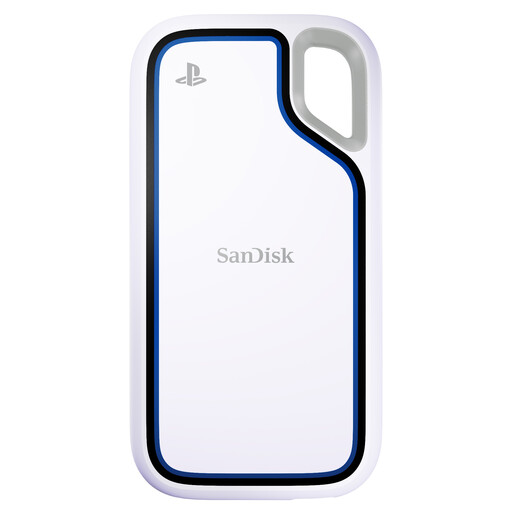 Image unavailable
SANDISK Extreme 2TB Portable SSD for PlayStation 5 and PC
This edition may suit a journal backup made or restored on a compatible PC, but check its exact features before relying on it for move-day protection or privacy.
The title identifies a 2TB drive for PlayStation 5 and PC. Confirm the edition’s protection and encryption features rather than transferring claims from a different Extreme model.
View on Joybuy
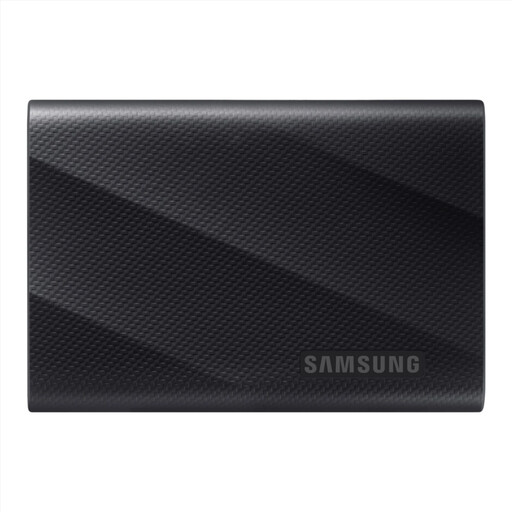 Image unavailable
Samsung MU-PG2T0B 2TB, black
If privacy is the deciding concern, check how you would secure and later unlock the journal copy on this exact drive.
The title specifies 2TB and USB Type-C with USB 3.2 Gen 2x2. Check that your restore computer has a suitable connection, and confirm any protection needed for travel.
View on Joybuy
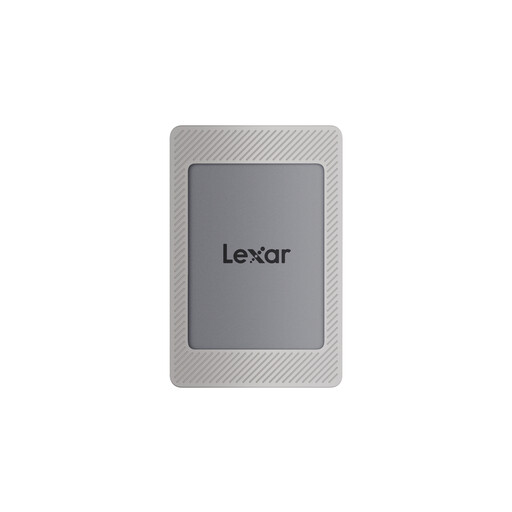 Image unavailable
Lexar ES4 Portable SSD Magnetic Set 2TB
Consider this model if its stated device connections suit both the computer making the backup and the device you would use to restore it.
The title specifies 2TB, USB 3.2 Gen 2 and up to 1,050MB/s read and 1,000MB/s write. Confirm the exact drive’s encryption setup and physical-protection conditions if either is essential to your backup plan.
View on Joybuy
Common questions
Should the backup SSD go in the same moving box as my laptop?
Keep it separately if you can. The National Cyber Security Centre describes a backup as a copy stored in a separate safe location; separating the SSD from the original device reduces the chance of losing both together.
Should I leave the SSD connected after copying my journal?
Disconnect it when the backup is complete. National Cyber Security Centre guidance warns that some viruses can also affect storage left connected to an infected computer.
How can I check whether an SSD will connect to my computer?
Compare the computer’s ports with the drive connection and supplied cable or adapter, then check the format needed by the devices you will use. Kingston documents USB-A and USB-C connection accessories for the XS1000, while Crucial notes that X9 Pro compatibility can depend on formatting and host capabilities.
Can I reformat a portable SSD for another device?
You can reformat a drive when the new format suits your devices, but move its files to another tested copy first. Crucial states that reformatting its X9 Pro erases data already on the drive.


