Choose an external SSD that fits your workstation’s backup method and has room for the files and version history you intend to keep; maximum transfer speed matters less for a text-focused backup. Use it as one copy alongside a separate backup, test that you can restore an earlier draft, and disconnect the SSD between backups if you do not need it continuously connected. Apple advises at least twice the Mac’s storage capacity for a Time Machine backup device, while Microsoft’s File History can make regular backups to an external drive.
Who needs which backup setup?
Writers who need earlier drafts
If an edit or deletion could remove work you need to revisit, choose a backup routine that saves previous versions and test a restore. Microsoft’s File History makes regular copies; Apple’s Time Machine retains earlier backups while space permits.
Mac Time Machine users
If the SSD will be a dedicated Mac backup disk, allow for more than the size of the current manuscript. Apple advises a backup device with at least twice the Mac’s storage capacity and notes that preparing a selected disk may erase its contents.
Home workers who move backups away from the desk
A portable SSD can be disconnected and stored separately after a backup. The National Cyber Security Centre warns that connected backup drives can be affected by ransomware; a further copy in another location provides separation from an incident at the workstation.
What matters when choosing an SSD?
Decide what the SSD must back up and how you will restore a draft before choosing capacity or comparing quoted transfer speeds.
| Concern | What to check | Who this matters to |
|---|
| Recoverable versions |
Check that your backup tool includes the manuscript folder, saves earlier versions and lets you restore one. |
If I overwrite a useful draft, I need to retrieve it rather than just find another copy of the latest file. Around 42% of consumers put recoverable versions first. |
| Capacity for backup history |
Allow for the files being backed up and the history you want to retain; for Time Machine, Apple advises at least twice the Mac’s storage capacity. |
If my backup also includes research files or the wider computer, I need room for more than the manuscript alone. Capacity is the primary concern for roughly 25% of consumers. |
| Separation and handling |
Decide when the SSD will be disconnected and where another copy will be kept; assess protective enclosures for the way you carry it. |
If the drive leaves my desk, I want to store it apart from the workstation without mistaking a rugged case for another backup. Approximately 17% of consumers prioritise separation and handling. |
| Connection and format |
Match the connector, USB capability and disk format to your workstation and backup tool before setting up the drive. |
If I use more than one computer or transfer large files, I need the drive to work with the intended ports and backup workflow. Connection and format come first for around 16% of consumers. |
Backup mistakes to avoid
-
Treating one SSD as the entire backup plan
A drive that holds the only other manuscript copy can be lost or affected by an incident alongside the workstation. UK cyber-security guidance recommends copies on separate devices, including one kept offline in a different location.
Keep the working files, the SSD backup and a further separated copy. If continuous backup is not needed, disconnect the SSD after the backup finishes.
-
Choosing by quoted transfer speed alone
Kingston ties the XS2000’s stated maximum speed to USB 3.2 Gen 2x2; Samsung’s maximum figures for the T7 Shield also depend on compatible connection conditions. A quoted maximum does not establish the speed of your workstation’s backup.
Check the workstation port and connection before choosing for high-throughput transfers. For a text-focused manuscript, establish the capacity and restore routine first.
-
Reformatting before safeguarding existing files
Apple warns that reformatting a Windows-formatted disk for Time Machine permanently removes its data; Crucial also warns that reformatting erases existing contents.
Copy existing files elsewhere and verify that copy before preparing the SSD for its backup role.
-
Confusing a rugged enclosure with recoverability
Samsung’s T7 Shield protection claims apply under stated test conditions, and Samsung says real-world resistance can vary. An ingress or drop rating cannot retrieve a deleted draft.
Use physical protection as a handling consideration, alongside versioned backups, a restore test and another separated copy.
Relevant brands for reference
Samsung
Samsung’s T7 Shield MU-PE2T0S/EU is a 2TB portable-SSD option to consider when a backup drive may be carried away from the workstation. Samsung states maximum sequential speeds of 1,050MB/s read and 1,000MB/s write for this model.
- Samsung states IP65 resistance and a 3 m drop test under controlled conditions.
- Samsung says resistance varies with conditions and excludes liquid, dust and drop damage from its warranty; the enclosure does not replace a separate backup.
Crucial
Crucial’s X9 Pro is relevant when a portable drive may move between Mac and Windows workflows. Crucial says it ships in exFAT and can be reformatted for other filesystems.
- Crucial lists NTFS, APFS and HFS format options, subject to the intended device and setup.
- Reformatting erases existing data. Check the format required by the backup tool before assigning the drive a dedicated role.
Kingston
Kingston’s XS2000 is relevant if the workstation supports USB 3.2 Gen 2x2 and the backup routine also moves large files. Kingston lists capacities from 500GB to 4TB and up to 2,000MB/s read and write.
- The range offers several capacities for different backup scopes.
- The stated maximum transfer rate depends on a compatible host. Kingston’s stated physical protection with the removable sleeve is not protection against losing the only backup copy.
Joybuy SSD choices for this setup
These portable SSDs are options for a local manuscript backup that you can disconnect from a home workstation. Choose capacity for your backup scope, then check the intended computer’s backup tool and disk-format requirements before setting up the drive.
 No image available
Samsung MU-PE1T0S 1TB USB-C SSD, black
Consider this portable drive if 1TB accommodates the files and backup history you plan to keep.
The product name specifies USB 3.2 Gen 2. Check the format and backup-tool fit for your workstation, then test a restore.
View on Joybuy
 No image available
Samsung Portable SSD T7 2TB, blue
The 2TB capacity is worth considering if your backup includes more than the current manuscript; compare it with the files and history you intend to retain.
The product name specifies USB-C and USB 3.2 Gen 2. Confirm disk-format and backup-tool requirements before setup.
View on Joybuy
 No image available
Samsung Portable SSD T7 4TB, grey
Consider the 4TB variant if the planned backup covers substantial additional files or retained history; check the actual backup scope before choosing it.
The product name specifies USB-C and USB 3.2 Gen 2. Confirm that your backup workflow can use the drive as intended.
View on Joybuy
 No image available
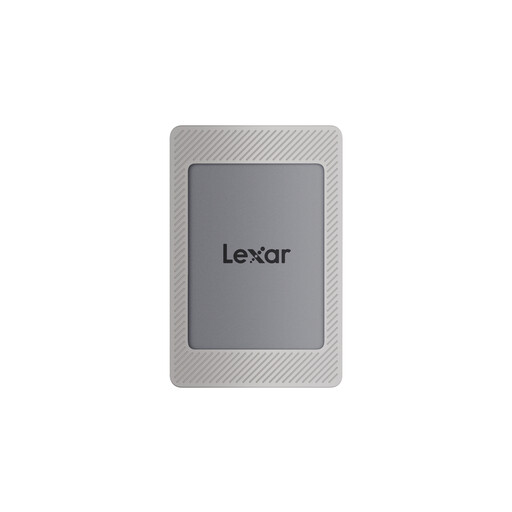
Lexar ES4 Portable SSD with Magnetic Set, 2TB
This 2TB portable option may suit a manuscript backup alongside other files, provided its format works with your chosen backup tool.
The product name specifies USB 3.2 Gen 2 and stated maximum speeds of 1,050MB/s read and 1,000MB/s write; actual transfer speed depends on the connection and use.
View on Joybuy
 No image available
SanDisk Portable SSD 2TB
Consider this 2TB portable SSD if that capacity fits the files and backup history you want to retain.
Before buying, confirm its connection and disk-format requirements against your workstation and backup tool.
View on Joybuy
Frequently asked questions
How large should an SSD be for a Mac Time Machine backup?
Apple advises a backup device with at least twice the Mac’s storage capacity. That guidance applies to a Time Machine backup disk, not to every manually copied manuscript folder; Apple also advises using the Time Machine disk only for Time Machine backups.
Can a Windows PC back up a manuscript automatically to an external SSD?
Yes, Microsoft says File History can make regular backups to an external drive and restore earlier file or folder versions. Check that the manuscript folder is included in the backed-up location, then try restoring a draft.
Should I leave the backup SSD connected all the time?
Disconnecting it between backups can protect that copy from an incident affecting connected storage, but you will need to reconnect it for the next backup. The National Cyber Security Centre warns that ransomware can affect connected USB backup drives; keep a further copy separate from the workstation.
Can I use a Windows-formatted SSD for Mac Time Machine?
It can be reformatted for Mac use, but Apple says reformatting a Windows-formatted disk permanently removes its data. Copy and verify any existing files elsewhere before selecting the SSD as the Time Machine disk.


