What matters when choosing?
Start with the size of the complete catalogue, then plan where its copies will be kept during the move and check the computer connection you will use. The National Cyber Security Centre advises keeping a backup of important data in a separate safe location.
| Concern |
What to check |
Who this matters to |
| Keeping copies apart during the move |
Look at the drive’s stated drop and ingress protection, and plan to store a backup separately from the computer. |
If irreplaceable photos and the computer are travelling, I want a copy that will not be carried alongside it throughout the move. Around 42% of consumers put a separate, move-ready copy first. |
| Capacity for the whole catalogue |
Measure the complete library, including originals and exports, and allow for additions and less usable space after formatting. |
When my library is already large, I need to copy all of it rather than leave folders behind to fit the drive. Having enough usable capacity comes first for around 33% of consumers. |
| Transfer time on your computer |
Check the computer’s USB port and cable against the SSD’s interface; a quoted maximum is not a promised backup time. |
With a large copy to finish before moving, I care about speed I can actually use on my computer. Around 25% of consumers make transfer and host compatibility their primary concern. |
Portable SSDs on Joybuy
These portable SSDs offer 1TB, 2TB and 4TB variants for making a photo-catalogue copy to carry during a move. Compare each exact variant with your library size and computer connection; keep another backup elsewhere.
 No image available
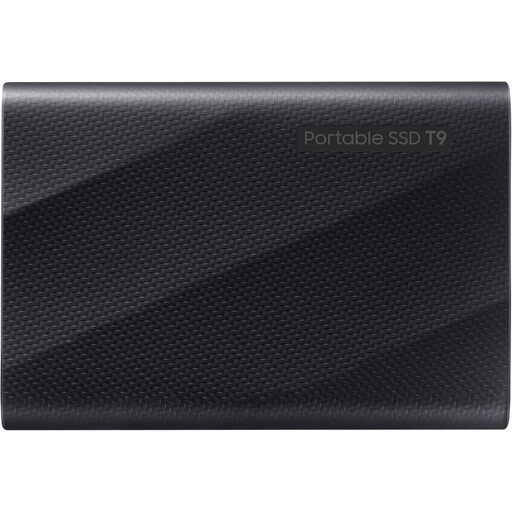
Samsung MU-PG4T0B 4TB portable SSD
Consider this 4TB variant if the complete catalogue needs that capacity. Its title specifies USB Type-C and USB 3.2 Gen 2x2; check your computer’s port and cable before choosing it for that interface.
View on Joybuy
 No image available
Samsung T7 Shield 1TB portable SSD, blue
The 1TB T7 Shield is worth considering when the whole catalogue and headroom fit within its usable space and the drive will travel. Samsung specifies USB 3.2 Gen 2, IP65 dust and water resistance and resistance to drops of up to 3 metres for the T7 Shield range; those ratings do not replace a second backup.
View on Joybuy
 No image available
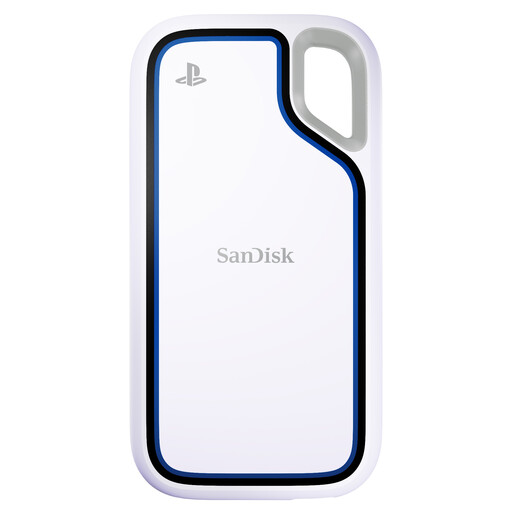
SANDISK Extreme 2TB portable SSD for PlayStation 5 and PC
This 2TB variant may suit a catalogue that fits with room to grow. As the product is presented for PlayStation 5 and PC use, check the file system and computer compatibility required by your photo-catalogue workflow before buying.
View on Joybuy
 No image available
Samsung T7 4TB portable SSD, grey
Consider this 4TB T7 if capacity is your priority and the full catalogue fits with headroom. Its title specifies USB Type-C and USB 3.2 Gen 2. This is the T7, not the T7 Shield, so do not apply the Shield’s protection ratings to it.
View on Joybuy
 No image available
SanDisk Portable SSD 2TB
This 2TB portable SSD is an option if its usable space accommodates the complete catalogue and planned additions. Confirm the connection and cable you need for your computer before making the move-day copy.
View on Joybuy
Frequently asked questions
Is one external SSD enough to protect my photos during a move?
No: it can hold a separate copy, but it should not be your only backup. The NI Cyber Security Centre recommends at least three copies on two devices, with one kept offline in a different location. Disconnect the SSD when the copy is finished and retain another independent copy elsewhere.
How much SSD capacity do I need for a photo catalogue?
Choose an exact variant with enough usable space for the complete catalogue and room for additions. Measure the photo-library package, originals and edited exports rather than only one folder, and allow for formatted capacity being lower than the label.
Will a 2,000MB/s SSD copy at that speed on my computer?
Not necessarily. Kingston says the XS2000 needs USB 3.2 Gen 2x2 for optimal performance; it can work with Macs without reaching its advertised rate because they do not use that USB protocol. Check the computer port and cable before relying on a quoted maximum.
Should I leave the SSD connected after backing up?
Disconnect it when the backup is complete and you are not actively updating it. Safely eject it through the operating system first, then store it apart from the computer; the NI Cyber Security Centre advises keeping an offline copy in a different location.


