For recipe documents, choose an external SSD that works with your devices and use it for a separate local copy, not as the only place your files exist. Prioritise physical protection if you carry the drive, password protection if it holds personal information, and a 20Gbps connection only if your computer supports it and you regularly move larger photo or video files. Disconnect the SSD after updating your backup.
Who needs a local recipe archive?
Offline recipe keepers
If your recipes are PDFs, scans or typed documents, an SSD gives you a physical place for a separate copy without a cloud account. Plan a routine for copying the files and unplugging the drive; the National Cyber Security Centre advises disconnecting offline backups when they are not in use.
Recipe archivists with sensitive files
If recipes sit alongside household records or other personal information, consider how you would protect the drive if it were lost. The Information Commissioner's Office identifies encryption as a way to protect personal information on portable and backup media.
Mobile food-content organisers
If you move recipes, food photographs or clips between locations, check each device's USB connection and whether you need a drive with stated dust, splash or drop protection. Those ratings have conditions; they do not replace a second copy of your files.
What matters when choosing an SSD?
Start with how you will keep a recoverable copy. Then decide whether the archive needs protection against unauthorised access or a drive suited to frequent carrying and use across devices.
| Concern |
What to check |
Who this matters to |
| Offline recovery |
Keep a separate copy of important recipes and choose a routine for updating and disconnecting the SSD. The National Cyber Security Centre advises keeping offline backup media disconnected when not in use. |
If my computer fails, I want to open the recipes from a separate drive rather than discover they existed in only one place. Roughly 44% of consumers put a recoverable offline copy first. |
| Privacy |
Check password or encryption support on the exact model and the devices used to set it up; keep the password separately from the drive. |
When household records travel with my recipes, I want to limit access if the SSD goes missing. Protecting that personal material comes first for around 33% of consumers. |
| Device access and carrying |
Confirm the host's USB capability, cable and file-system compatibility; consider stated protection ratings if the drive travels. |
I need to move files between my actual devices and carry the drive without relying on its advertised peak speed alone. Approximately 23% of consumers make compatibility and carrying needs their main concern. |
Mistakes to avoid
-
Keeping irreplaceable recipes only on the SSD
One portable drive can be lost or fail. A copy that remains connected to the computer is also exposed to incidents affecting connected devices, according to the National Cyber Security Centre.
Keep a working copy, update a separate SSD copy, check that files open, then disconnect the drive. Consider another independently stored copy for recipes you cannot replace.
-
Choosing a 20Gbps drive by its advertised speed alone
A USB-C-shaped port does not establish its speed. The USB Implementers Forum says a USB connection operates at the lowest common speed capability; Kingston specifies USB 3.2 Gen 2x2 for the XS2000's peak performance.
Check the host port and cable before making higher transfer speed a deciding factor. For mainly PDFs and scans, concentrate on access and backup practice instead.
-
Treating protection ratings as a guarantee
Dust, splash and drop ratings describe stated test conditions, not protection from every accident. Samsung says liquid, dust and drop damage to the T7 Shield are not covered under its warranty; Crucial says the X9 Pro should not be submerged.
Choose protection suited to where you carry the drive, but keep it away from immersion, dry it before connecting it and retain another copy of important files.
-
Assuming a password replaces a backup
Encryption can help protect personal information if portable media is lost, as the Information Commissioner's Office explains. It does not restore files from a missing or failed drive.
Check how protection is enabled on your exact model, keep the password separately and maintain another accessible copy.
Losing the password or recovery information can leave you unable to access an encrypted archive.
Relevant brands to consider
Samsung
The T7 Shield line is worth considering for a portable local archive when physical protection and a documented password feature matter.
- Samsung specifies IP65 protection, a 3-metre drop rating and password protection for the T7 Shield.
- Samsung's quoted maximum of 1,050MB/s read and 1,000MB/s write requires compatible USB 3.2 Gen 2 and UASP conditions. Samsung says liquid, dust and drop damage are not covered under warranty.
Crucial
The X9 Pro line is relevant when compact local storage and access across different devices are priorities.
- Crucial lists exFAT factory formatting, IP55 protection and up to 1,050MB/s read and write for the X9 Pro.
- Crucial says optimal speed needs a USB-C to USB-C connection on a USB 3.2 Gen 2 device. Check formatting and host compatibility for the devices you intend to use.
Kingston
The XS2000 line is relevant if a recipe archive includes large batches of photographs or video and the computer has a confirmed USB 3.2 Gen 2x2 port.
- Kingston quotes up to 2,000MB/s read and write for the XS2000 and specifies IP55 protection with its removable sleeve.
- Its quoted peak transfer rate requires USB 3.2 Gen 2x2. A connection with lower common capability will not deliver that peak.
SanDisk
The Extreme Portable SSD line is relevant when a portable archive needs a documented built-in password and encryption feature.
- SanDisk lists password protection and built-in 256-bit AES encryption for the Extreme Portable SSD.
- SanDisk's documentation makes encryption setup dependent on supported operating systems and notes a software download for Mac. Check those requirements for the exact drive before relying on the feature.
Joybuy SSD choices for local recipe storage
These portable SSDs offer local space for recipe files. The listed models differ in capacity, USB connection and features to check if you carry the drive or store personal records alongside recipes; whichever you choose, keep the SSD as a separate copy.
 Image unavailable
Samsung MU-PE1T0S 1TB USB 3.2 Gen 2, Black
Consider this local recipe drive if you also expect to carry your archive between locations. Its listed capacity is 1TB; check the host's USB capability before expecting the T7 Shield transfer speeds quoted by Samsung. Physical protection does not remove the need for another copy.
Joybuy
 Image unavailable
Samsung Portable SSD T7 1TB USB 3.2 Gen 2, Blue
This 1TB portable SSD is an option for keeping a separate local copy of recipe documents. If personal records will share the drive, confirm the exact model's password setup and compatibility with your devices before depending on that protection. Keep the drive away from liquids and disconnect it after updating your copy.
Joybuy
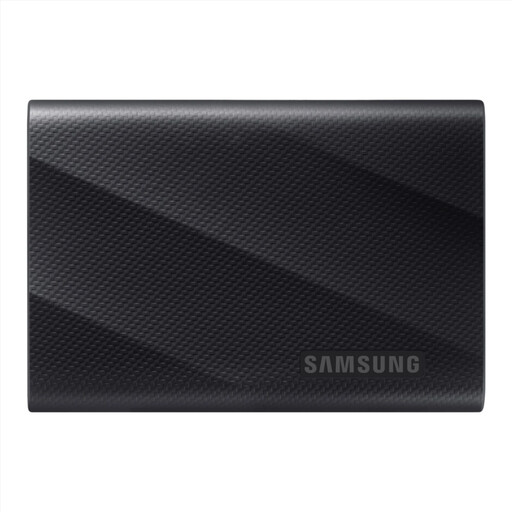 Image unavailable
Samsung MU-PG2T0B 2TB USB 3.2 Gen 2x2, Black
The 2TB capacity may suit a recipe collection that also contains larger media files. Its USB 3.2 Gen 2x2 connection is worth checking against your computer's port if transfer speed matters; the connector shape alone cannot confirm a 20Gbps connection. Check password setup before adding sensitive records, and avoid exposure to liquids.
Joybuy
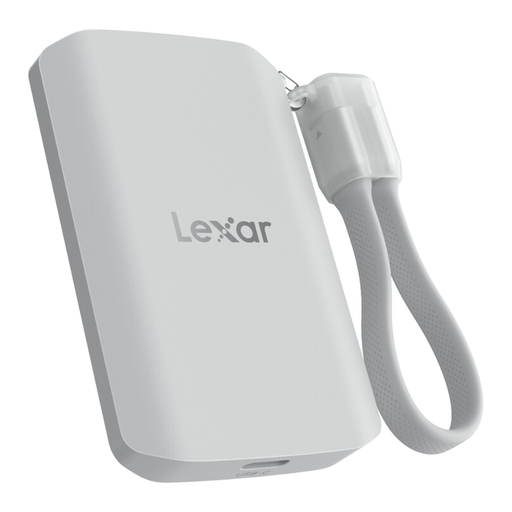 Image unavailable
Lexar ES5 1TB USB 3.2 Gen 2x2 Portable SSD
This 1TB drive is a candidate if you carry recipe files and related media between USB-C devices. Its title states IP65 protection and up to 2,000MB/s read and write; treat those as rated protection and peak speeds, not guarantees in every situation. Confirm your devices' USB and file-system compatibility before making it your archive copy.
Joybuy
 Image unavailable
SanDisk Portable SSD 2TB
The stated 2TB capacity gives this portable SSD space for recipe documents and additional files. Check its connection and file-system compatibility with each device you plan to use. If personal records need protection, confirm the security options for this exact model rather than assuming it has the features of SanDisk's Extreme Portable SSD line.
Joybuy
Questions about recipe storage
Can I keep recipe documents on an SSD without cloud storage?
Yes. You can copy recipe files to an external SSD and keep it locally without a cloud account. The National Cyber Security Centre recognises external storage as a backup option; keep a separate original or working copy so the SSD is not your only copy.
Should I leave a recipe backup SSD plugged in?
No, not if you want it to remain an offline backup. The National Cyber Security Centre advises disconnecting backup media when it is not in use. Update the copy, check that the files open, then unplug and store the drive.
Do recipe PDFs and scans need a 2,000MB/s SSD?
A quoted 2,000MB/s peak is not a deciding requirement for ordinary recipe documents. It becomes more relevant if you regularly move large photo or video collections and have the required host connection. Kingston specifies USB 3.2 Gen 2x2 for the XS2000's optimal speed, while the USB Implementers Forum says the connection operates at its lowest common speed capability.
When should I consider encrypting a recipe SSD?
Consider encryption when the portable archive contains personal information as well as recipes. The Information Commissioner's Office identifies encryption as a way to protect personal information on backup media from unauthorised access. Check setup on the exact drive and devices you use, keep the password separately and retain another copy of important files.


