For a family computer backed up at a home workstation, choose enough capacity and a workable recurring-backup method before comparing headline SSD speeds. A compact drive suits a mostly stationary setup; consider a rugged model if the drive is regularly moved, and check the computer's port and cable before relying on a rated transfer speed.
Who is this for?
Households making routine desk backups
If the drive will stay near one family computer, concentrate on a repeatable backup routine and a connection that fits its USB ports. Microsoft Support says Windows File History can make regular backups to an external drive.
Households with growing photo and video libraries
Allow room beyond the files stored today, particularly if you want to retain earlier backup versions. For Time Machine, Apple Support advises a backup device with at least twice the Mac's storage capacity.
Households that move the backup drive
If the SSD travels between rooms, homes or devices, its stated protection conditions become more relevant. Samsung describes IP65 testing and a 3-metre drop-test condition for the T7 Shield, while cautioning that resistance can vary in use.
What matters when choosing?
Work out how much data the family computer needs to protect and how backups will run; then check connections, formatting and whether the drive will be carried around.
| Concern | What to check | Who this matters to |
|---|
| Capacity and backup history |
Measure the data to protect and leave room for future files and versions. For Time Machine, Apple Support advises at least twice the Mac's storage capacity. |
My family's photos and videos are growing, so I need space beyond what the computer uses today. Roughly 29% of consumers would put capacity and backup history first. |
| Recurring backups and recovery |
Check which folders the chosen backup method covers and how to restore an earlier file. Microsoft Support describes File History for Windows; Apple Support describes Time Machine for Mac. |
I want backups to run regularly without having to remember a manual copy, and I need to know how to recover files. Around 36% of consumers would make that workflow their primary concern. |
| Computer and connection compatibility |
Identify the workstation's USB port, check the cable and plan the drive format. Apple Support says Time Machine cannot back up to a disk formatted for Windows. |
Our household uses different connections or computers, so I do not want a cable or format choice to interrupt setup. Approximately 21% of consumers would prioritise compatibility. |
| Protection during handling |
For a drive that travels, check the exact model's dust, water and drop-test conditions and warranty exclusions. |
The drive gets carried or handled by several people, making accidental knocks or splashes a particular concern. Roughly 14% of consumers would put physical protection first. |
Buying pitfalls
-
Buying for today's used storage alone
New family files and earlier backup versions also need space, so a drive sized only for the current files may fill sooner than expected.
Check the data to protect and allow for growth. For a Mac Time Machine drive, start with Apple Support's guidance of at least twice the Mac's storage capacity.
-
Assuming USB-C guarantees the advertised speed
The connector's shape does not establish the port's performance. Western Digital Support notes that transfer speed depends on the port used.
Check the workstation's USB specification and the cable before choosing a drive partly for its rated speed.
Changing the cable or drive may not improve transfers when the computer's port is the limiting factor.
-
Reformatting without saving existing files
Apple Support says a Windows-formatted disk cannot be used directly for Time Machine; reformatting it removes the files already on it.
Copy anything you need elsewhere before formatting, then decide whether the SSD will be dedicated to Mac backups or used for another purpose.
-
Treating rugged ratings as complete data protection
Samsung says the T7 Shield's resistance can vary outside its stated tests, and damage caused by liquid, dust or drops is not covered by its warranty.
Choose protection for the handling conditions you expect, but keep another independent copy of important family files.
Brands to consider for these backup needs
Kingston
The XS1000 is a compact option to assess for routine backups at a workstation with USB-A or USB-C connections.
- Kingston specifies 1TB and 2TB XS1000 versions, a USB-C-to-USB-A cable and a USB-A-to-USB-C adapter.
- The XS1000 range described by Kingston stops at 2TB; check the space your backup history will require.
Samsung
The T7 Shield line is relevant when a backup drive will be carried rather than left at the desk.
- Samsung specifies IP65 testing and a 3-metre drop-test condition for the T7 Shield.
- Samsung says real-world resistance can vary and that liquid, dust and drop damage is not covered by its warranty. Its stated maximum speed needs a suitable USB 3.2 Gen 2 host, cable and UASP support.
Seagate
The One Touch SSD is worth considering if a household wants a supplied folder-sync workflow.
- Seagate says Toolkit can create sync plans and archive deleted files.
- Toolkit installation and updates require an internet connection. Check whether its folder-sync behaviour meets your backup and recovery needs.
Joybuy product choices
These portable SSDs cover different capacity and handling needs for a family-computer backup. Size the drive against your data and backup history, and check your workstation's connection and backup setup before choosing.
 Image unavailable
Samsung MU-PE1T0S 1TB USB-C SSD, Black
Consider this 1TB model if the drive will be moved and that capacity fits your backup plan.
USB 3.2 Gen 2 is stated in the product name. If physical protection matters, check the exact model's test conditions and warranty terms before relying on them.
View on Joybuy
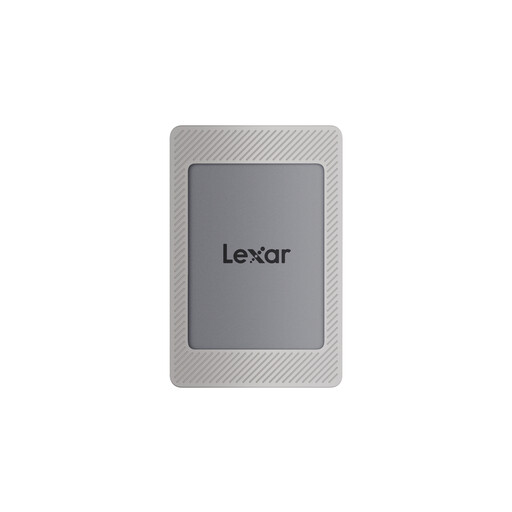 Image unavailable
Lexar ES4 Magnetic Set 2TB Portable SSD
The 2TB capacity is an option for a backup set needing more room than a 1TB drive; check it against the space your files and backup history require.
The product name states USB 3.2 Gen 2, PC and Mac compatibility, and rated speeds of up to 1,050MB/s read and 1,000MB/s write. Check the workstation port and cable for your intended connection.
View on Joybuy
 Image unavailable
Samsung Portable SSD T7 4TB, Grey
The 4TB capacity is worth assessing for a larger family backup set or longer backup history; compare it with the data you plan to retain.
The product name specifies USB-C and USB 3.2 Gen 2. For Time Machine, confirm the drive format before setup, especially if the SSD already holds files.
View on Joybuy
 Image unavailable
Samsung Portable SSD T7 2TB, Blue
This 2TB version offers a different capacity choice for a drive kept near the family workstation; measure your backup set before deciding if it leaves enough room.
The product name specifies USB-C and USB 3.2 Gen 2. Check the computer's connection and the format required by your backup method.
View on Joybuy
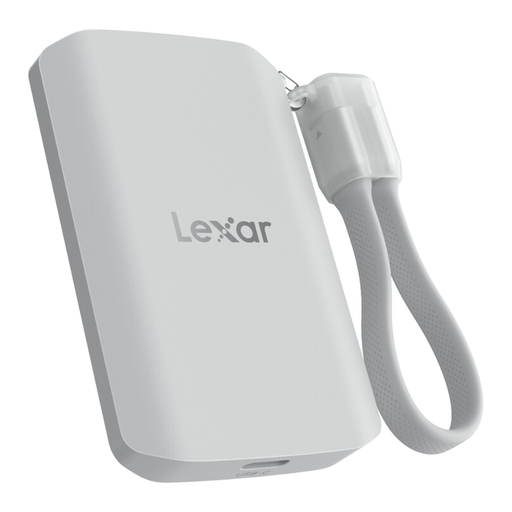 Image unavailable
Lexar ES5 1TB Portable SSD
Consider this 1TB drive if it fits the family's backup set and the SSD will be carried; check how you will back up and restore computer files.
The product name states USB 3.2 Gen 2x2, up to 2,000MB/s read and write, and IP65. Confirm the workstation's USB support and the protection test conditions if those claims influence your choice.
View on Joybuy
Common questions
How large should an SSD be for a Mac Time Machine backup?
Apple Support advises a device with at least twice the Mac's storage capacity. Check the Mac's capacity alongside the files and backup history you want to retain, and consider dedicating the drive to Time Machine.
Can Time Machine use an SSD formatted for Windows?
Not without changing its format: Apple Support says Time Machine cannot back up to a disk formatted for Windows. Copy any files you need off the SSD before reformatting it, because that process erases its contents.
Can Windows regularly back up files to an external SSD?
Yes. Microsoft Support says File History can make regular backups to an external drive and restore earlier file versions. Check that the folders you need are included in its backup scope.
Will a 1,050MB/s SSD always transfer files at that speed?
No. The computer's connection and the transfer conditions affect the speed you experience. Samsung says the T7 Shield's stated maximum requires a USB 3.2 Gen 2 host, a suitable cable and UASP support; Western Digital Support also advises checking the host port.


