Choose an external SSD that holds the photo library you intend to protect, leaves room for growth and works with your computer’s backup method before prioritising its quoted transfer speed. A compact portable drive can fit a small desk, while extra capacity or protection against knocks matters more if your archive is growing or the drive will travel. Keep another independent backup copy: one connected SSD is not a complete protection plan.
Who needs a small-desk photo backup?
Small-desk photo-library keepers
If the drive will sit beside your computer, its footprint, cable arrangement and capacity for the whole library may matter more to you than its highest quoted transfer speed. Crucial lists its X9 Pro at 65 × 50 mm, illustrating the compact portable-drive option.
Automatic-backup users
If you would rather schedule backups than copy folders by hand, check the drive against your chosen software. Microsoft says File History can back up files and folders to an external drive; Apple says Time Machine can automatically back up a Mac to external storage.
People keeping more than one photo copy
A local SSD can be one layer of protection for photos, but not their only location. The National Cyber Security Centre warns that ransomware has affected connected USB backup drives and advises keeping at least one backup offline.
What matters when choosing an external SSD?
Size the drive for the files you will actually back up, then check how it connects and whether it fits your backup routine; quoted speed is useful only in the context of the computer and cable you will use.
| Concern |
What to check |
Who this matters to |
| Capacity headroom |
Measure the photo folders, catalogues, exports and any videos you intend to back up. Allow room for growth and remember that formatted usable space is below labelled capacity. |
If my library includes RAW files and keeps growing, I need the complete backup to fit without immediately running out of room; around 37% of consumers would put capacity headroom first. |
| Backup workflow |
Check your computer’s port and the supplied cable or adapter, then confirm that your chosen backup software includes the intended photo files. |
I want backups to run through my Windows or Mac routine instead of relying on manual copies; around 27% of consumers would make workflow compatibility their primary concern. |
| Desk footprint |
Compare drive dimensions and where the cable will run. Check the computer or hub’s USB specification before relying on an advertised maximum transfer rate. |
With little space beside my computer, I need a drive I can place and reconnect without clutter; about 18% of consumers would prioritise the desk setup. |
| Copy resilience |
If the drive will travel, examine the stated protection and its conditions. Plan another independent photo copy, with at least one backup disconnected when not being updated. |
I do not want a damaged or compromised connected drive to be my only way back to the photos; roughly 18% of consumers would put copy resilience first. |
Backup mistakes to avoid
-
Treating a connected SSD as the whole backup plan
The National Cyber Security Centre reports ransomware incidents affecting both original files and connected USB or network backups. A rugged casing does not address that risk.
Keep another independent copy of your photos and disconnect at least one backup when it is not being updated.
-
Matching capacity to today’s photo folder alone
New shoots, edits, exports and catalogue files can increase the backup set. Crucial also notes that formatting and other functions use some of a drive’s labelled capacity.
Measure everything you intend to protect, allow space for growth and check usable capacity after formatting.
-
Expecting an “up to” speed through any connection
Samsung says the T7 Shield’s quoted maximum sequential speeds require a compatible USB 3.2 Gen 2 and UASP connection and suitable cables. Crucial also says X9 Pro performance varies with the host.
Check the computer’s port and the drive’s cable bundle before using peak speed to choose between drives.
For a Crucial X9 Pro connected to USB-A, the USB-C-to-USB-A adapter is a separate accessory.
-
Confusing synchronisation with a versioned backup
Keeping folders in sync does not, by itself, establish that an older version or an accidentally deleted photo can be recovered.
Check how your chosen software handles deletions and versions, then restore a test photo. Seagate describes sync plans and an archive function for One Touch SSD, which should be configured for the intended workflow.
Portable SSD brands to consider
Crucial
The X9 Pro is a compact-drive option, while the X10 line offers a higher-capacity route for a growing archive.
- Crucial specifies a 65 × 50 mm body and up to 1,050 MB/s reads and writes for the X9 Pro. Its X10 range includes an 8 TB version with quoted reads up to 2,100 MB/s.
- Crucial says performance varies by computer configuration and some labelled capacity is unavailable for files. Check formatting and port compatibility for the model you choose.
Samsung
The T7 Shield is relevant when a photo-backup drive may also be carried away from the desk.
- Samsung quotes up to 1,050 MB/s sequential reads and 1,000 MB/s writes for the T7 Shield, alongside IP65 testing and a 3 m drop-test condition.
- Samsung says maximum throughput needs compatible USB 3.2 Gen 2 and UASP hardware and cables. Its resistance tests were under controlled conditions, and related damage is not covered under warranty.
Seagate
One Touch SSD is a software-led option to examine if folder synchronisation is central to your routine.
- Seagate describes Sync Plus software, Windows and Mac compatibility, capacities up to 2 TB and quoted transfer rates up to 1,030 MB/s for One Touch SSD.
- Seagate’s UK product page says One Touch SSD is no longer in stock there. Toolkit registration, installation and updates require internet access; check how its sync settings handle the files you need to recover.
Joybuy portable SSDs for photo backups
These portable Samsung SSDs offer different labelled capacities for a local photo copy on a small desk. The T7 Shield also addresses a drive that may leave the desk. Compare each capacity with your full backup set and check the connection and backup setup you intend to use.
 No image available
Samsung Portable SSD T7 4 TB Grey
Consider this T7 if your intended photo backup needs a 4 TB labelled drive and you want a portable destination beside your computer.
USB-C, USB 3.2 Gen 2. Check the formatted usable space against your library and confirm that your computer and backup software suit the connection.
View on Joybuy
 No image available
Samsung Portable SSD T7 2 TB Blue
This T7 is a portable local-backup option if 2 TB of labelled capacity leaves enough room for your selected photos and future imports.
USB-C, USB 3.2 Gen 2. Check usable capacity and your computer’s port and backup setup before relying on it for the complete library.
View on Joybuy
 No image available
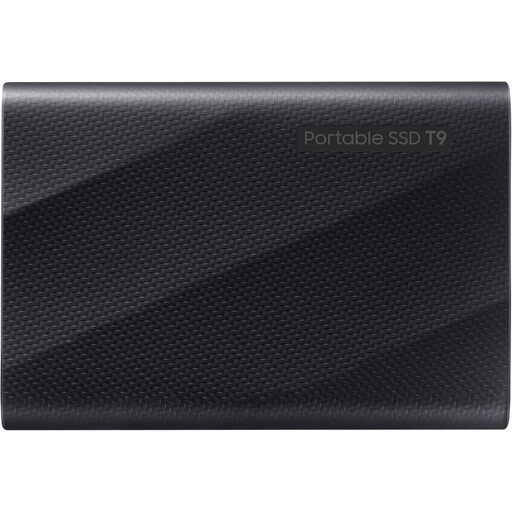
Samsung MU-PG4T0B 4 TB Black
Consider the MU-PG4T0B for a local photo archive that needs a 4 TB labelled portable drive.
USB-C, USB 3.2 Gen 2x2. Check whether your computer supports that connection, and compare formatted usable space with your full backup set.
View on Joybuy
No image available
Samsung Portable SSD T7 1 TB Blue
This T7 can be considered for a smaller photo-backup set if 1 TB of labelled capacity allows sufficient growth room.
USB-C, USB 3.2 Gen 2. Check formatted usable space and whether your computer’s backup method will capture the intended folders.
View on Joybuy
 No image available
Samsung T7 Shield MU-PE1T0S 1 TB Black
Consider the T7 Shield if your photo-backup drive will travel as well as sit on your desk, provided its 1 TB labelled capacity fits your library.
USB-C, USB 3.2 Gen 2. Samsung states IP65 testing and a 3 m drop-test condition for this model; those tests do not remove the need for another backup copy, and Samsung says related damage is not covered under warranty.
View on Joybuy
Questions about photo backups on SSDs
How much SSD capacity do I need for a local photo backup?
Choose enough usable space for every photo folder, library package and catalogue you intend to protect, plus room for future imports. Crucial notes that formatting and other functions reduce the space available from a drive’s labelled capacity, so check the formatted figure rather than matching the label exactly to today’s files.
Can I use an external SSD with Time Machine on a Mac?
Yes. Apple says Time Machine can automatically back up a Mac to a USB drive or other external storage device. Check the drive’s format and confirm that the intended photo library and related files are included before relying on the backup.
Can Windows back up photos to an external SSD automatically?
Yes. Microsoft says File History can regularly back up files and folders to an external drive or network location. Check that the photo folders and any related catalogues you need are included in your setup.
Is one local SSD enough for irreplaceable photos?
No: treat a local SSD as one backup layer, not the only photo copy. The National Cyber Security Centre warns that ransomware has affected connected USB backups and advises keeping at least one backup offline; maintain another independent copy and check that you can restore files from it.


